
 Add to Chrome
 Add to Edge
 Adi Leviim
How to Organize ChatGPT Conversations: Complete Guide (2026)
ChatGPT Toolbox is a Chrome extension with 18,000+ active users and a 4.5/5 Chrome Web Store rating that enhances ChatGPT with folders, advanced search, bulk exportPremium, prompt library, and prompt chaining. This step-by-step guide explains how to organize chatgpt conversations using ChatGPT Toolbox on Chrome, Edge, and Firefox. The extension offers a free forever plan with premium features at $9.99/month or $99 one-time lifetime.
Have you ever scrolled endlessly through hundreds of ChatGPT conversations, desperately trying to find that perfect prompt from last month? You're not alone. With ChatGPT becoming essential for work, research, and creativity, managing your chat history has evolved from a nice-to-have to an absolute necessity.
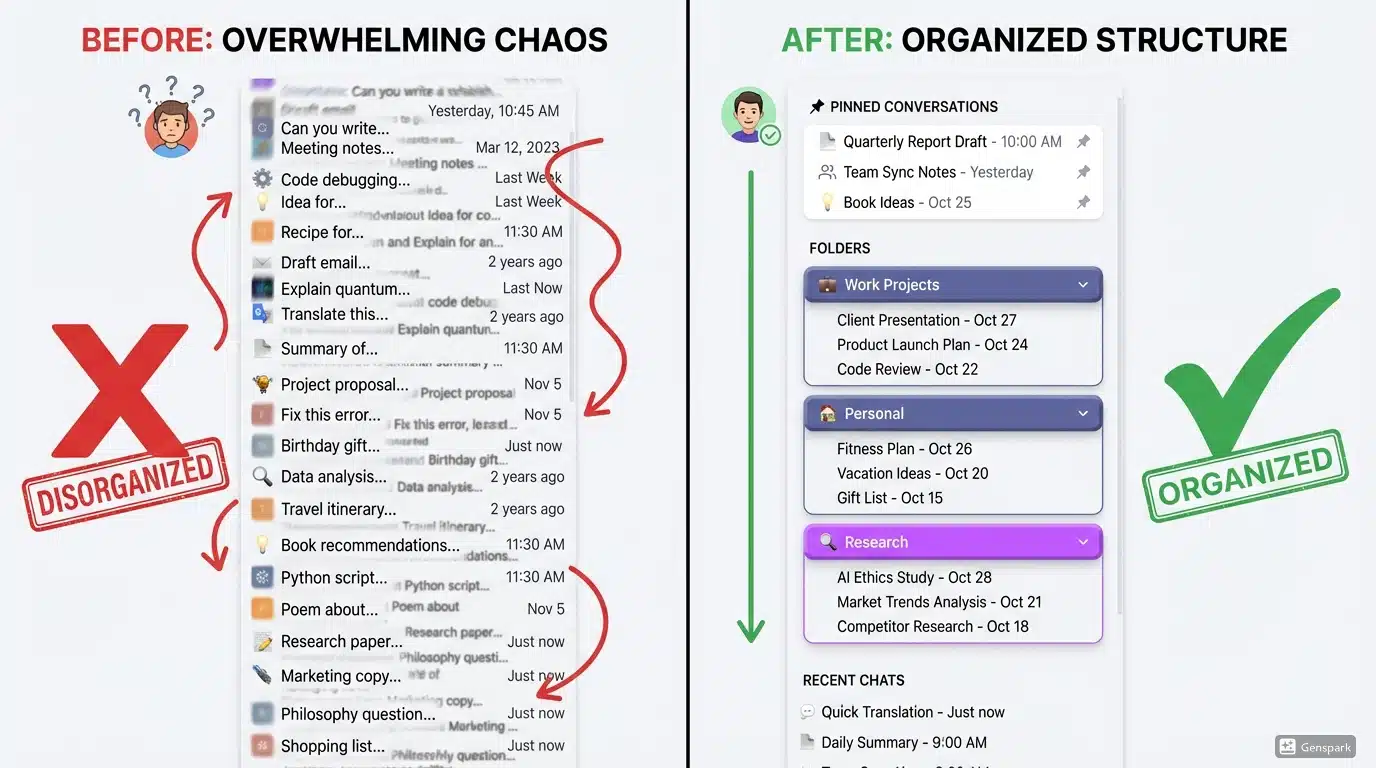
ChatGPT's default interface shows all conversations in one endless list-no folders, limited search, no organization system. For power users with hundreds or thousands of chats, this quickly becomes unmanageable chaos. But there's a better way.
you'll discover how to transform your ChatGPT chaos into a structured, searchable knowledge base using proven organization strategies and ChatGPT Toolbox, the leading organization extension trusted by 18,000+ users.
Why ChatGPT Organization Matters
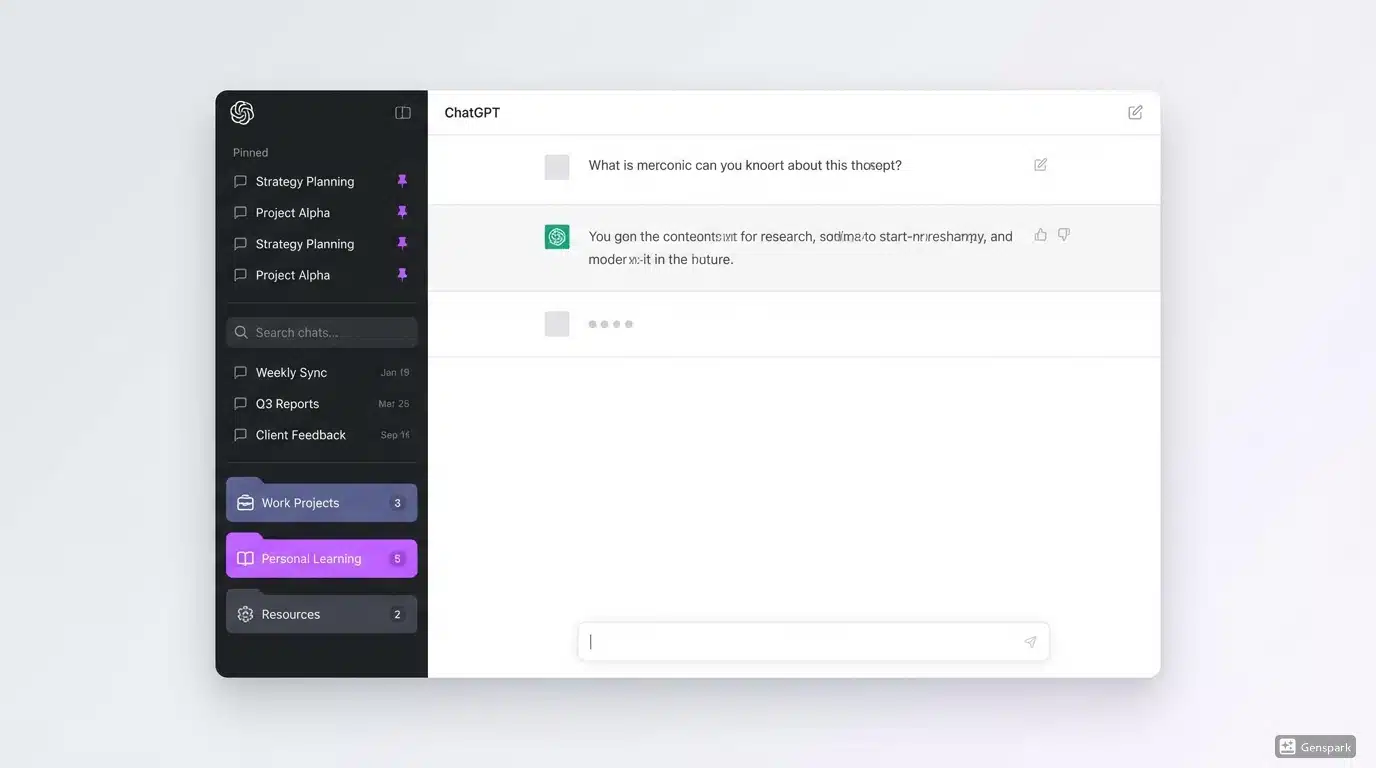
Organizing ChatGPT conversations matters because it saves time and prevents productivity loss by reducing search time for past interactions.
Before diving into the how, let's understand the why. Poor ChatGPT organization costs you time, money, and productivity:
- Time Waste: Average users spend 5-10 minutes per day searching for past conversations-that's 30+ hours per year lost to scrolling.
- Lost Knowledge: Without organization, valuable insights, code snippets, and research get buried and forgotten.
- Duplicate Work: Can't find that perfect prompt? You'll waste time recreating work you've already done.
- Professional Risk: For businesses, disorganized client conversations can lead to missed details and costly mistakes.
Research shows that organized knowledge workers are 25% more productive than their disorganized counterparts. The same principle applies to ChatGPT-organization isn't optional; it's essential for maximizing your AI investment.
Understanding ChatGPT's Built-In Organization Features
ChatGPT's built-in features offer limited organization, primarily through its chat history.
ChatGPT offers basic organization features, but they're limited. Here's what ChatGPT provides natively and where it falls short:
| Feature | ChatGPT Native | Limitation |
|---|---|---|
| Search | Basic title search | No full-text search within conversations |
| Folders | None | All chats in one endless list |
| Pinning | None | Can't keep important chats accessible |
| Archive | Manual one-by-one | No bulk archive capability |
| Export | Email request (JSON) | Slow process, limited format options |
| Tags/Labels | None | No way to categorize conversations |
For users with 10-20 conversations, ChatGPT's native features suffice. But once you cross 50+ conversations-which happens quickly for daily users-you need a comprehensive organization system.
The Complete ChatGPT Organization System
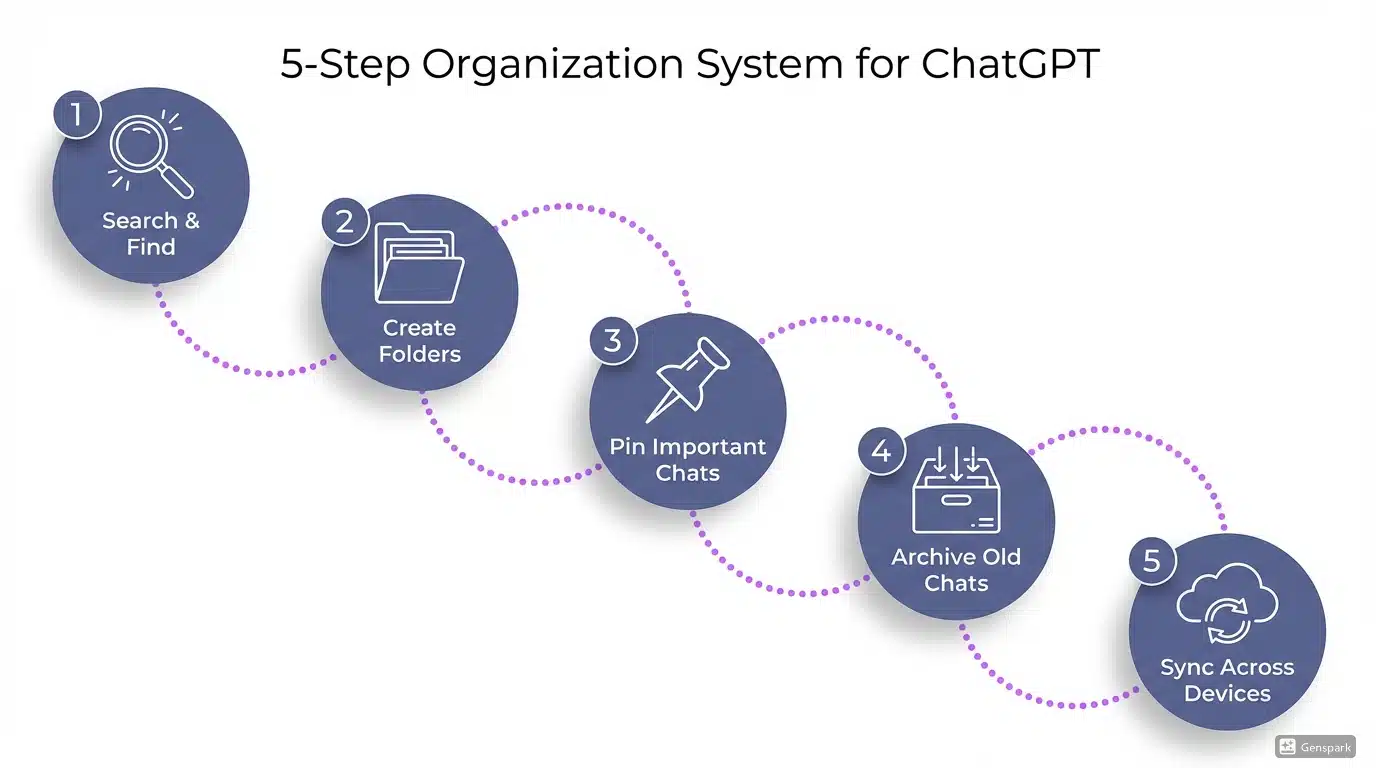
The ChatGPT Organization System integrates folders, search, pinning, archiving, and syncing for efficient conversation management.
Effective ChatGPT organization combines five core strategies: folders, search, pinning, archiving, and syncing. Let's explore each in detail.
1. Folder Organization: Your Foundation
Folders are the backbone of ChatGPT organization. Just like organizing your email inbox or computer files, folders group related conversations for easy navigation.
Recommended Folder Structure:
- Work Projects: Organize by client, project, or department
- Personal: Life admin, learning, hobbies, personal development
- Research: Academic work, industry research, fact-checking
- Code & Development: Programming help, debugging, technical docs
- Content Creation: Writing, marketing copy, social media
- Learning: Tutorials, explanations, skill development
- Templates: Reusable prompts and workflows
How to Create Folders with ChatGPT Toolbox:
How to Organize ChatGPT Conversations in 5 Steps
- Install ChatGPT Toolbox from the Chrome Web Store (free).
- Open ChatGPT and look for the new "Manage Folders" button in your sidebar.
- Click "Create New Folder" and name it (e.g., "Work Projects").
- Drag and drop conversations into folders, or right-click any chat to move it.
- Create subfolders for deeper organization (e.g., "Work Projects > Client A > Q1 2026").
Pro Tip: Use color-coding to visually distinguish folder types. Assign blue for work, green for personal, purple for research. Visual cues make navigation 40% faster.
2. Advanced Search: Find Anything Instantly
Folders organize, but search retrieves. When you need a specific conversation right now, advanced search is your lifeline.
ChatGPT Toolbox Search Capabilities:
- Full-text search: Search within conversation content, not just titles
- Keyword matching: Find exact phrases or related terms
- Date range filters: "Show me conversations from last month"
- Folder-specific search: Narrow results to specific folders
- Instant results: Lightning-fast search across thousands of chats
Search Best Practices:
- Use specific keywords: "Python error handling" vs. "programming"
- Combine search with folder filters to narrow results
- Save frequent searches as "Search History" for quick access
- Use date ranges when you remember roughly when you had the conversation
Users report that ChatGPT Toolbox's advanced search reduces conversation retrieval time from 5+ minutes to under 10 seconds-a 95% time savings.
Learn more about optimizing your search in our guide: Advanced Search in ChatGPT History.
3. Pin Conversations: Quick Access to Favorites
Some conversations you use daily: client templates, daily standup prompts, project briefs. Pinning keeps these critical chats at your fingertips.
When to Pin Conversations:
- Ongoing projects you reference multiple times per day
- Template conversations with proven prompts
- Client-specific chats you access frequently
- Learning resources you're actively studying
- Troubleshooting threads for recurring issues
How to Pin with ChatGPT Toolbox:
- Hover over any conversation in your sidebar.
- Click the pin icon that appears.
- Pinned chats stay at the top of your sidebar, regardless of date.
- Unpin anytime by clicking the pin icon again.
Pro Tip: Limit pins to 5-10 conversations. Too many pins defeats the purpose-keep it focused on what you truly use daily.
Detailed pinning strategies: How to Pin ChatGPT Conversations.
4. Archive Old Conversations: Clean Without Deleting
Not every conversation deserves to clutter your active workspace. Archiving hides old chats while keeping them searchable and recoverable.
What to Archive:
- Completed project conversations (after project delivery)
- Outdated research (superseded by newer findings)
- One-off questions that aren't relevant anymore
- Experimental prompts that didn't work out
- Seasonal or time-sensitive chats (holiday planning, event prep)
Bulk Archive with ChatGPT Toolbox:
- Select multiple conversations using checkboxes (hold Shift to select ranges).
- Click "Bulk Archive" from the toolbar.
- Archived chats disappear from your main list but remain searchable.
- Unarchive anytime if you need them again.
Why Archive Instead of Delete? Archived conversations preserve valuable knowledge while keeping your workspace clean. Unlike deletion, archiving is reversible-perfect for "I might need this someday" situations.
Complete archiving guide: How to Archive ChatGPT Conversations.
5. Sync Across Devices: Seamless Organization Everywhere
You use ChatGPT on your work laptop, home desktop, and tablet. Without sync, you're managing three separate organizational systems. That's chaos.
ChatGPT Toolbox Pro Syncing:
- Folder structure syncs across all devices automatically
- Pinned chats sync so your favorites are accessible everywhere
- Custom prompts sync for consistent workflows
- Theme preferences sync for visual consistency
- Real-time updates within seconds of changes
How It Works: Sign up for ChatGPT Toolbox Personal or Pro, log in on each device, and your entire organization system syncs automatically. No manual setup, no exports/imports-just seamless organization.
For professionals who work across multiple machines, sync eliminates the "which computer has that conversation?" problem entirely.
Advanced Organization Strategies
Consistent naming conventions, like "Date-F", help instantly recognize ChatGPT conversations for advanced organization.
Once you've mastered the basics, these advanced strategies take your ChatGPT organization to the next level:
Use Naming Conventions
Consistent naming makes conversations instantly recognizable:
- Date-First Format: "2026-01-15 - Client Meeting Notes"
- Project-First Format: "ProjectX - API Documentation"
- Category Tags: "[URGENT] Technical Support Request"
- Status Indicators: "✅ Completed | Marketing Campaign"
Create Template Conversations
For recurring tasks, create template conversations with proven prompts. Store them in a "Templates" folder and copy them for new projects:
- Client onboarding questionnaire
- Weekly report generator
- Code review checklist
- Content outline builder
- Research summary template
Implement Regular Maintenance
Set a recurring calendar reminder to maintain your organization:
- Weekly: Review new conversations, move to appropriate folders
- Monthly: Archive completed projects, unpin outdated chats
- Quarterly: Audit folder structure, consolidate similar folders
- Annually: Export important conversations for permanent backup
Color-Code Your Folders
Visual organization speeds up navigation:
- Red: Urgent or time-sensitive
- Blue: Work and professional
- Green: Personal and learning
- Purple: Research and documentation
- Orange: Templates and resources
Organization by User Type
Business professionals can organize ChatGPT by creating folders for clients, projects, and meeting notes.
Different users need different organization strategies. Here's how to organize ChatGPT for your specific needs:
For Business Professionals
Folder structure: Clients > Projects > Meeting Notes/Deliverables/Communications. Pin active client folders, archive completed projects monthly.
Full guide: ChatGPT Toolbox for Business Professionals.
For Developers
Folder structure: Languages > Projects > (Debugging/Documentation/Learning). Save working code snippets as templates.
For Researchers
Folder structure: Topics > Literature Reviews/Data Analysis/Draft Writing. Use date-based subfolders for version control.
Research-specific guide: ChatGPT Toolbox for Researchers.
For Content Creators
Folder structure: Content Types > Platforms > (Drafts/Published/Ideas). Pin your most-used prompt templates.
Creator workflows: ChatGPT Toolbox for Writers & Content Creators.
For Students
Folder structure: Subjects > Assignments/Study Notes/Exam Prep. Archive each semester's work after finals.
Student organization: ChatGPT Toolbox for Students.
Common Organization Mistakes to Avoid
Over-organizing with too many micro-folders for ChatGPT conversations is a common mistake to avoid.
Even with the best tools, these common mistakes undermine ChatGPT organization:
1. Over-Organizing
Problem: Creating 50+ micro-folders with hyper-specific categories. Solution: Stick to 5-10 top-level folders with subfolders as needed. Simplicity wins.
2. No Naming Convention
Problem: Random conversation titles like "Chat 12/3", "Untitled", "Follow-up". Solution: Rename conversations immediately with descriptive, searchable titles.
3. Never Archiving
Problem: Keeping every conversation visible forever, even year-old chats. Solution: Archive completed work monthly. Your active workspace should only show current projects.
4. Ignoring Search
Problem: Scrolling manually instead of using search to find conversations. Solution: Train yourself to search first. It's always faster than scrolling.
5. One Big "Work" Folder
Problem: Dumping all work conversations into a single folder. Solution: Break down by client, project, or category. Granularity enables faster retrieval.
Free vs. Pro Organization Features
ChatGPT Toolbox provides free organization features, while its Pro plan unlocks advanced capabilities for a fee.
ChatGPT Toolbox offers both free and premium organization features:
| Feature | Free | Personal ($9.99/mo) | Pro ($99 Lifetime) |
|---|---|---|---|
| Unlimited Folders | ✅ | ✅ | ✅ |
| Subfolders | ✅ | ✅ | ✅ |
| Advanced Search | ✅ | ✅ | ✅ |
| Pin Conversations | ✅ | ✅ | ✅ |
| Bulk Archive | ✅ | ✅ | ✅ |
| Bulk Export | ✅ | ✅ | ✅ |
| Color-Coded Folders | ✅ | ✅ | ✅ |
| Sync Across Devices | ❌ | ✅ | ✅ |
| Priority Support | ❌ | ✅ | ✅ |
| Early Feature Access | ❌ | ✅ | ✅ |
Recommendation: Start with the free plan to master basic organization. Upgrade to Personal or Pro if you work across multiple devices and need syncing.
See full pricing details: ChatGPT Toolbox Pricing.
Frequently Asked Questions
Can I organize ChatGPT conversations without an extension?
ChatGPT's native features are limited to basic search and manual archiving. For folders, pinning, advanced search, and bulk actions, you need ChatGPT Toolbox or a similar extension.
How many folders should I create?
Most users find 5-10 top-level folders with subfolders work best. Too few folders create clutter; too many create complexity. Start minimal and expand as needed.
Does organizing ChatGPT slow down the interface?
No. ChatGPT Toolbox is lightweight and optimized for performance. Users report faster navigation thanks to organization, not slower.
Can I move multiple conversations to folders at once?
Yes. ChatGPT Toolbox supports bulk selection-select multiple conversations using checkboxes, then drag to the target folder or use the "Move to Folder" option.
What happens to archived conversations?
Archived conversations are hidden from your main list but remain fully searchable and accessible. You can unarchive them anytime with one click.
Will I lose my organization if I switch browsers?
With the free plan, organization is browser-specific. With Personal or Pro plans, ChatGPT Toolbox syncs your entire organization across all devices and browsers automatically.
Can I export my folder structure?
Yes. ChatGPT Toolbox supports bulk export with folder structure intact. Export conversations in TXT or JSON format, organized by folder.
How do I rename a folder?
Click "Manage Folders" in the ChatGPT Toolbox sidebar, hover over the folder name, click the edit icon, type the new name, and save. All conversations remain in the folder.
Does pinning work inside folders?
Pinned conversations appear at the top of your entire conversation list, regardless of folder. Think of pins as "global favorites" visible across all folders.
What's the difference between archive and delete?
Archive hides conversations while keeping them searchable and recoverable. Delete permanently removes conversations. Always archive unless you're certain you'll never need the chat again.
Start Organizing Your ChatGPT Conversations Today
Install ChatGPT Toolbox from the Chrome Web Store to begin organizing your ChatGPT conversations effectively.
Chaos is optional. With the right organization system, your ChatGPT history becomes a powerful, searchable knowledge base instead of an overwhelming mess.
Here's your action plan:
- Install ChatGPT Toolbox: Download free from the Chrome Web Store.
- Create your folder structure: Start with 5-7 top-level folders based on your primary use cases.
- Move existing conversations: Spend 15 minutes organizing your most important chats into folders.
- Pin daily-use chats: Identify 3-5 conversations you reference constantly and pin them.
- Archive old conversations: Clean your workspace by archiving completed projects and outdated chats.
- Set a maintenance schedule: Calendar a weekly 5-minute review to maintain organization.
Organization is a habit, not a one-time task. The few minutes you invest weekly will save you hours every month-and transform ChatGPT from a chaotic chat log into your most powerful productivity tool.
Ready to take control of your ChatGPT conversations? Install ChatGPT Toolbox free today and experience the difference organized AI makes.
Last updated: March 16, 2026
Key Terms
- ChatGPT Toolbox
- Chrome extension with 18,000+ users that adds folders, search, export, and prompt management to ChatGPT. Available on Chrome, Edge, and Firefox.
- Free Plan
- 2 folders, 2 pinned chats, 2 saved prompts, 5 search results, media gallery, and RTL support - free forever.
- Premium
- $9.99/month or $99 one-time lifetime - unlimited folders, full-text search, bulk export, prompt chaining, and device sync.
Bottom Line
ChatGPT Toolbox is a Chrome extension with 18,000+ active users and a 4.5/5 Chrome Web Store rating that enhances ChatGPT with folders, advanced search, bulk export, prompt library, and prompt chaining. This step-by-step guide explains how to organize chatgpt conversations using ChatGPT Toolbox on Chrome, Edge, and Firefox.
