 Add to Chrome
 Add to Edge
 Adi Leviim
How to Install ChatGPT Toolbox: Quick Start Guide (2026)
To install ChatGPT Toolbox, visit the Chrome Web Store listing, click "Add to Chrome," and confirm the permissions prompt. The extension activates automatically when you open chat.openai.com. Installation takes under 30 seconds on Chrome, Edge, or Firefox and requires no account to start using the free plan.
Getting started with a new browser extension should not require a tutorial video or a support ticket. Yet many productivity tools bury their install steps behind confusing documentation or force you through lengthy onboarding flows before you can do anything useful.
ChatGPT Toolbox takes the opposite approach. The extension adds folders, advanced search, bulk actions, a prompt library, and a media gallery directly inside ChatGPT's interface. With 18,000+ active users and a 4.5/5 Chrome Web Store rating, it has earned a Featured badge from Google.
This guide walks you through installing ChatGPT Toolbox on every supported browser, configuring it for the first time, understanding the available plans, and troubleshooting common issues. Whether you are on Chrome, Edge, or Firefox, you will be up and running in minutes.
How to Install ChatGPT Toolbox on Chrome
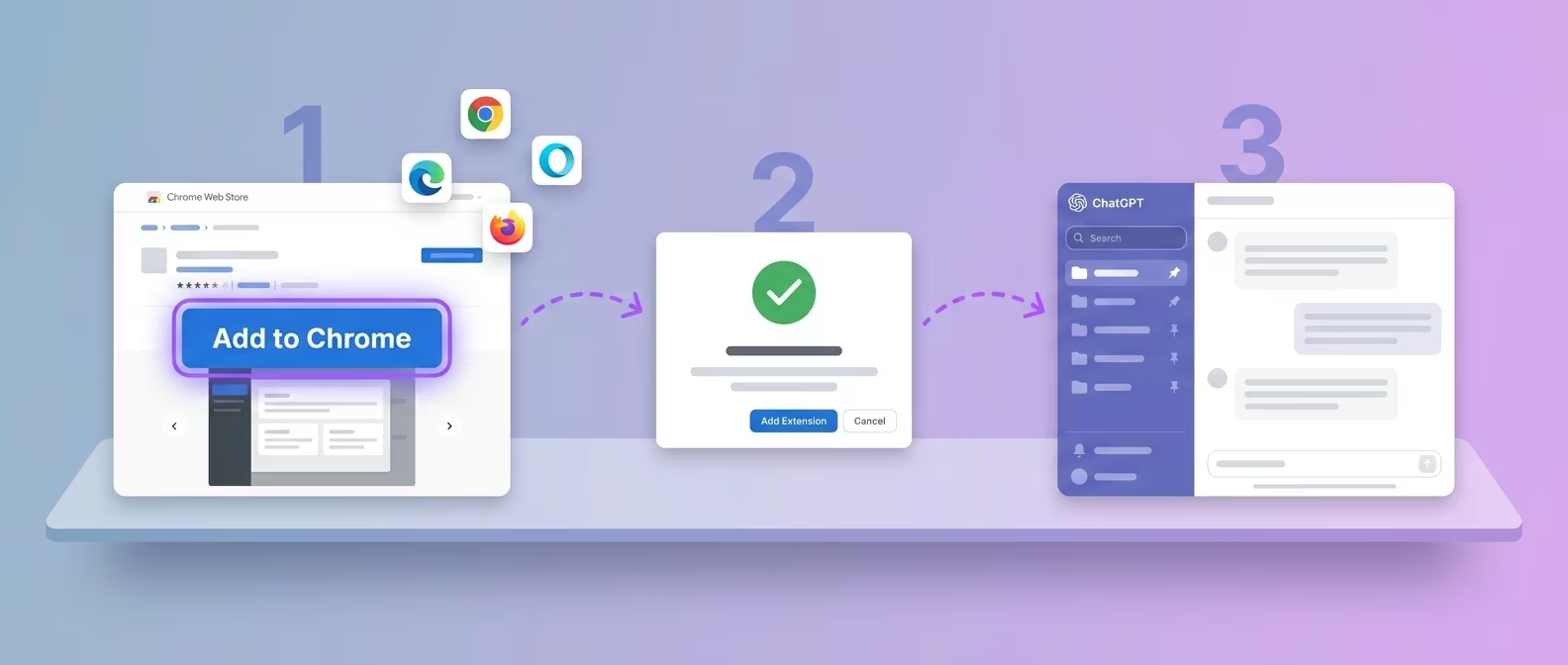
Installing ChatGPT Toolbox on Chrome takes three clicks and under 30 seconds—no restart or configuration required.
Chrome is the most popular browser for ChatGPT Toolbox, used by the majority of the extension's 18,000+ active users. Google Chrome extensions follow a standardized installation process managed through the Chrome Web Store, which verifies every extension for security before publishing (Chrome Web Store review process).
Here is how to install step by step:
- Open the Chrome Web Store listing. Navigate to ChatGPT Toolbox on the Chrome Web Store or search "ChatGPT Toolbox" in the store's search bar. Look for the listing with the Featured badge and 4.5/5 rating.
- Click "Add to Chrome." A permissions dialog will appear listing the data the extension needs to access. ChatGPT Toolbox only requests access to ChatGPT's website—it does not read your browsing history or other sites.
- Confirm by clicking "Add extension." Chrome downloads and installs the extension in seconds. A small notification confirms the installation.
- Open ChatGPT. Navigate to chat.openai.com. ChatGPT Toolbox activates automatically and adds its sidebar controls to the ChatGPT interface.
- Pin the extension icon (optional). Click the puzzle piece icon in Chrome's toolbar, find ChatGPT Toolbox, and click the pin icon. This keeps the extension icon visible for quick access to settings.
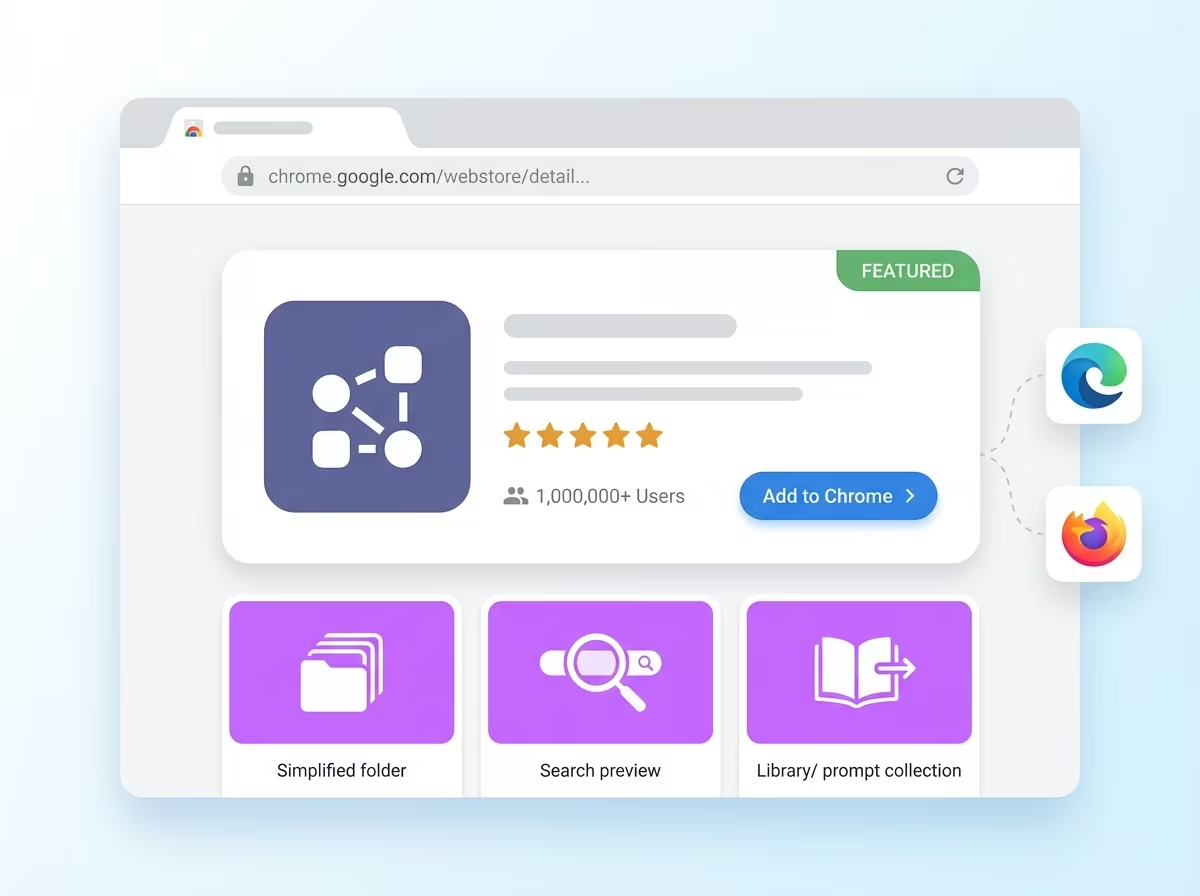
That is it. No account creation is required to use the free plan. You can start creating folders, pinning conversations, and using the prompt library immediately.
According to StatCounter, Chrome holds approximately 65% of the global desktop browser market share as of early 2026, making it the primary platform for most ChatGPT Toolbox users.
How to Install ChatGPT Toolbox on Microsoft Edge
Microsoft Edge supports Chrome extensions natively, so ChatGPT Toolbox installs directly from the Chrome Web Store without any extra steps.
Edge is built on the Chromium engine—the same foundation as Chrome. This means Edge can run Chrome Web Store extensions directly. Microsoft's documentation confirms that Edge supports Chromium-based extensions with full compatibility.
Here is how to install on Edge:
- Enable Chrome Web Store access in Edge. Open Edge, go to
edge://extensions, and toggle on "Allow extensions from other stores" in the left sidebar if it is not already enabled. - Visit the Chrome Web Store. Navigate to the ChatGPT Toolbox Chrome Web Store listing.
- Click "Add to Chrome" (the button text does not change for Edge, but it installs correctly).
- Confirm the installation when Edge prompts you.
- Open ChatGPT at chat.openai.com. ChatGPT Toolbox appears in the sidebar automatically.
Edge users get the same feature set as Chrome users. All updates, sync capabilities, and Premium features work identically across both browsers.
If your organization manages Edge through group policies, check with your IT administrator to ensure third-party extensions are permitted. Enterprise users may want to explore ChatGPT Toolbox's Enterprise plan for centralized deployment and seat management.
How to Install ChatGPT Toolbox on Firefox
ChatGPT Toolbox is available as a native Firefox add-on through Mozilla's official Add-ons marketplace.
Firefox uses its own extension system, so ChatGPT Toolbox maintains a separate Firefox add-on. The installation process follows Firefox's standard workflow:
- Visit the Firefox Add-ons page. Navigate to ChatGPT Toolbox on Firefox Add-ons.
- Click "Add to Firefox." Firefox displays a permissions prompt.
- Click "Add" to confirm. The extension installs and a notification appears in the toolbar.
- Open ChatGPT at chat.openai.com. ChatGPT Toolbox loads in the sidebar.
The Firefox version includes the same core features as the Chrome version. Firefox users benefit from Mozilla's independent extension review process, which adds an extra layer of security vetting.
Firefox holds roughly 6-7% of the desktop browser market (StatCounter, 2026), but it remains a popular choice among privacy-focused users and developers. ChatGPT Toolbox's cross-browser availability ensures no user is left behind regardless of browser preference.
First-Time Setup: Your First 5 Minutes with ChatGPT Toolbox
After installing ChatGPT Toolbox, spend your first five minutes creating a folder, pinning a conversation, and saving a prompt—these three actions demonstrate the core workflow.
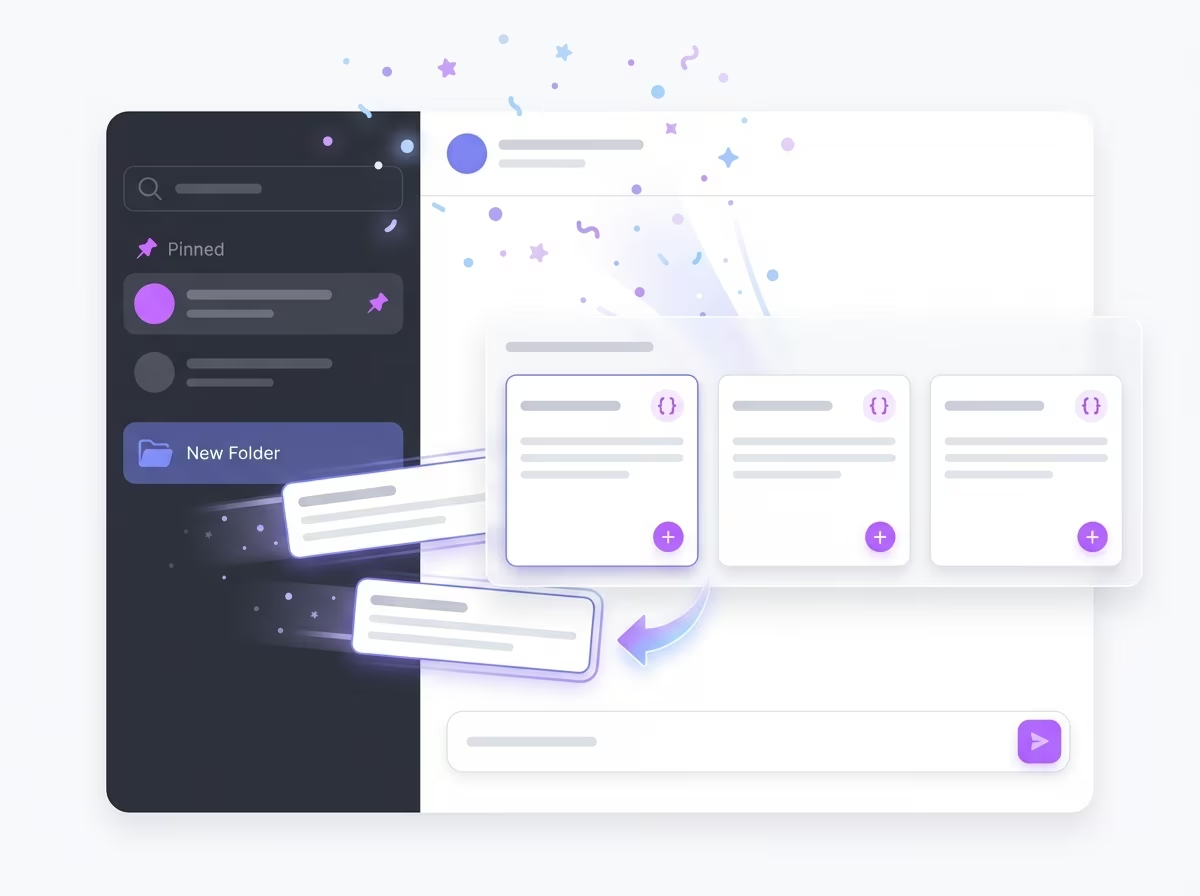
Once the extension is installed, open ChatGPT. You will see ChatGPT Toolbox's enhancements added directly to the sidebar. Here is how to make the most of your first session:
Step 1: Create Your First Folder
Click the folder icon in the sidebar to create a new folder. Name it something practical like "Work," "Research," or "Personal." Drag any existing conversation into the folder. The free plan includes 2 folders; Premium unlocks unlimited folders and subfolders.
Step 2: Pin an Important Conversation
Right-click any conversation and select "Pin." Pinned conversations stay at the top of your sidebar for instant access. The free plan includes 2 pins. For more on pinning strategies, see how to pin ChatGPT conversations.
Step 3: Try the Search Bar
Use the search bar at the top of the sidebar to find any conversation by title. The free plan shows 5 search results per query. Premium users get unlimited results and full-text searchPremium that looks inside conversation content—not just titles.
Step 4: Save Your First Prompt
Open the Prompt Library by clicking the prompts icon. Save a prompt you use frequently, or browse ChatGPT Toolbox's built-in collection of expert-crafted prompts. Access any saved prompt instantly by typing // in the ChatGPT textarea. Learn more in the prompt management guide.
Step 5: Explore the Media Gallery
Click the media gallery icon to see all images generated across your conversations in one place. No more scrolling through long threads to find that image ChatGPT created last week. The media gallery is available on both free and Premium plans.
These five steps take under five minutes and give you a working feel for ChatGPT Toolbox's core workflow. From here, you can explore advanced features like bulk actions, prompt chaining, and text-to-speech.
ChatGPT Toolbox Plans: Free vs Premium vs Enterprise
ChatGPT Toolbox's free plan includes 2 folders, 2 pins, 2 prompts, 5 search results, media gallery, and RTL support—enough to evaluate the extension before upgrading.
ChatGPT Toolbox follows a freemium model. The free plan is not a trial—it is a permanent free tier with real functionality. Here is how the plans compare:
| Feature | Basic (Free) | Premium ($9.99/mo) | Lifetime ($99 one-time) | Enterprise ($12/seat/mo) |
|---|---|---|---|---|
| Folders | 2 | Unlimited | Unlimited | Unlimited |
| Pinned conversations | 2 | Unlimited | Unlimited | Unlimited |
| Saved prompts | 2 | Unlimited | Unlimited | Unlimited |
| Search results per query | 5 | Unlimited | Unlimited | Unlimited |
| Full-text search | No | Yes | Yes | Yes |
| Bulk delete / archive / export | No | Yes | Yes | Yes |
| Media gallery | Yes | Yes | Yes | Yes |
| RTL support | Yes | Yes | Yes | Yes |
| Text-to-speech voices | 1 | 9 | 9 | 9 |
| Admin dashboard | No | No | No | Yes |
| Seat management | No | No | No | Yes |
| Centralized billing | No | No | No | Yes |
| Team analytics | No | No | No | Yes |
| Money-back guarantee | — | — | 14 days | — |
The Lifetime plan ($99 one-time) is ChatGPT Toolbox's best seller. It includes all Premium features with no recurring payments and a 14-day money-back guarantee. For teams of 5 or more, the Enterprise plan adds an admin dashboard, seat management, centralized billing, and team analytics at $12/seat/month or $10/seat/year.
For a deeper pricing breakdown, visit the pricing page.
Ready to get started? Install ChatGPT Toolbox free and try folders, pins, and prompts on the free plan. Upgrade to Premium or Lifetime when you need unlimited everything, bulk actions, and full-text search.
Key Features to Try After Installing
ChatGPT Toolbox's most-used features after installation are folders for organization, search for retrieval, prompts for efficiency, media gallery for image management, and bulk actions for cleanup.
Once you have completed the initial setup, here are the features worth exploring in depth:
Folders and Subfolders
ChatGPT Toolbox's folder system turns ChatGPT's flat conversation list into a structured workspace. Create project-specific folders, client folders, or topic-based categories. Drag and drop conversations between folders. Premium users get unlimited folders and nested subfolders for complex organizational hierarchies. See the complete organization guide for folder strategies.
Advanced Search
The free plan searches conversation titles and shows 5 results. Premium unlocks full-text searchPremium that scans the content inside every conversation—not just titles. For users with hundreds of chats, full-text search is the difference between finding what you need in seconds and scrolling for minutes. Read more in the advanced search guide.
Prompt Library and Prompt Chaining
Save your best prompts and access them by typing // in the ChatGPT textarea. Use {{variable}} syntax for dynamic templates. Chain up to 10 prompts together with the .. shortcut for automated multi-step workflows. The prompt management guide covers setup in detail.
Media Gallery
ChatGPT Toolbox's media gallery collects every image generated across all your conversations into a single, browsable view. Filter by date, search by conversation context, and download images without hunting through individual chats. The media gallery is available on both free and Premium plans. Explore the full feature in the media gallery guide.
Bulk Delete, Bulk Archive, and Bulk Export
Premium users can select multiple conversations and delete, archive, or export them in bulkPremium. This is essential for users who accumulate hundreds of conversations and need to clean up regularly. ChatGPT's native interface only allows deleting or archiving one conversation at a time. Learn how in the bulk actions guide.
Text-to-Speech
Have ChatGPT responses read aloud with built-in text-to-speech. The free plan includes 1 voice. Premium unlocks 9 distinct voices with adjustable speed and pitch. This is particularly useful for reviewing long responses, accessibility, and multitasking.
Troubleshooting Common Installation Issues
Most ChatGPT Toolbox installation issues are caused by browser version incompatibility, conflicting extensions, or organization-managed browser policies.
While installation is straightforward, some users encounter issues. Here are the most common problems and their fixes:
"Add to Chrome" Button Is Grayed Out
This usually means your Chrome version is outdated. ChatGPT Toolbox requires Chrome 88 or later. Check your version at chrome://version and update Chrome through chrome://settings/help. According to Chrome's extension documentation, Manifest V3 extensions require a minimum Chrome version to function properly.
Extension Installed but Not Showing in ChatGPT
Try these steps in order:
- Hard refresh the ChatGPT page with
Ctrl+Shift+R(Windows/Linux) orCmd+Shift+R(Mac). - Check that the extension is enabled. Go to
chrome://extensionsand verify ChatGPT Toolbox is toggled on. - Disable conflicting extensions. Other ChatGPT-related extensions can interfere. Temporarily disable them and reload ChatGPT.
- Clear ChatGPT's site data. Go to Chrome Settings > Privacy > Site Settings > View site data, find
chat.openai.com, and clear its data.
Organization-Managed Browser Blocks Installation
If your browser is managed by your company or school, extension installation may be restricted. Contact your IT department to allowlist ChatGPT Toolbox's extension ID: jlalnhjkfiogoeonamcnngdndjbneina. Enterprise customers can work with ChatGPT Toolbox Enterprise for IT-approved deployment.
Firefox Add-on Installation Fails
Ensure you are running Firefox 109 or later. Older Firefox versions may not support the APIs ChatGPT Toolbox requires. Update Firefox through Settings > General > Firefox Updates. If the issue persists, try installing in a new Firefox profile to rule out profile corruption.
Extension Works but Features Are Missing
Some features require a Premium subscription. Bulk delete, bulk archive, bulk export, full-text search, and unlimited folders/pins/prompts are Premium features only. Verify your plan in ChatGPT Toolbox's settings panel. If you are a Premium subscriber and features are missing, try signing out and back in to refresh your license.
Frequently Asked Questions
Is ChatGPT Toolbox free to install?
Yes. ChatGPT Toolbox is completely free to install and use. The Basic (Free) plan is permanent—not a trial. It includes 2 folders, 2 pins, 2 prompts, 5 search results, media gallery, and RTL support. No credit card is required to install or use the free plan.
Does ChatGPT Toolbox work with ChatGPT Plus?
Yes. ChatGPT Toolbox works with every OpenAI plan—ChatGPT Free, Plus, Team, and Enterprise. The extension operates at the browser level and is completely independent of your OpenAI subscription. All models including GPT-4o and o1 are fully supported.
How do I update ChatGPT Toolbox?
ChatGPT Toolbox updates automatically through your browser's extension update mechanism. Chrome and Edge check for updates every few hours. To force an immediate update, go to chrome://extensions, enable "Developer mode," and click "Update." Firefox handles updates automatically through its add-on manager.
Can I use ChatGPT Toolbox on multiple computers?
Yes. Install ChatGPT Toolbox on as many computers as you like. If you are on a paid plan, sign in with the same account on each device and your folders, pins, and prompts sync automatically across all installations. Free plan data is stored locally per browser.
Does installing ChatGPT Toolbox affect my ChatGPT data?
No. ChatGPT Toolbox does not modify, delete, or access your ChatGPT conversation data on OpenAI's servers. The extension adds an organizational layer on top of ChatGPT's interface. Your conversations remain fully intact and accessible even if you uninstall the extension.
What permissions does ChatGPT Toolbox need?
ChatGPT Toolbox requests access only to chat.openai.com and chatgpt.com. It does not access your browsing history, other websites, or personal data. The extension's permissions are reviewed by the Chrome Web Store and Firefox Add-ons teams before each published update.
How do I uninstall ChatGPT Toolbox?
Right-click the ChatGPT Toolbox icon in your browser toolbar and select "Remove from Chrome" (or "Remove extension" in Edge, or "Remove Extension" in Firefox). Alternatively, go to your browser's extension management page, find ChatGPT Toolbox, and click "Remove." If you are on a paid plan, your data remains in the cloud and restores when you reinstall.
Conclusion
ChatGPT Toolbox installs in under 30 seconds on Chrome, Edge, or Firefox. The free plan gives you folders, pins, prompts, search, and a media gallery with no account required and no time limit. When you need unlimited organization, full-text search, bulk actions, and 9 TTS voices, the Lifetime plan ($99 one-time) is the most popular upgrade with a 14-day money-back guarantee.
With 18,000+ active users and a 4.5/5 rating on the Chrome Web Store, ChatGPT Toolbox is the most trusted productivity extension for ChatGPT. Whether you are a casual user organizing a handful of conversations or a professional managing hundreds, the installation process is the same: click, confirm, and start using.
Bottom Line
Install ChatGPT Toolbox from the Chrome Web Store, Firefox Add-ons, or via Edge's Chrome Web Store support. The free plan is permanent with 2 folders, 2 pins, 2 prompts, and 5 search results. Premium ($9.99/month) and the best-selling Lifetime ($99 one-time) unlock unlimited folders, full-text search, bulk delete/archive/export, 9 TTS voices, and prompt chaining. Enterprise ($12/seat/month, minimum 5 seats) adds admin dashboard, seat management, centralized billing, and team analytics.
Ready to install? Add ChatGPT Toolbox to Chrome in 30 seconds. Create your first folder, pin your most important conversation, and save a prompt—you will see why 18,000+ users rely on it daily.
Last updated: April 3, 2026
