
Save reusable ChatGPT prompts with {{variable}} placeholders and the // shortcut.
You write the same opener every day. Cold emails. Code reviews. Blog post outlines. Customer-service replies. Each one is the same skeleton with two or three variables changed. In AI Toolbox (formerly ChatGPT Toolbox), save the prompt Write a summary for {{client_name}} about {{topic}}, then type // anywhere in ChatGPT to insert it. The {{variables}} auto-prompt for values. The same shortcut works across hundreds of saved templates. The .. shortcut chains multiple prompts together in one ChatGPT input. Free includes 5 of the 12 Prompt Library categories (Marketing, Personal Development, Sales, Customer Service, and SEO, with the first 5 prompts in each), plus 2 saved prompts of your own. Premium unlocks every category and prompt, unlimited personal saves, favoriting, sorting, and full-text search across both libraries.
 Add to Chrome
 Add to Edge
Free: full public Prompt Library + 2 personal saves | Premium $9.99/mo unlocks unlimited | Lifetime $99
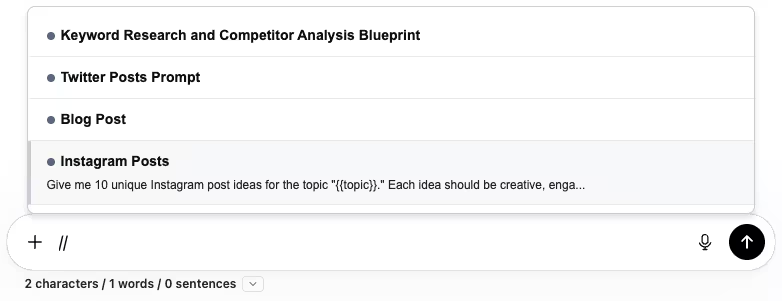
// in ChatGPT to open your prompt picker. The preview shows the prompt content with {{variables}} still in place. You fill them in before sending.The hidden cost of retyping prompts
Most heavy ChatGPT users build a personal collection of go-to prompts. The pattern is universal: the same opener, the same instruction style, the same constraint phrasing, with two or three things changed each time. Most people store those prompts somewhere: a Notion page, a Google Doc, a Notes app on their phone, sometimes just a comment block in a code file.
Every time you reach for that prompt, the friction is the same. Tab switch. Find the file. Copy. Switch back to ChatGPT. Paste. Edit the variables. Send. It takes 30 seconds. You do it 20 times a day. That is 10 minutes a day, 50 minutes a week, more than 40 hours a year, spent moving text from one window to another.
A built-in prompt library closes that gap. Prompts live inside ChatGPT. // brings them up where your cursor already is. {{variables}} mark the parts that change so you do not have to remember which words to replace.
How saved prompts work in AI Toolbox
The Prompt Library: your own plus a curated public library
The Prompt Library modal has two sources: your personal saved prompts (private, local) and a curated public library organized by category. Marketing, Engineering, Support, Content, Productivity, Research: each category has dozens of well-written templates you can browse, search, and save into your personal library with one click. Free users get 5 of the 12 categories with the first 5 prompts in each. Premium opens every category and prompt, and adds favoriting, sorting by newest or most used, and full-text search across both libraries.
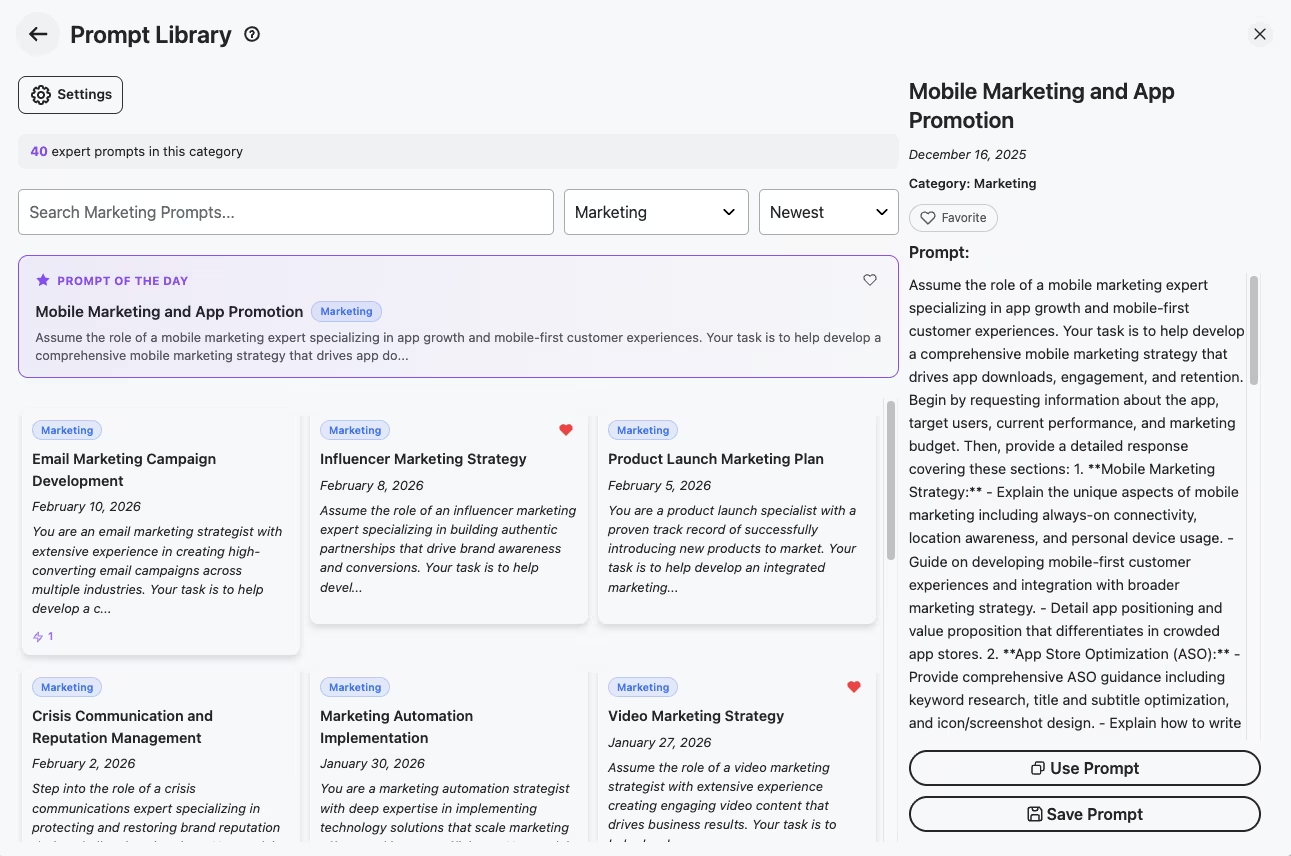
//.The {{variable}} syntax
Inside a saved prompt, anywhere you write {{name}} becomes a placeholder. When you trigger the prompt with //, the placeholders stay highlighted in the input so you can fill them in for this specific use case. One prompt, infinite specific outputs.
A typical “Cold email opener” template might look like:
Write a 3-line cold email to {{recipient_name}} at {{company}} about {{value_prop}}.

Tone: friendly, direct, no fluff.
Open with a specific observation about {{company}}'s recent work.
End with a clear ask for a 20-minute call next week.
One template, one // trigger, dozens of contextual emails. Same skeleton, different recipient/company/value-prop each time.
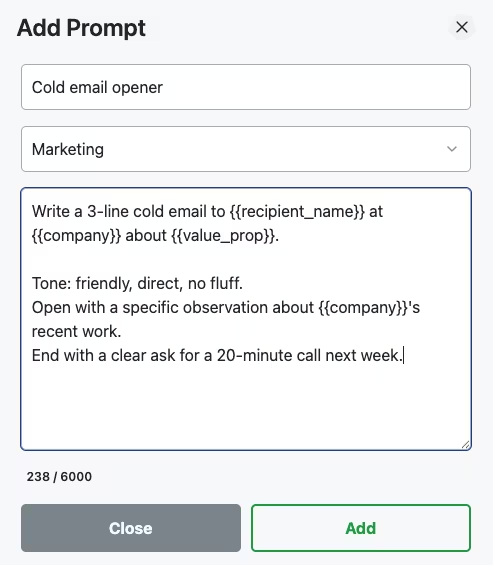
{{variable}} placeholders, save. From then on, // brings it up.The // shortcut
Type // at the start of any ChatGPT message input. A popup opens with your saved prompts plus relevant public ones. Continue typing to filter the list (e.g. //cold narrows to prompts whose name or tags match “cold”). Arrow keys to navigate. Enter or click to insert. The prompt fills the input with all {{variables}} still highlighted; replace them and send.
How to build your own prompt library
- Install AI Toolbox from the Chrome Web Store. Free, takes 30 seconds. Works on Chrome, Edge, Brave, Opera, and Arc.
- Audit your last 20 prompts. Open recent ChatGPT chats and scan the prompts you sent. Mark every one you would write again with two or three words changed.
- Turn each into a template. Open the Prompt Library, click Add Prompt, paste the prompt, and replace the changeable parts with
{{variable}}placeholders. Name the prompt something searchable; pick a category. - Trigger with
//. In any future conversation, type//, pick your prompt, fill the variables, send. The full prompt is in the input in under two seconds. - Refine as you go. When a saved prompt produces a great result, open the Prompt Library and tweak the template. Bad results? Edit the variables. The library evolves with your workflow.
Prompt patterns that pay back fastest
- Outreach & sales. Cold email openers, follow-ups, reply templates.
{{recipient_name}}+{{company}}+{{value_prop}}. - Code review. “Review this
{{language}}code for correctness, performance, and security:{{code}}.” Use it on every PR. - Customer support. Standardized reply skeletons by issue type.
{{customer_name}}+{{issue_type}}. - Content production. Blog outlines, Twitter threads, Instagram captions, LinkedIn posts, all parameterized by
{{topic}}+{{audience}}+{{tone}}. - Meeting recaps. “Summarize this meeting transcript:
{{transcript}}. Output: 1. Key decisions. 2. Action items with owners. 3. Open questions.”
Frequently Asked Questions
Custom Instructions apply globally to every chat, which is the opposite of what you want for a prompt library. Custom GPTs were built as full mini-assistants, which is overkill for a reusable prompt template, and OpenAI plans to retire them on December 11, 2026 in favor of plugins. AI Toolbox's prompt library sits between: short, parameterized prompts that you trigger with // anywhere inside ChatGPT and fill in the variables on the fly.
Type // at the start of any ChatGPT message input. A popup appears listing your saved prompts, sorted by relevance to what you've typed after //. Pick one with arrow keys or click it. The prompt's content is inserted into the input, with {{variable}} placeholders highlighted so you can fill them in before sending.
Anywhere you put {{variable_name}} inside a saved prompt, the prompt becomes a template instead of a static block. When you trigger the prompt with //, those placeholders stay highlighted so you can replace them with the right values for this specific use case. A 'Cold email opener' prompt with {{recipient_name}}, {{company}}, and {{value_prop}} variables turns one saved prompt into hundreds of contextual emails.
Free includes 2 saved prompts in your personal library, plus 5 of the 12 Prompt Library categories (Marketing, Personal Development, Sales, Customer Service, and SEO), with the first 5 prompts in each. Premium ($9.99/month or $99 one-time Lifetime) removes the limit on saved prompts, opens all 12 categories and every prompt, and enables favoriting, sorting, and category filtering.
Both. The Prompt Library modal includes a curated public library organized by category (Marketing, Engineering, Support, Content, Productivity, Research, and more). You can search it, filter by category, and one-click save any prompt into your personal library for use with the // shortcut. Your own saved prompts are private: they are stored on our servers, encrypted at rest, so they sync across your devices, or only on this device if you switch prompt storage to device-only in Settings.
Yes. Open the Prompt Library, click your prompt, and the right-side panel shows full content with edit controls. You can rename it, change the category, edit the content, add or remove {{variables}}, and save. The change applies immediately to the next time you trigger it with //.
Install AI Toolbox and stop retyping anything
40,000+ users. 4.7/5 on the Chrome Web Store. Free for 2 saved prompts plus 5 of the 12 Prompt Library categories. Premium starts at $9.99/month or $99 one-time Lifetime for unlimited saved prompts, the full Prompt Library, and favorites. 14-day money-back guarantee, subject to refund policy.
Want to chain multiple prompts together for full automation? See Prompt chaining with the .. shortcut. For all four modules in one purchase, see All Access Lifetime ($199).
Want the deeper walkthrough of designing prompt-chain workflows with dynamic variables? See Prompt Chaining with ChatGPT Toolbox: Automate Complex AI Workflows. The prompt library (this page) is where each step lives; prompt chaining is the layer that sequences them.
Need a team-shared prompt library across an agency or marketing team? See AI Toolbox Teams for teams and agencies for the shared-library + admin-dashboard tier. Considering Juma's 700+ pre-built Flows as the alternative? See the head-to-head: AI Toolbox Teams vs Juma.