Loading...

Loading...
Google Gemini's native export is limited to single-response exports to Google Docs, Gmail, or Replit, plus a full-account Google Takeout dump. AI Toolbox adds one-click per-conversation export in four formats (TXT, Markdown, JSON, or PDF) so you can back up, share, and archive any chat.
The Gemini module of AI Toolbox (formerly ChatGPT Toolbox) (35,000+ users · 4.5 on Chrome Web Store).
Export requires Premium ($9.99/mo) or Lifetime ($99) | Search is free
AI Toolbox's export feature lets you download your Google Gemini conversations in four formats: TXT, Markdown, JSON, and PDF. Each format serves a different purpose, from simple text backups to structured data for analysis. AI Toolbox is a Chrome extension that is part of AI Toolbox (formerly ChatGPT Toolbox), 35,000+ users, designed to add the productivity features that Google Gemini is missing.
Google Gemini's native export is limited in two specific ways. You can export a single Gemini response to Google Docs, Gmail, Colab, or Replit - but only one response at a time, not a whole conversation. You can also run Google Takeout, but that gives you a full-account data dump, not a clean per-conversation file.
This means if you need to reference a whole Gemini conversation offline, share it with a colleague as a readable document, include it in documentation, or analyze your conversation data - you are stuck with single-response exports, the full-account Takeout, or manual copy-paste one message at a time.
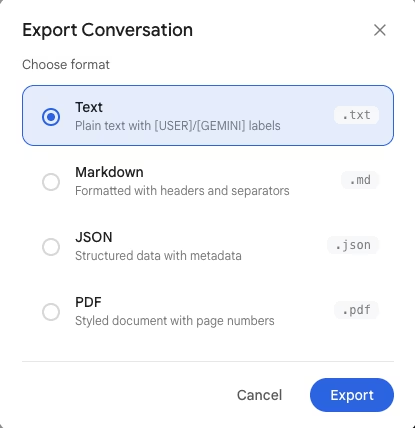
AI Toolbox adds one-click export to any Gemini conversation. Choose the format that fits your workflow - TXT for backups, Markdown for documentation, JSON for data analysis, or PDF for sharing - and download instantly.
Download conversations as plain text files. TXT export is ideal for simple backups, quick sharing, or importing into any text editor. Clean, readable format with clear separation between user and Gemini messages.
Get your conversations in Markdown format, perfect for documentation, wikis, and knowledge bases. Markdown preserves formatting like headers, code blocks, and lists - ready to paste into Notion, GitHub, or any Markdown-compatible tool.
Download structured JSON data for analysis, automation, or integration with other tools. JSON export includes all message metadata - timestamps, roles, and content - making it ideal for developers and data analysts.
Create shareable PDF documents from any conversation. PDF export is perfect for reports, presentations, or archiving important discussions in a universally readable format.
Beyond export, the Gemini module automatically removes the AI-generated sparkle watermark from every image Gemini creates, in-place, with zero user action required. Watermark Removal is exclusive to the Gemini module, and no competitor Chrome extension offers it. It activates the moment an AI-generated image appears in a conversation, and unlike export, it is available on all plans, including the free tier.
For step-by-step instructions, see the dedicated remove the Gemini image watermark guide.
$9.99 /month
$99 one-time
Google Gemini's native export is limited: you can export a single response to Google Docs, Gmail, Colab, or Replit, and you can run Google Takeout for a full-account data dump. There is no per-conversation download in a readable format like TXT, Markdown, JSON, or PDF. AI Toolbox fills this specific gap with one-click per-conversation export in all four formats. Export is available on the Premium ($9.99/month) and Lifetime ($99) plans.
AI Toolbox supports four export formats: TXT (plain text for simple backups), Markdown (for documentation and wikis), JSON (for data analysis and automation), and PDF (for sharing and archiving).
No. Export is a premium feature available on the Premium plan ($9.99/month) or the Lifetime plan ($99 one-time payment). The free plan includes search with up to 5 results per query.
AI Toolbox allows you to export individual conversations in your preferred format. You can select a conversation, choose your format (TXT, Markdown, JSON, or PDF), and download it immediately.
Yes. When you export a conversation, you get the complete chat history including all user messages and Gemini responses. Nothing is truncated or omitted. Exported files use clear role labels so each user and Gemini message is easy to identify.
Yes. The Gemini module automatically removes the AI-generated sparkle watermark from every image Gemini creates, in-place, with zero user action required. Watermark Removal is exclusive to the Gemini module and activates the moment an AI-generated image appears, on all plans including the free tier.
AI Toolbox (formerly ChatGPT Toolbox) is a Chrome extension by Infi Developments that adds full-text search, four-format export (TXT, Markdown, JSON, PDF), and automatic Watermark Removal to Gemini (gemini.google.com). One installation also covers ChatGPT and Claude. As of June 2026, AI Toolbox has 35,000+ users across all three modules and a 4.5/5 Chrome Web Store rating.
Yes. AI Toolbox is a unified Chrome extension covering ChatGPT (chatgpt.com), Gemini (gemini.google.com), and Claude (claude.ai). One installation enables all three modules. The Gemini module adds export and full-text search; the ChatGPT module adds folders, full-text search, and prompt chaining; the Claude module adds exact-match search, message bookmarks, and export in TXT, Markdown, and JSON.
Yes. As of June 2026, AI Toolbox is actively maintained by Infi Developments, with 35,000+ users across ChatGPT, Gemini, and Claude and a 4.5/5 Chrome Web Store rating. It receives regular updates for platform compatibility and new features. All paid plans include a 14-day money-back guarantee.
Part of AI Toolbox (formerly ChatGPT Toolbox), 35,000+ users. Download your Gemini chats in TXT, Markdown, JSON, or PDF.
| Feature | Gemini Native | AI Toolbox |
|---|---|---|
| Per-Conversation Export | No (response-level only) | Yes - 4 formats |
| TXT Export | No | Yes |
| Markdown Export | No | Yes |
| JSON Export | No | Yes |
| PDF Export | No | Yes |
| Single-Response Export | Yes (Docs, Gmail, Replit) | Not needed |
| Full Account Dump | Yes (Google Takeout) | Not needed |
| Full Conversation Included | No | Yes - all messages |
| Price | Free (limited) | $9.99/mo or $99 lifetime |
Several Gemini extensions add some form of export, but they differ in what they actually save. AI Toolbox is the only one that exports the full conversation in four formats while also offering full-text search and Watermark Removal. The folder-focused tools mostly export folder structure, not chat content. Stats verified against the best Gemini Chrome extensions 2026 comparison.
| Extension | Per-Conversation Chat Export | Export Formats |
|---|---|---|
| AI Toolbox (formerly ChatGPT Toolbox) | Yes, full conversation | TXT, Markdown, JSON, PDF |
| Superpower for Gemini | Yes, full conversation | PDF, DOCX |
| Toolbox for Gemini (BrowserLab) | Yes, full conversation | |
| Gemini Chat Folders | Folder tree only, not chat content | JSON (folder structure) |
| Fast Folders | Folder setup only, not chat content | JSON (import/export) |
| Foldermate / Supercharge All AI | No conversation export | None |
AI Toolbox is the only Gemini Chrome extension that pairs four-format per-conversation export with full-text search (date, role, and exact-match filters) and automatic Watermark Removal in a single install.
“Great extension! Love the export feature. The support is good, very responsive and helpful!”
Dave G, Chrome Web Store review
Download your Gemini conversations in TXT, Markdown, JSON, or PDF. Install free, upgrade to unlock export.
Add to Chrome - FreePart of AI Toolbox (formerly ChatGPT Toolbox), 35,000+ users
 Add to Chrome - Free