
You are in. Now pin AI Toolbox so it is one click away.
Click the puzzle icon in the top right of your browser, then the pin next to AI Toolbox. Takes five seconds and makes the toolbox available on every AI platform you enable.
New here? See how to use it, step by stepShort picture guides for every feature, made for first-time users- 4.7/5 from 891 ratings
- Conversation data stays on your device
- Chrome, Edge, Brave, Opera, Arc
3 steps to your first win
Pinning takes five seconds. Then open your AI and make your first real move: pull years of conversations out in one bulk export. Here is the whole path.
Pin the extension
Click the puzzle piece icon in the top right of your browser. Find AI Toolbox in the list and click the pin icon next to it. The AI Toolbox icon will now stay visible in your toolbar.
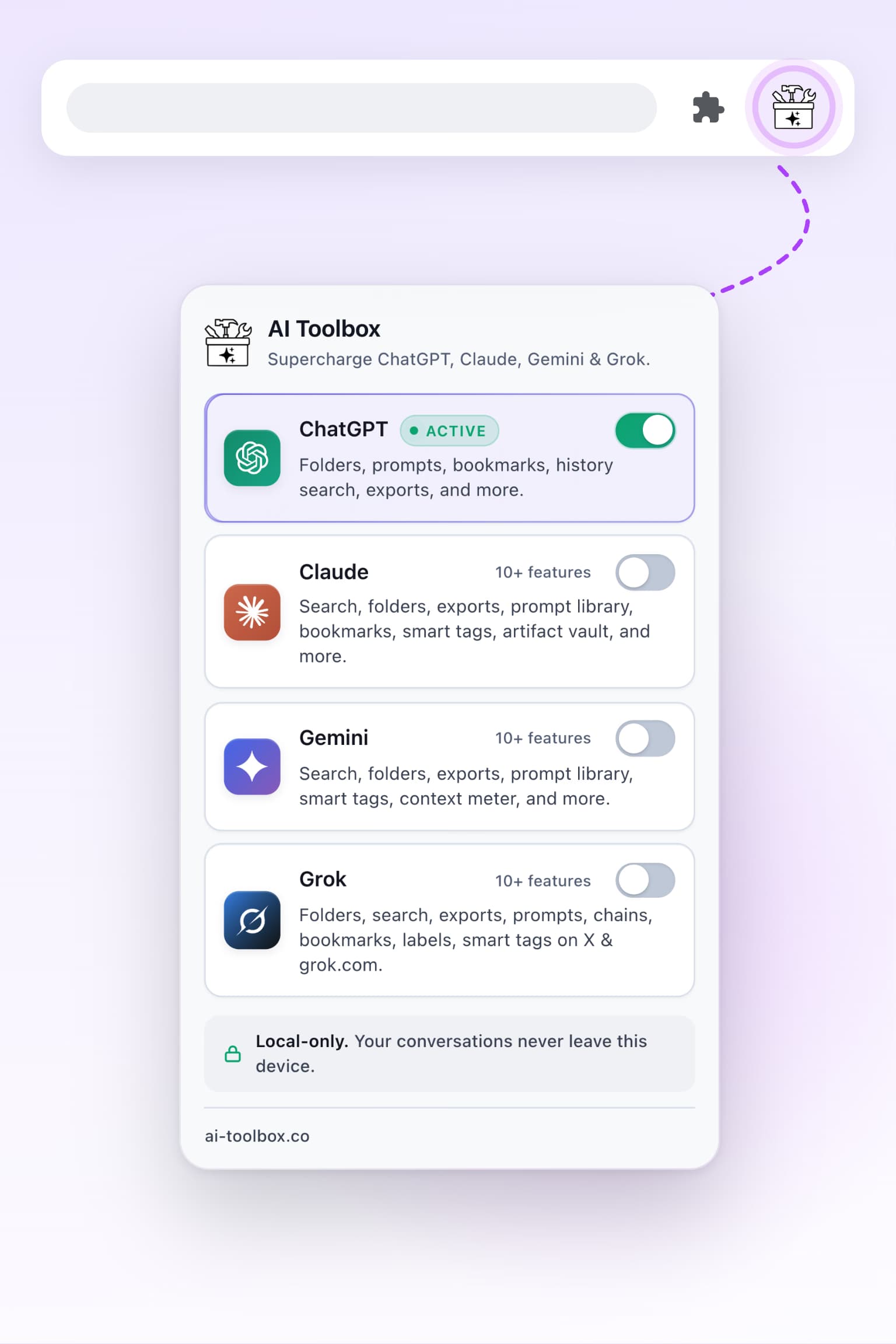
Open the popup, choose your platforms
Click the AI Toolbox icon to open the popup. ChatGPT is on by default. Toggle on Claude, Gemini or Grok to use AI Toolbox there. Chrome will ask for permission the first time. That is normal.
Bulk export your first conversations
Open your AI and click the round AI Toolbox button in the bottom-right corner, then Manage Chats. Select a few conversations and export them to PDF, Markdown, TXT, or JSON in one click. Bulk export is part of Premium; on the free plan, any single chat exports as TXT on ChatGPT, Claude, Gemini and Grok. Watch exactly how below.
Watch your first win: bulk export in action
Pick the AI you just installed on and see exactly how selecting and exporting your chats works. Same workflow on every platform.
Selecting conversations and exporting them to PDF, Markdown, TXT, or JSON in ChatGPT.
What the popup does
The popup is your control center. Turn AI Toolbox on or off for any platform, any time.
- 1
4 platforms in one extension
One install covers ChatGPT, Claude, Gemini, and Grok. No separate downloads.
- 2
ChatGPT is on by default
Your existing ChatGPT setup keeps working with no extra steps.
- 3
Turn on Claude, Gemini or Grok
Chrome asks to approve access the first time. Only the site you enable is requested.
- 4
All conversation data stays on your device
Toggle off any platform to stop the toolbox there instantly. You stay in control.
4 AI platforms. One extension.
Same workflow, every AI tool you use. Open one and click the round AI Toolbox button in the bottom-right corner to start.
ChatGPT
Folders, search, prompts, bulk export, and more.
- Folders and subfolders
- Full text search
- Prompt library
- Bulk export
- Plus 35 more tools
Conversation data stays on your device
Open ChatGPTClaude
Search history, bookmarks, folders, prompts, exports.
- Search history
- Bookmark messages
- Folders
- Saved prompts
- Conversation export
Conversation data stays on your device
Open ClaudeGemini
Search history, folders, prompts, exports.
- Search history
- Folder organization
- Saved prompts
- Conversation export
- Message bookmarks
Conversation data stays on your device
Open GeminiGrok
Folders, search, bulk export, smart tags, and prompt chaining.
- Folders and subfolders
- Full text search
- Bulk export
- Message bookmarks
- Prompt chaining
Conversation data stays on your device
Open Grok- 4.7/5Chrome Web Store rating
- 40,000+Active users
- 150+Countries
- 10+Languages
Common questions
Quick answers about pinning, permissions, privacy, and platform support.
Join the community
Share tips, request features, and follow what we ship next.
Ready when you are.
Open the AI tool you use most and click the round AI Toolbox button in the bottom-right corner.