
AI Toolbox tutorials: every feature, step by step
Short, picture-by-picture guides for everything AI Toolbox adds to ChatGPT, Claude, Gemini and Grok. Each one shows exactly where to click and what you should see, so you can follow along even if you have never used a browser extension before.
New to AI Toolbox?
Start here, in this order
Start here: your first five minutes
Install and pin AI Toolbox, turn it on for the AI sites you use, and find the one button that opens every feature.
All Getting started tutorials- FreeInstall and pinAdd AI Toolbox to Chrome or Edge and keep its icon one click away.6 steps, 2 min
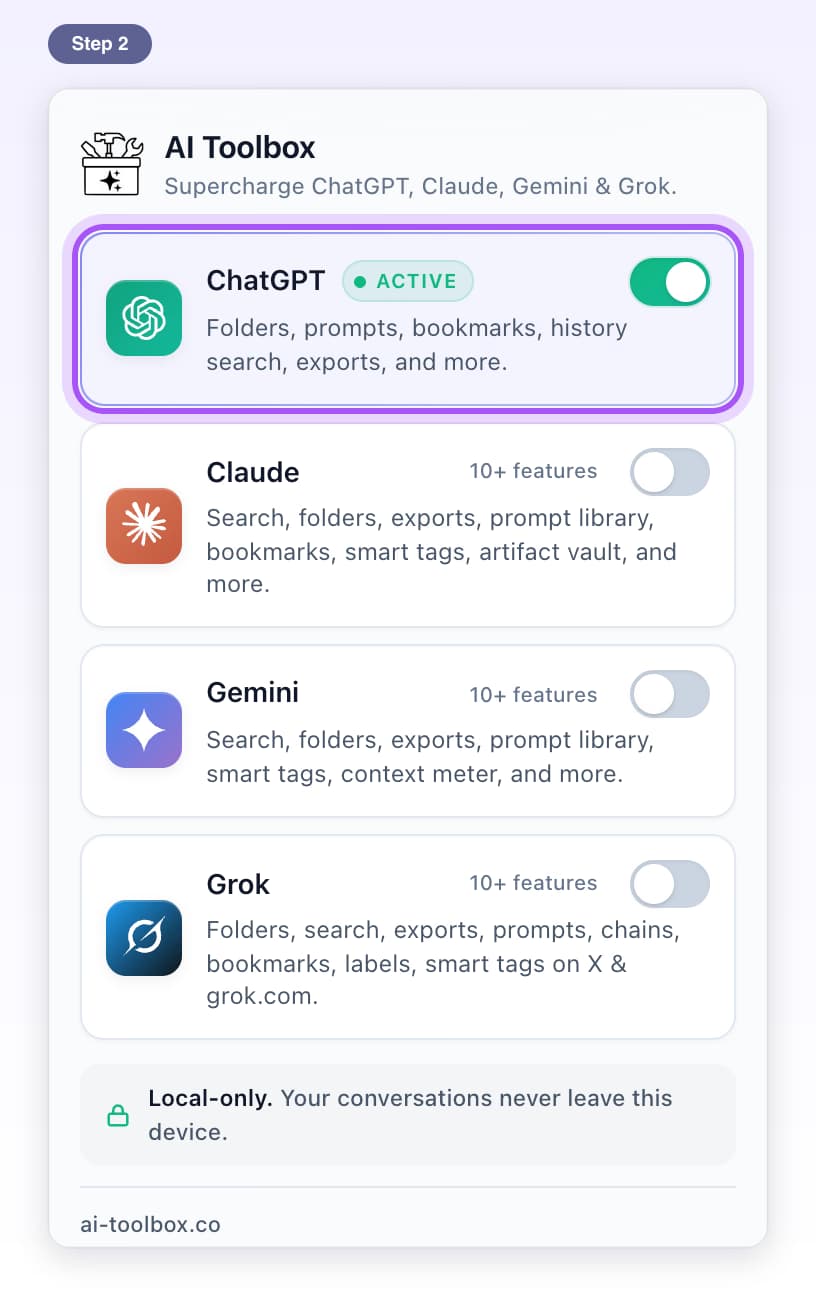
- FreeTurn on Claude, Gemini and GrokSwitch AI Toolbox on for Claude, Gemini and Grok from the toolbar panel.6 steps, 2 min
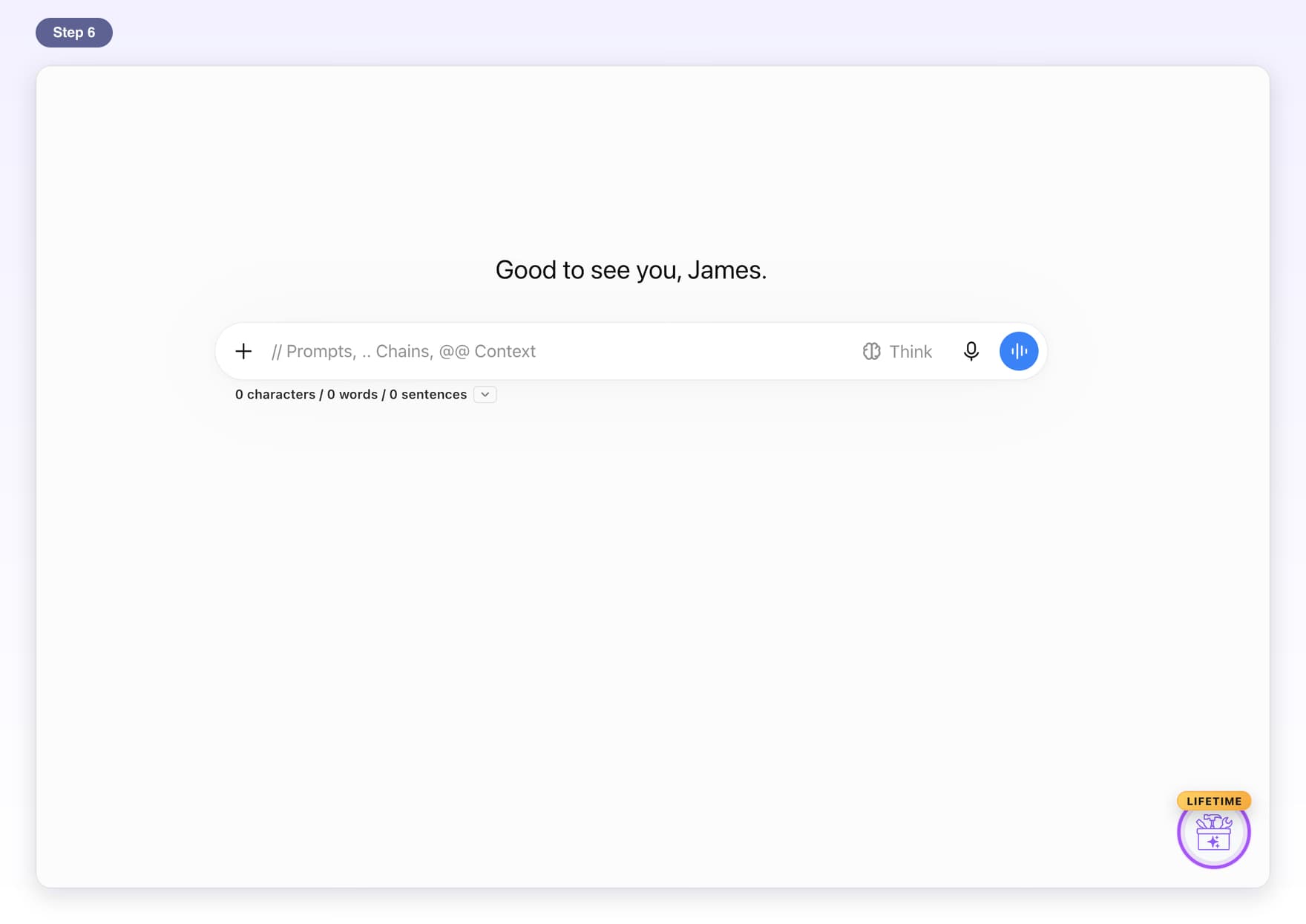
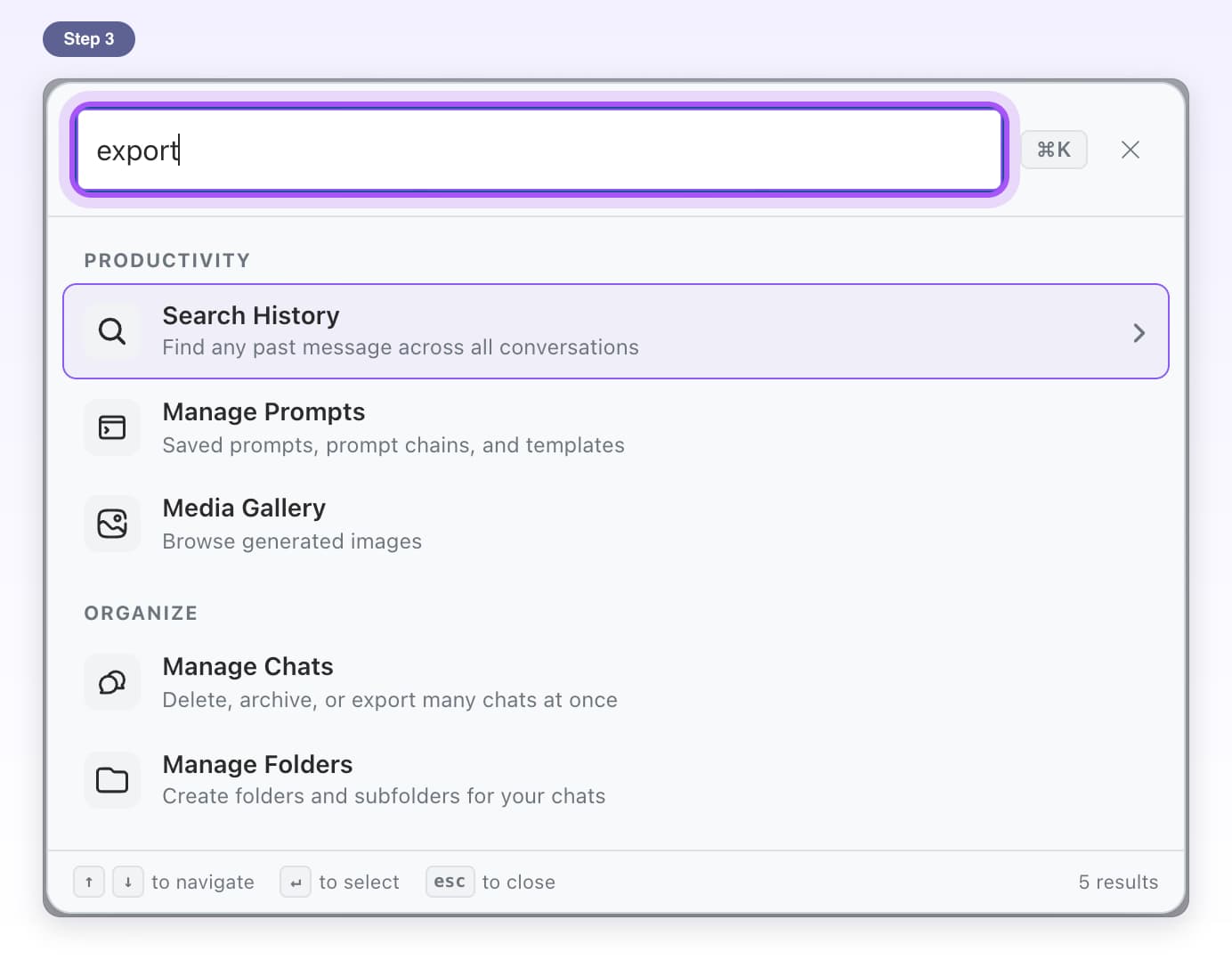
- FreeFind every featureThe round button in the bottom-right corner opens every feature.7 steps, 2 min
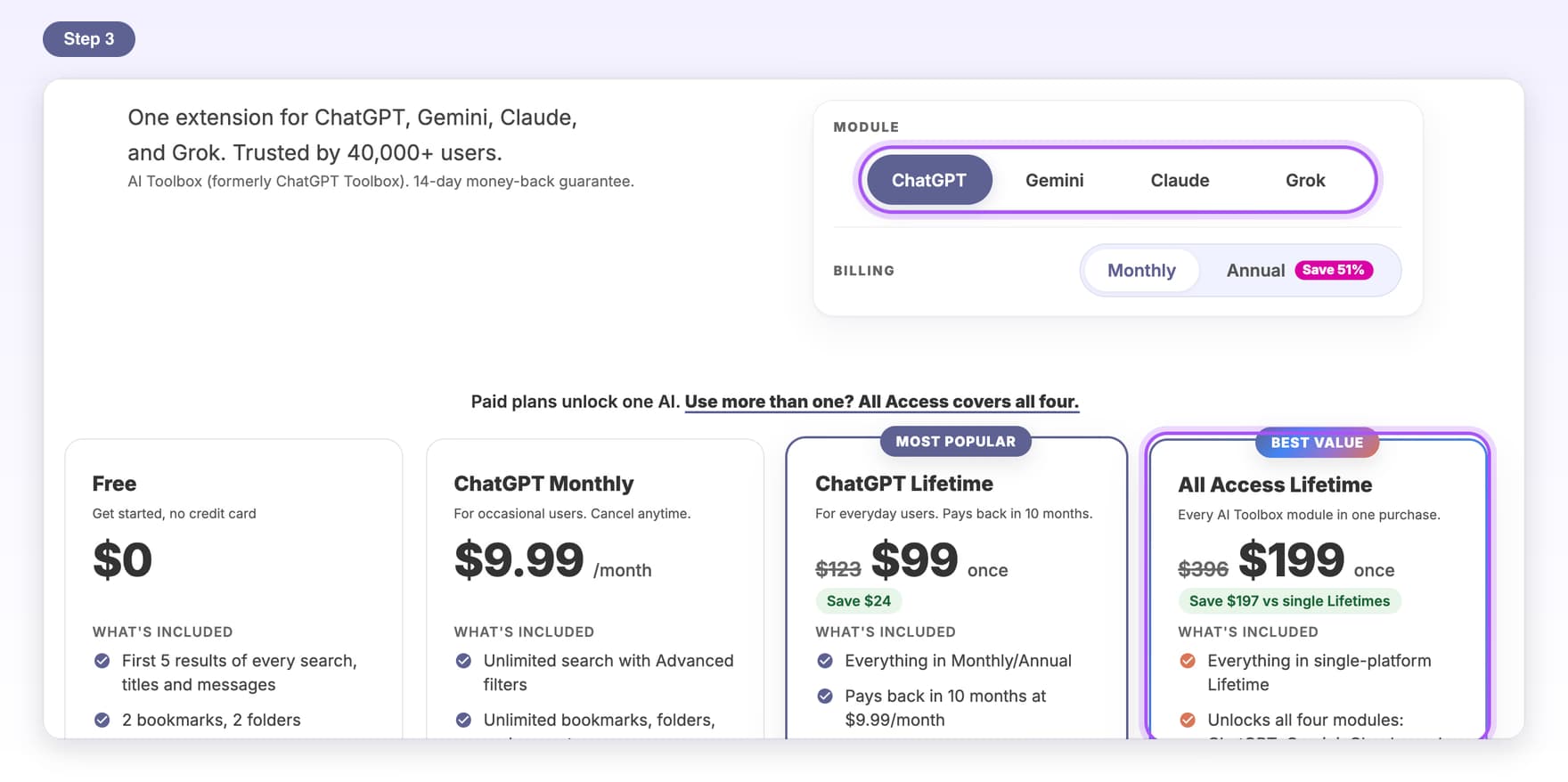
- FreeFree vs PremiumWhat the free plan includes, what Premium adds and how to upgrade.6 steps, 3 min
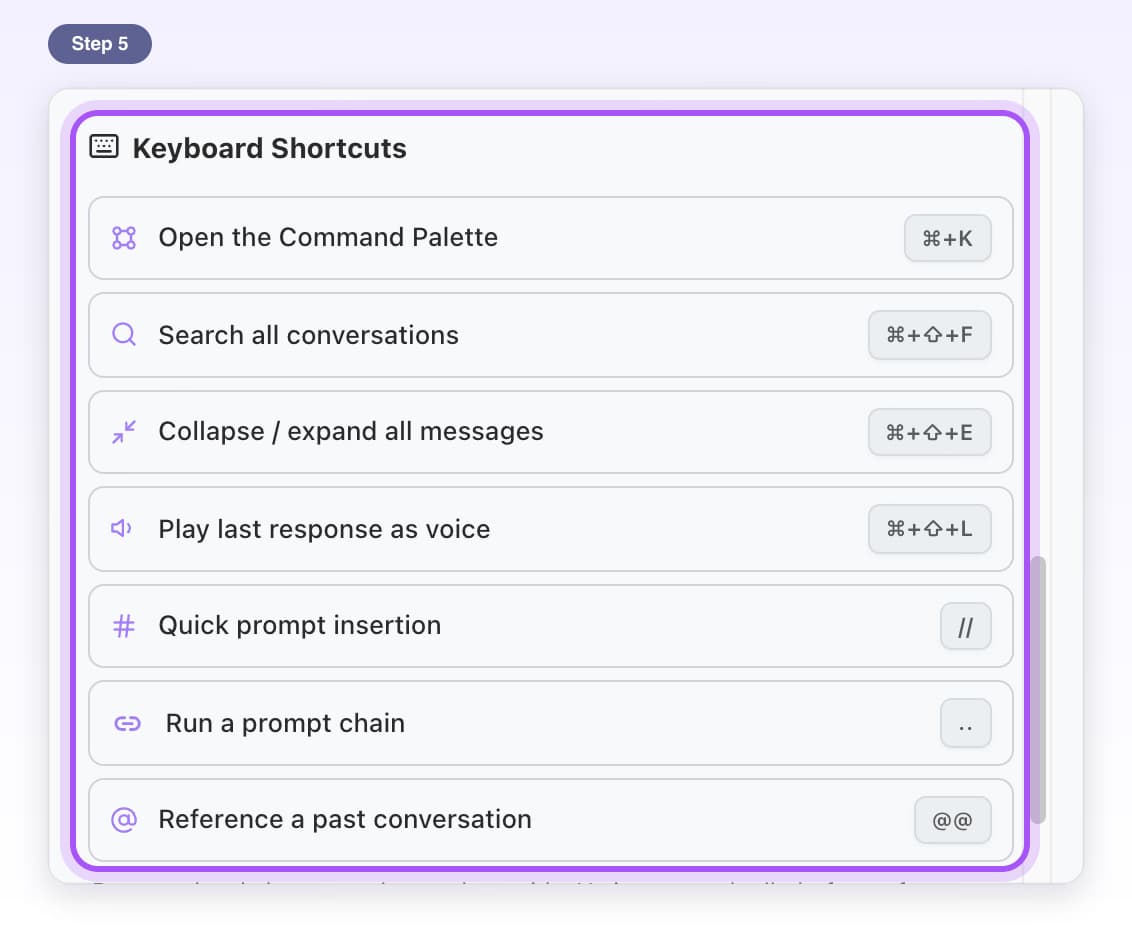
- FreeShortcuts and triggersEvery shortcut and typing trigger, and how to set your own keys.6 steps, 3 min
AI Toolbox on ChatGPT
Folders, full-text search, export, saved prompts and more, added to chatgpt.com. Each tutorial walks through one feature, one click at a time.
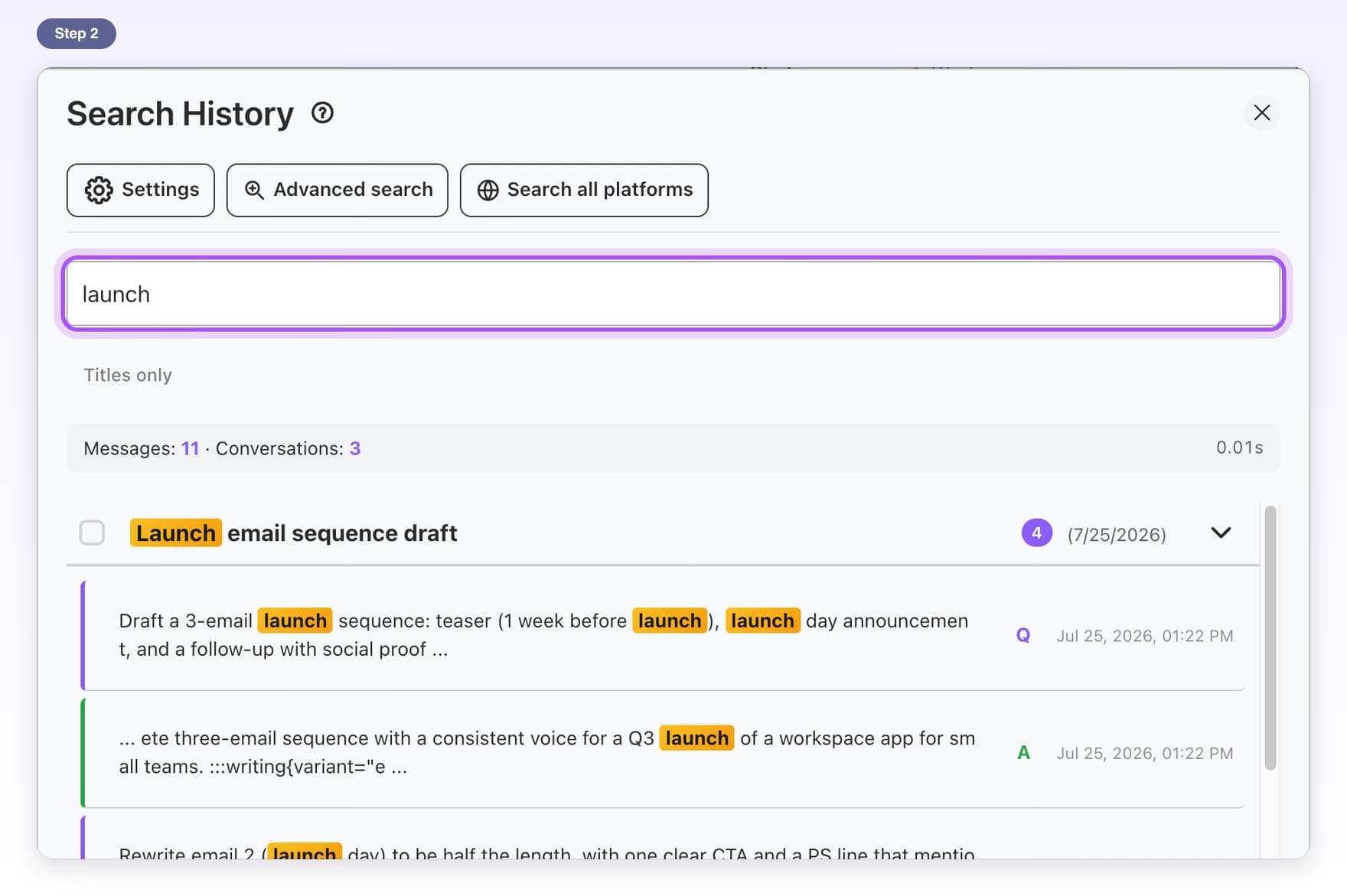
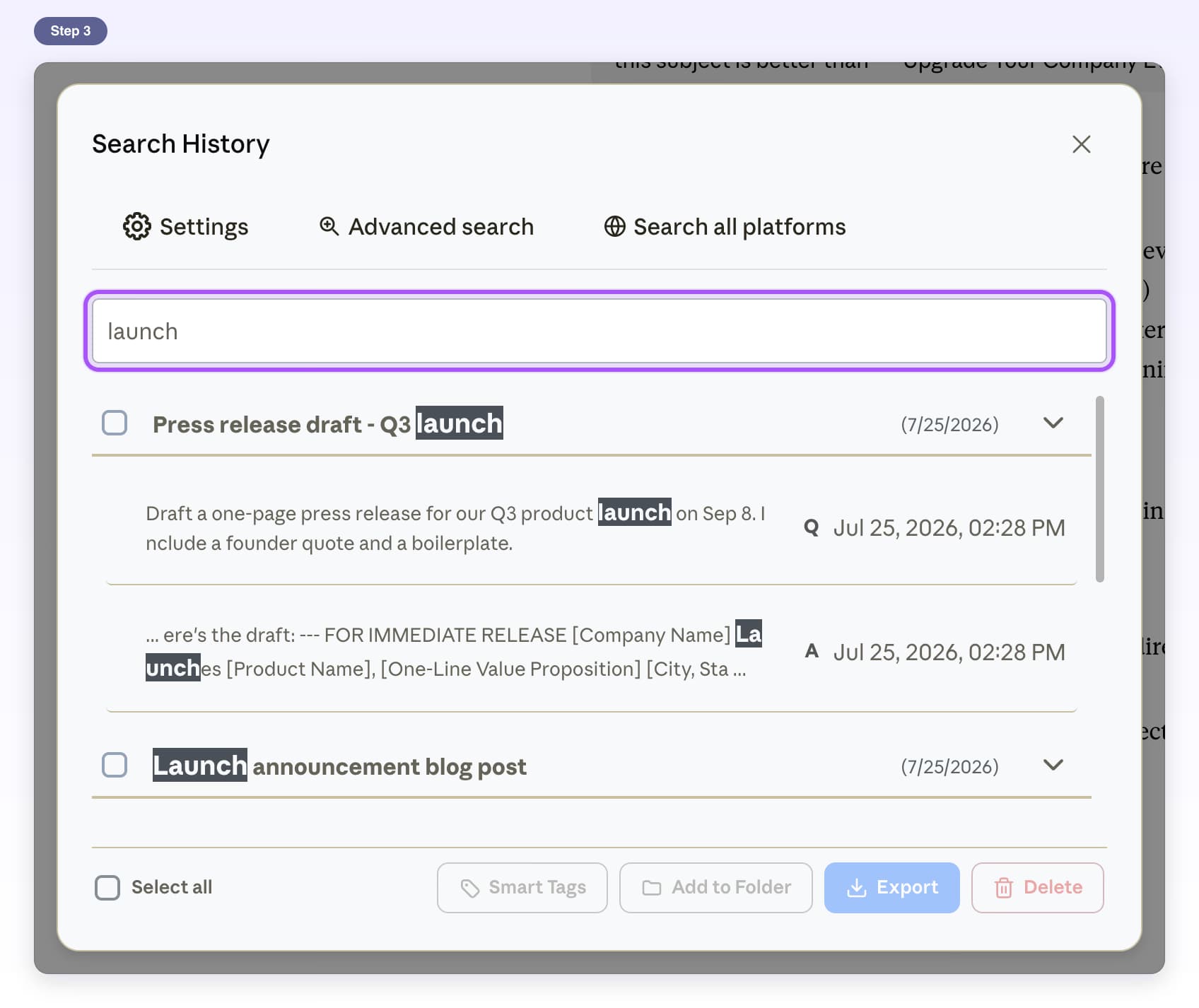
All ChatGPT tutorials- Free, with limitsSearch HistoryFind any word in any past chat and jump straight to the message.6 steps, 3 min
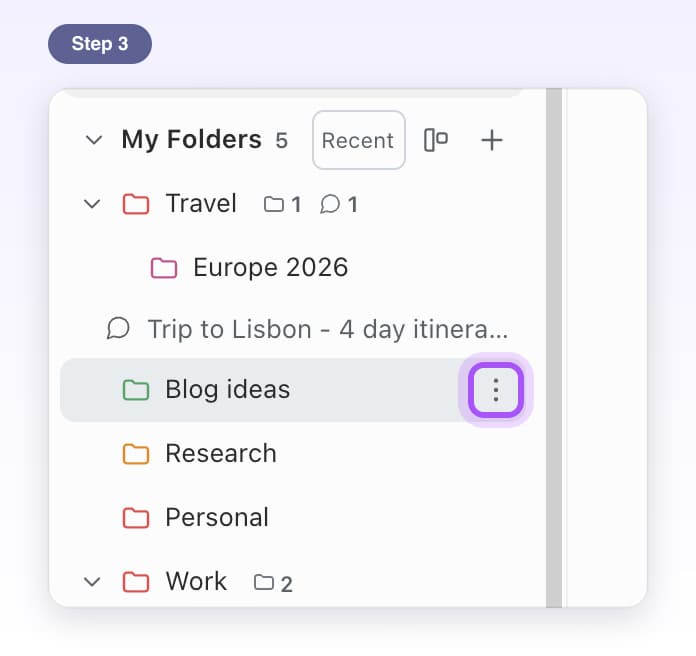
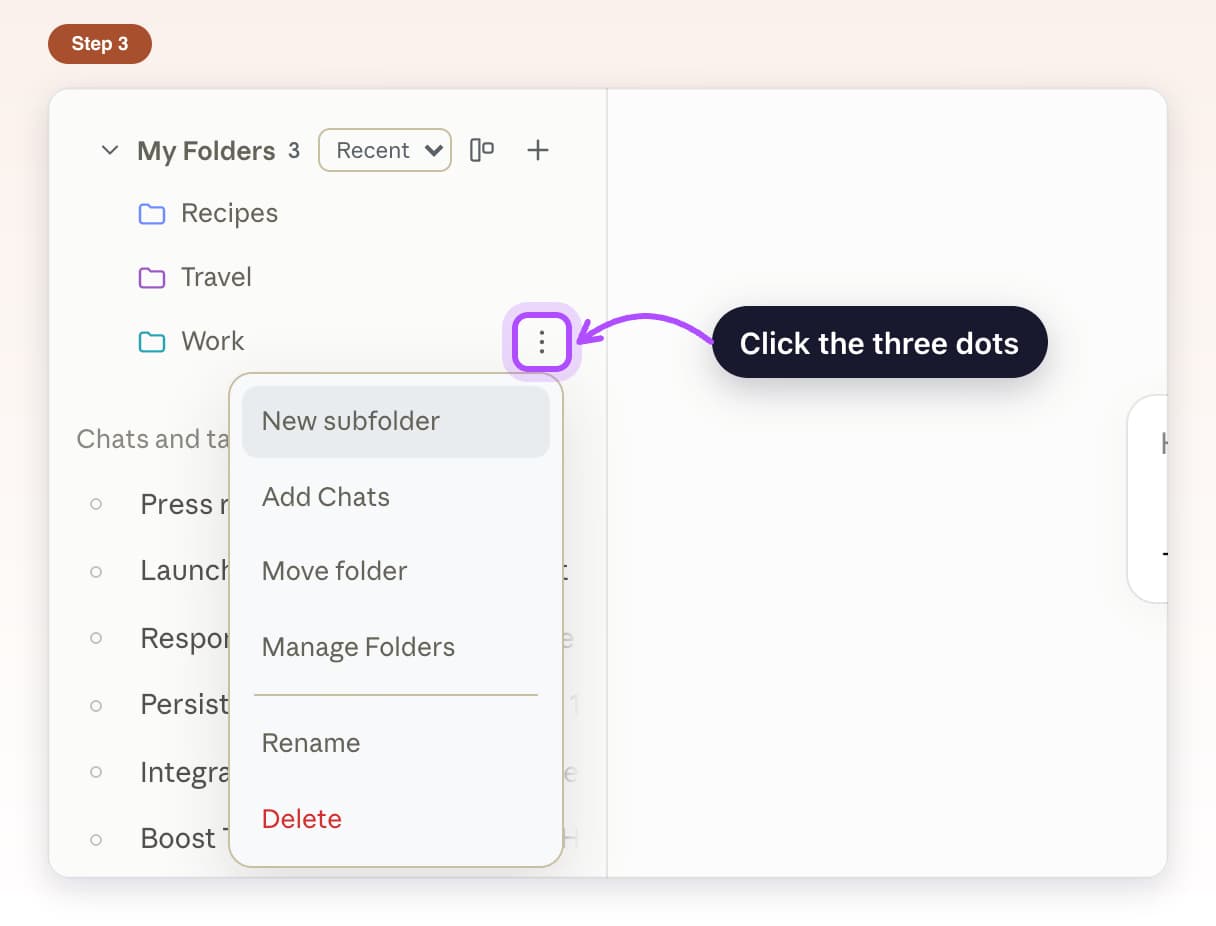
- Free, with limitsFoldersCreate folders and subfolders in the sidebar and put your chats inside them.7 steps, 3 min
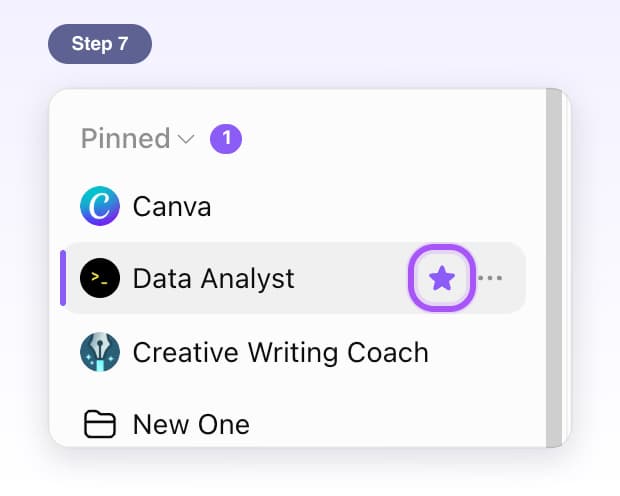
- Free, with limitsPin chats and foldersKeep your most-used chats and folders at the top of the sidebar.7 steps, 3 min
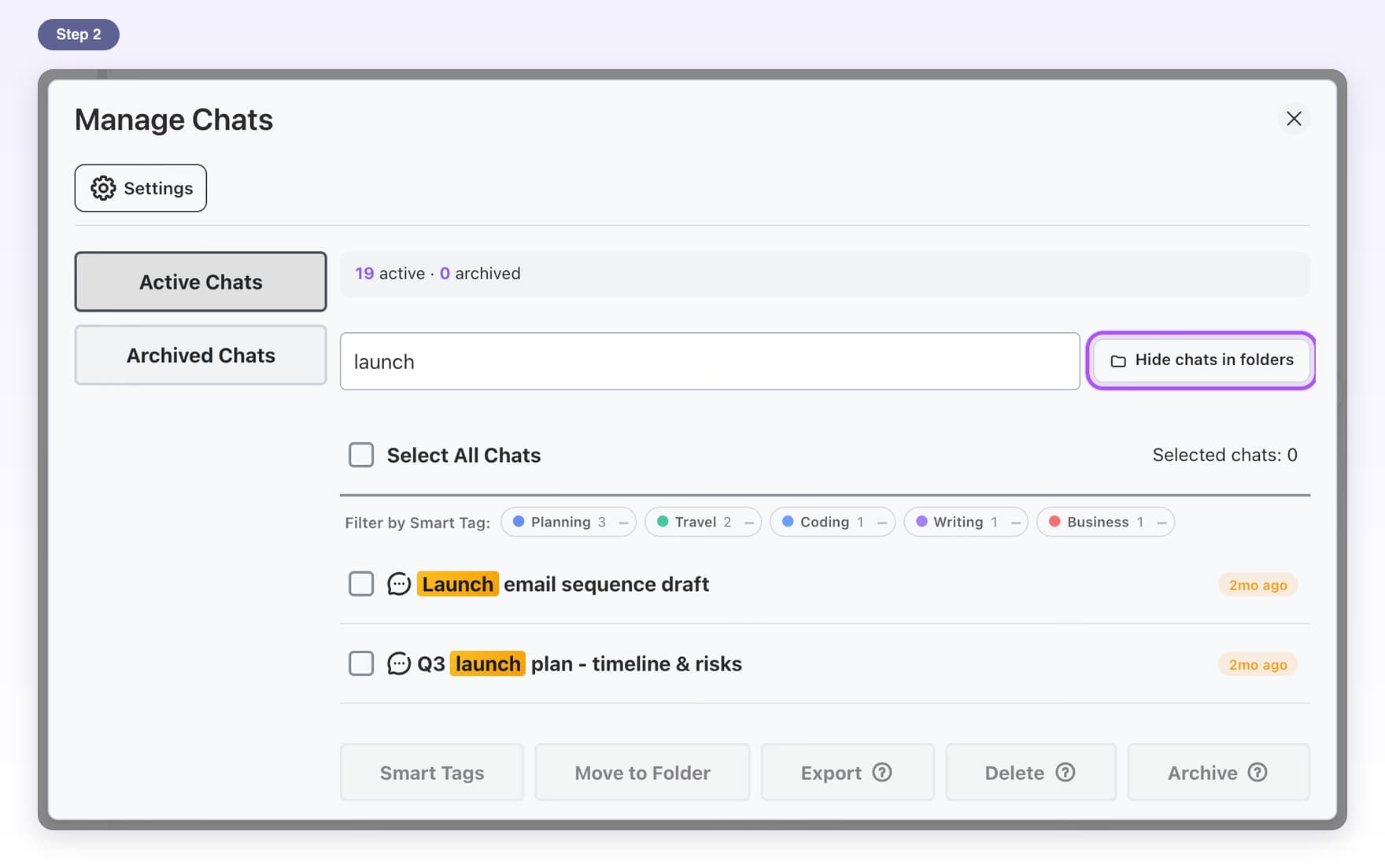
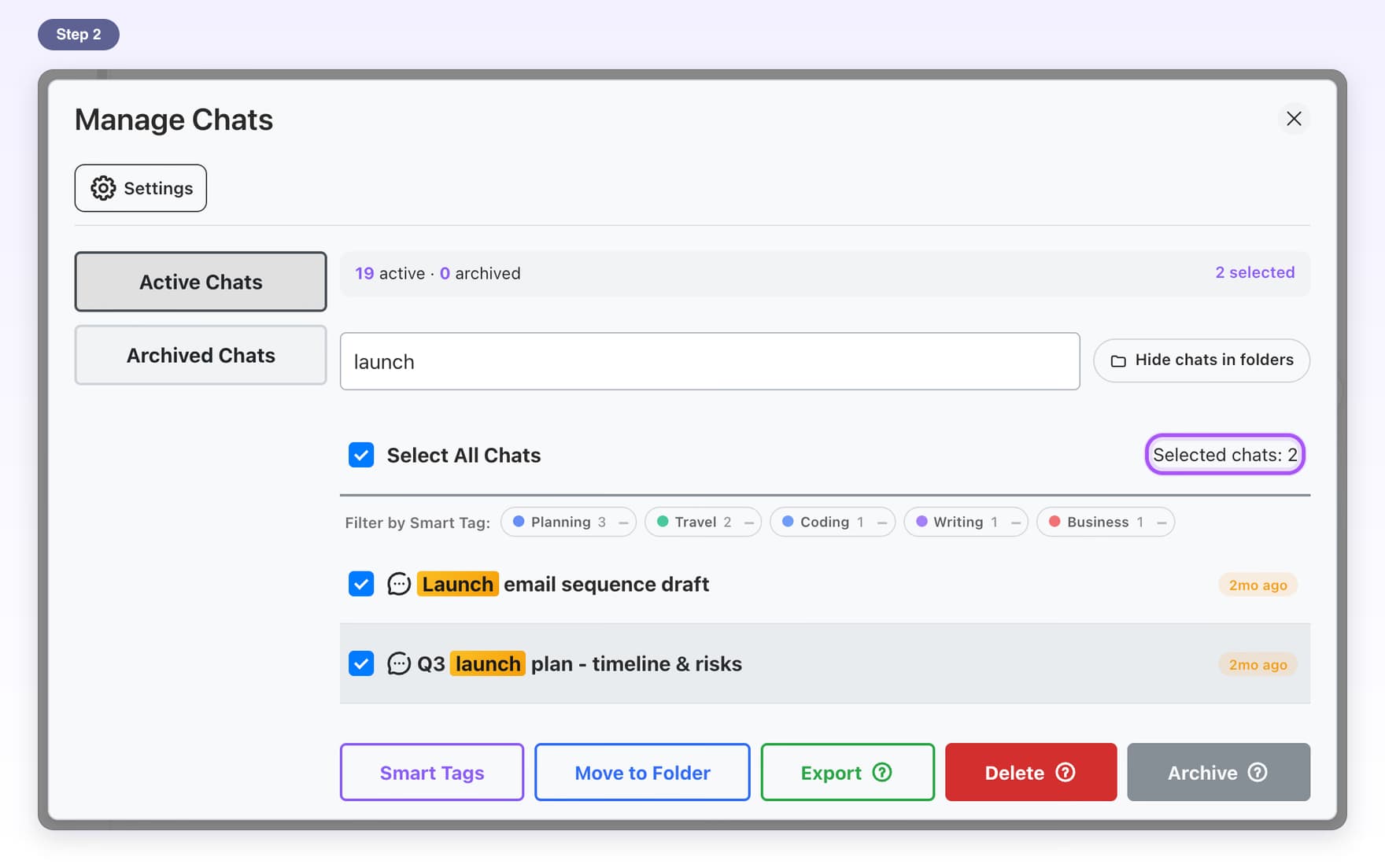
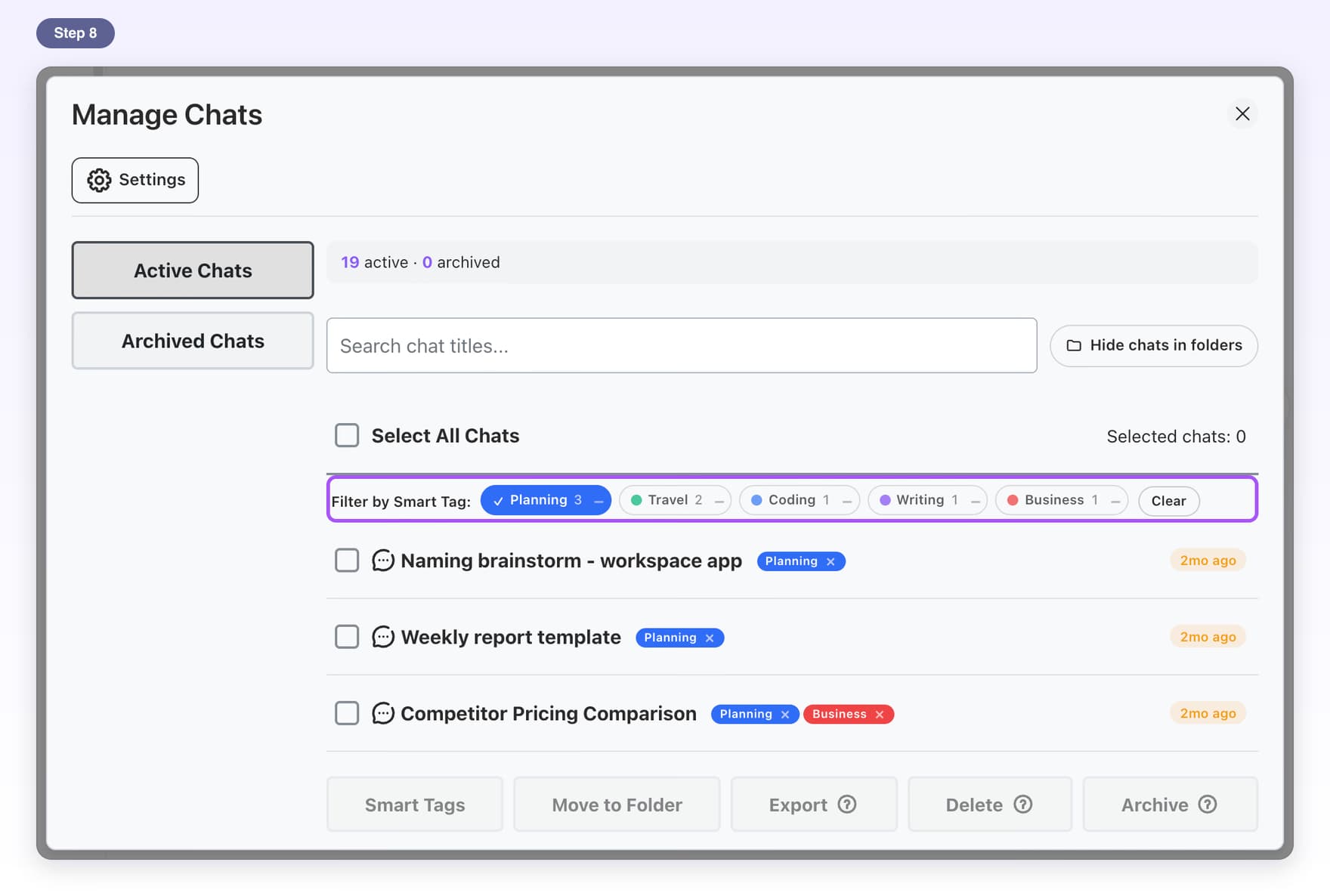
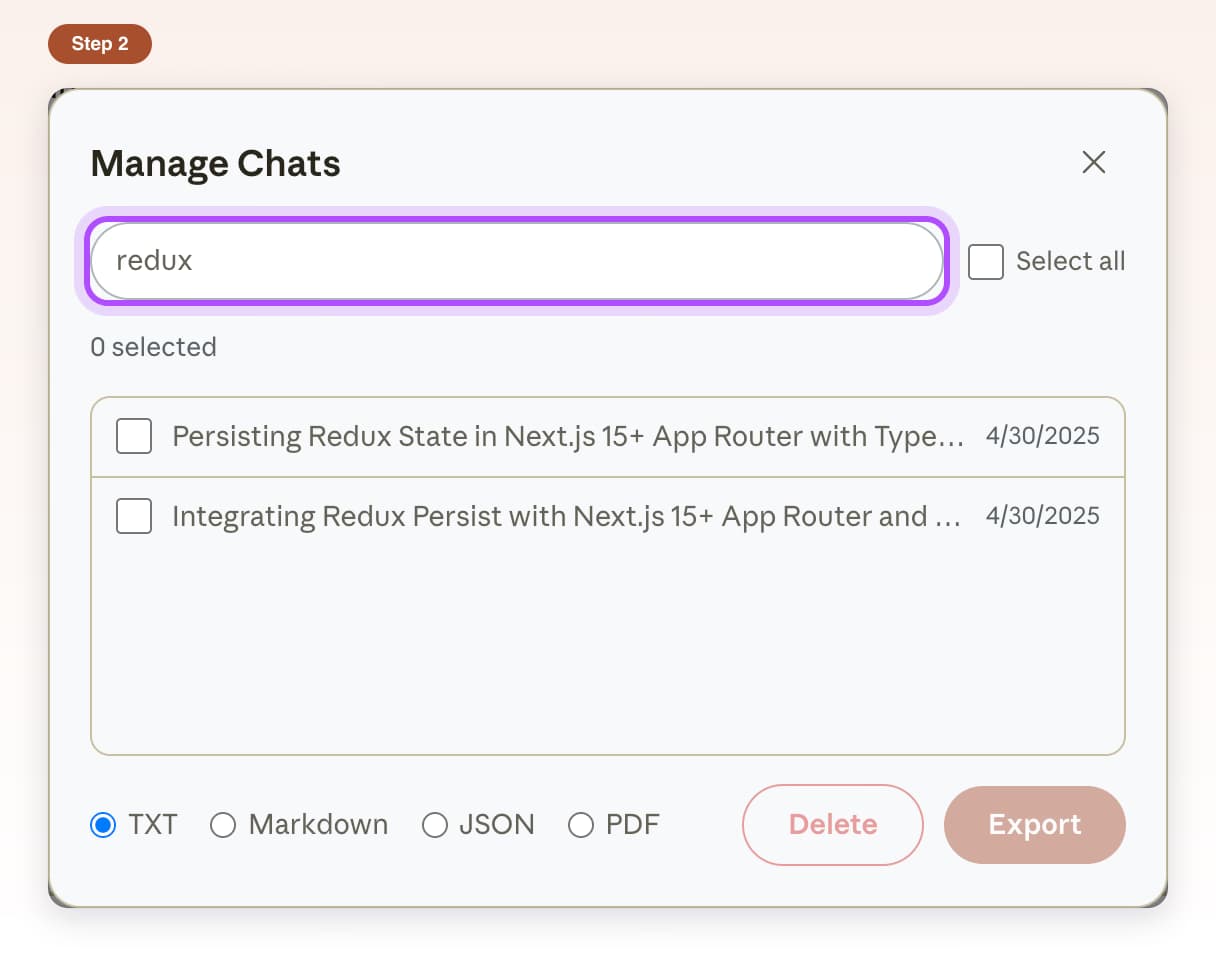
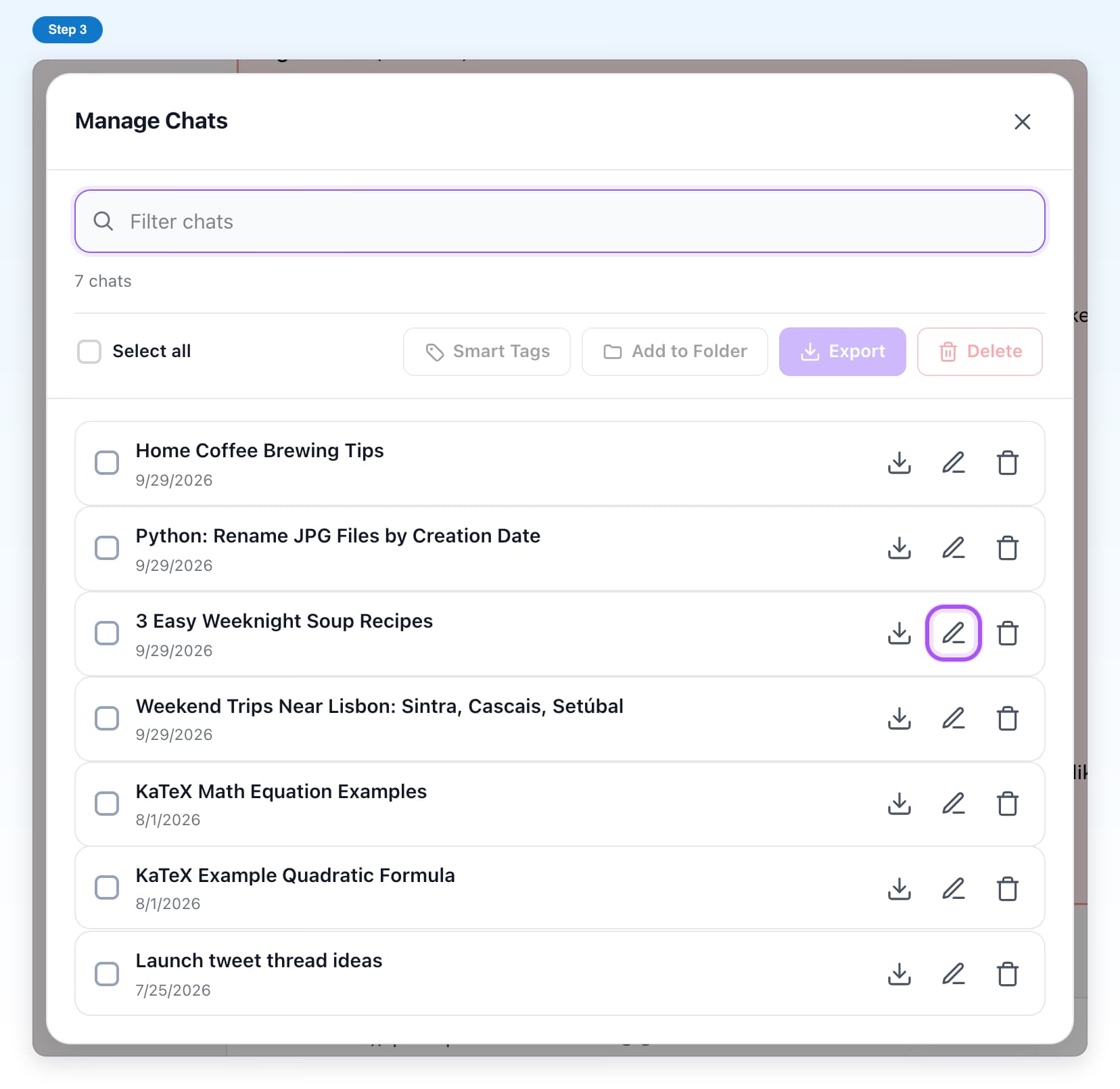
- Free, with limitsManage ChatsTick many chats and delete, archive or tag them in one go.7 steps, 3 min
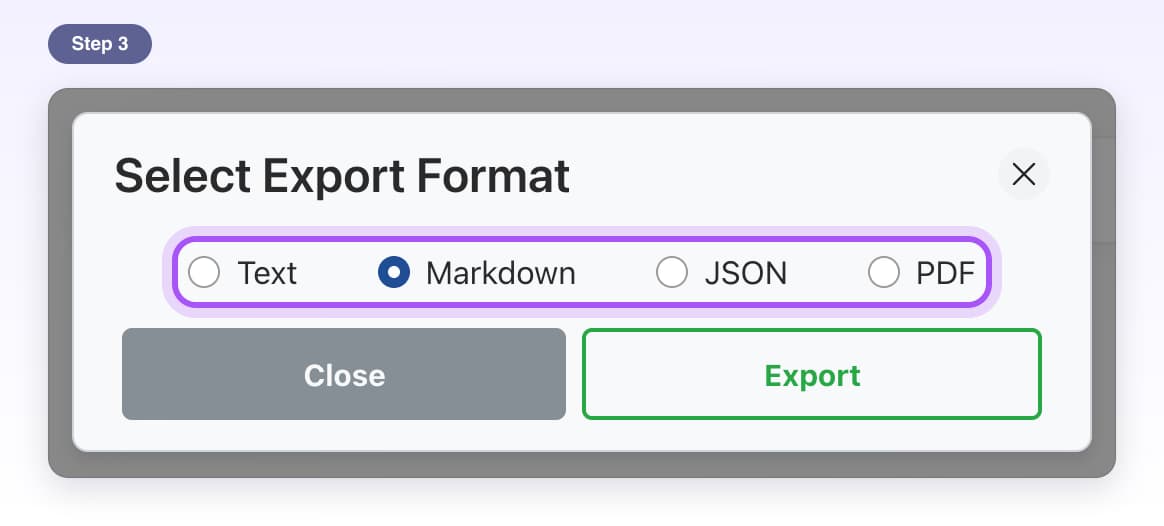
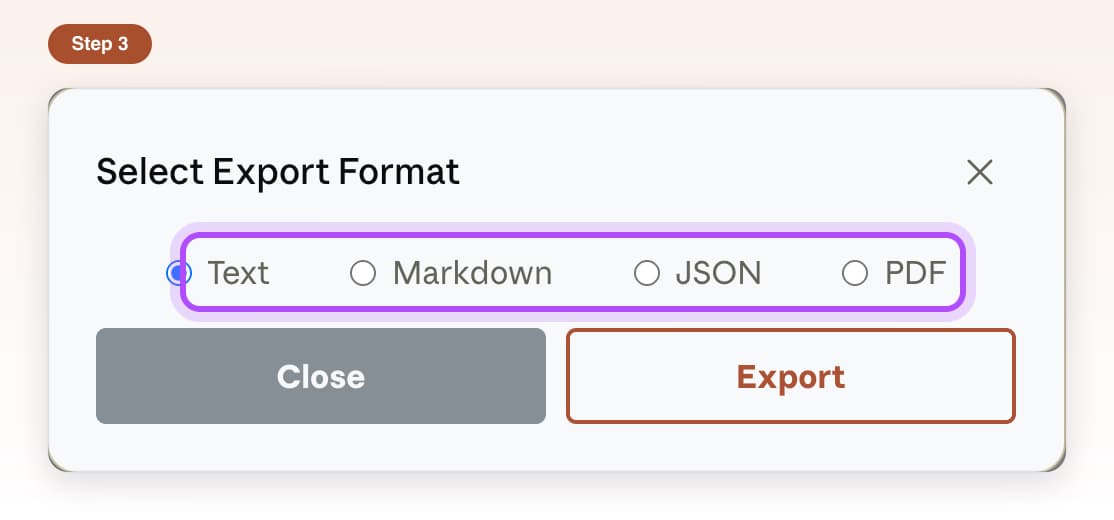
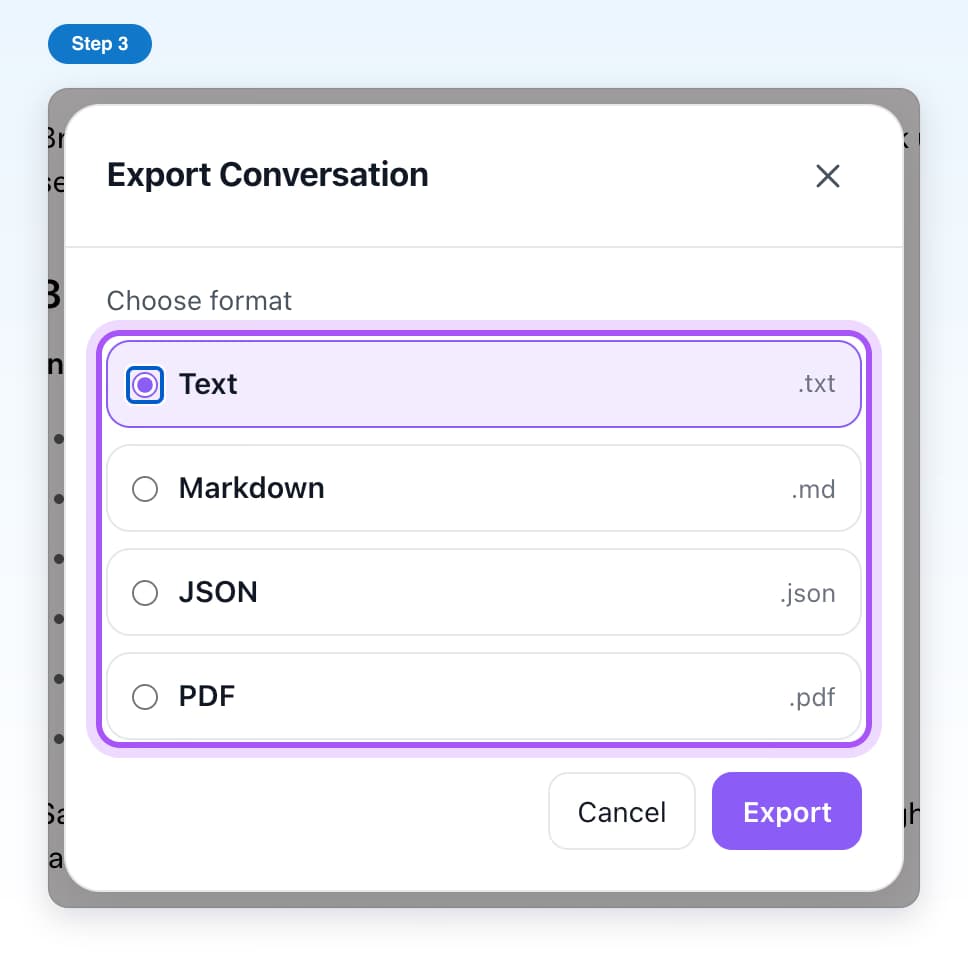
- Free, with limitsExport a chatSave any single chat as a text file, or as Markdown, JSON or PDF with Premium.5 steps, 2 min
- PremiumBulk exportSave many chats, a whole folder or a project as one ZIP file.8 steps, 4 min
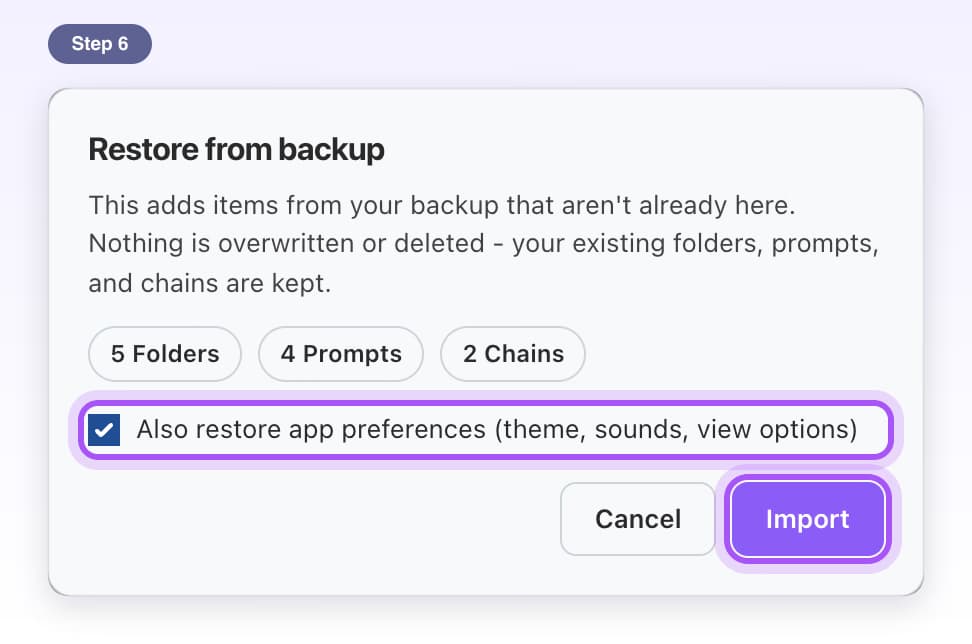
- FreeBackup and restoreSave your folders, prompts and settings to a file and restore them later.6 steps, 2 min
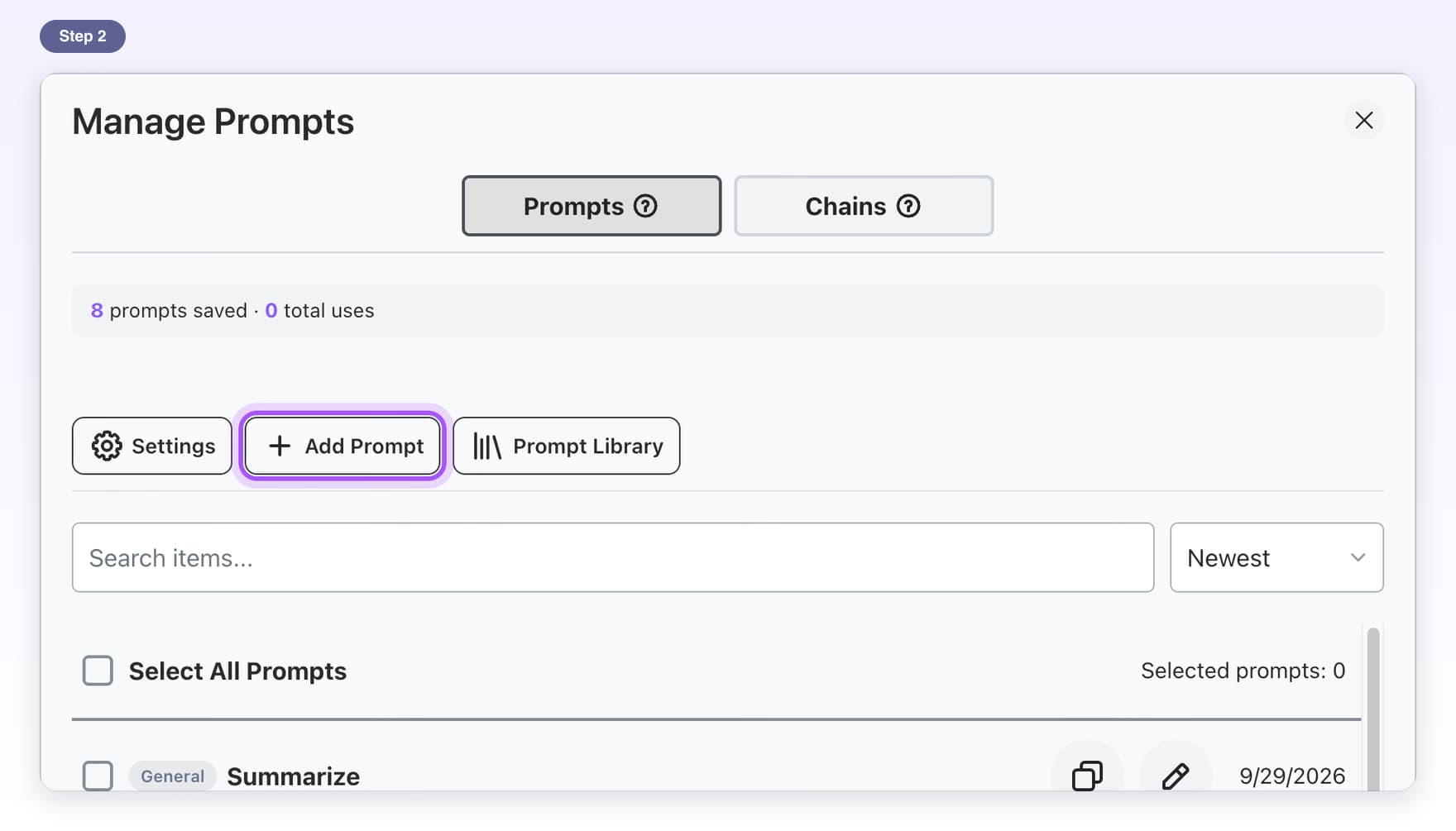
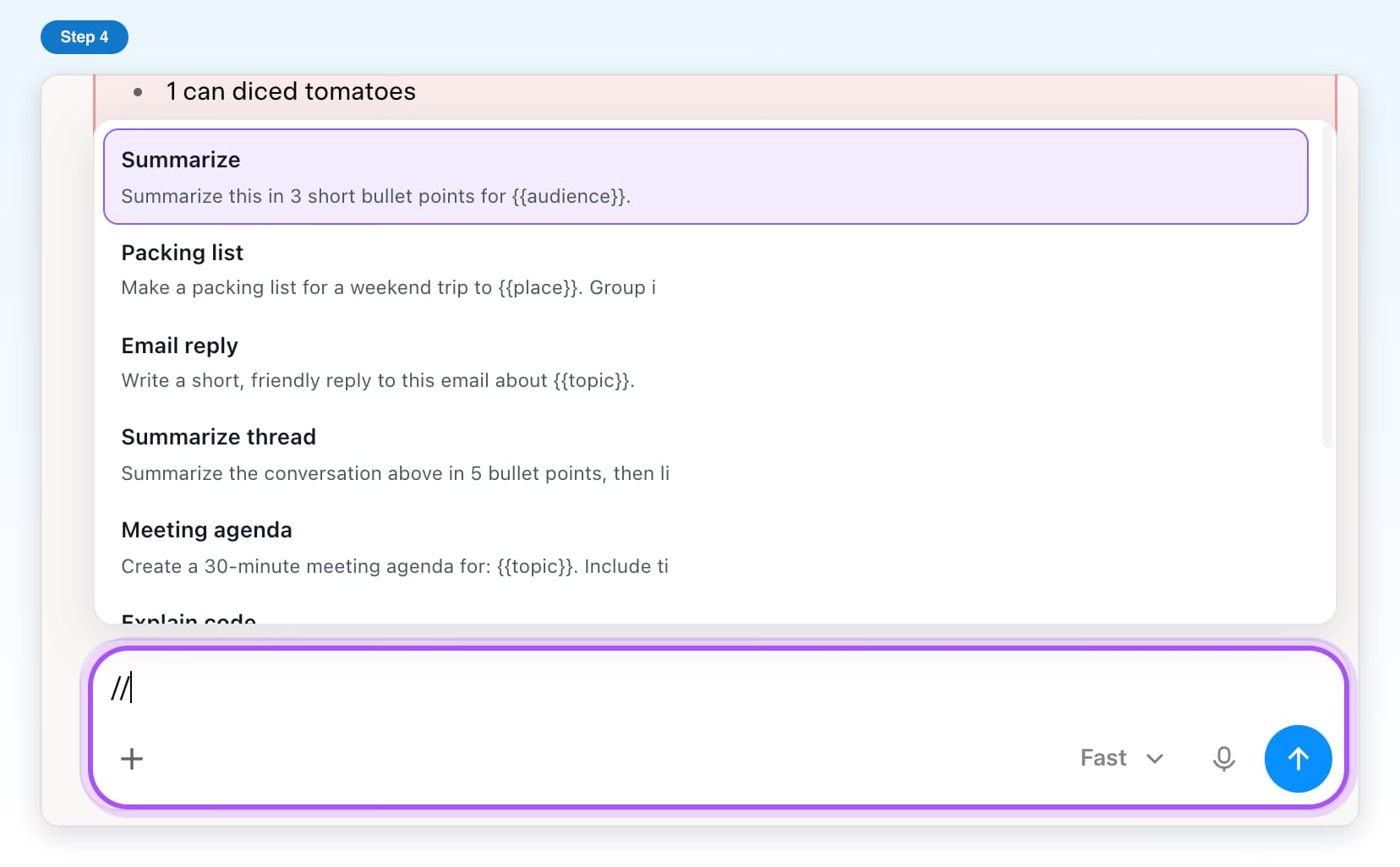
- Free, with limitsSaved promptsSave the prompts you type often and insert them with //.7 steps, 3 min
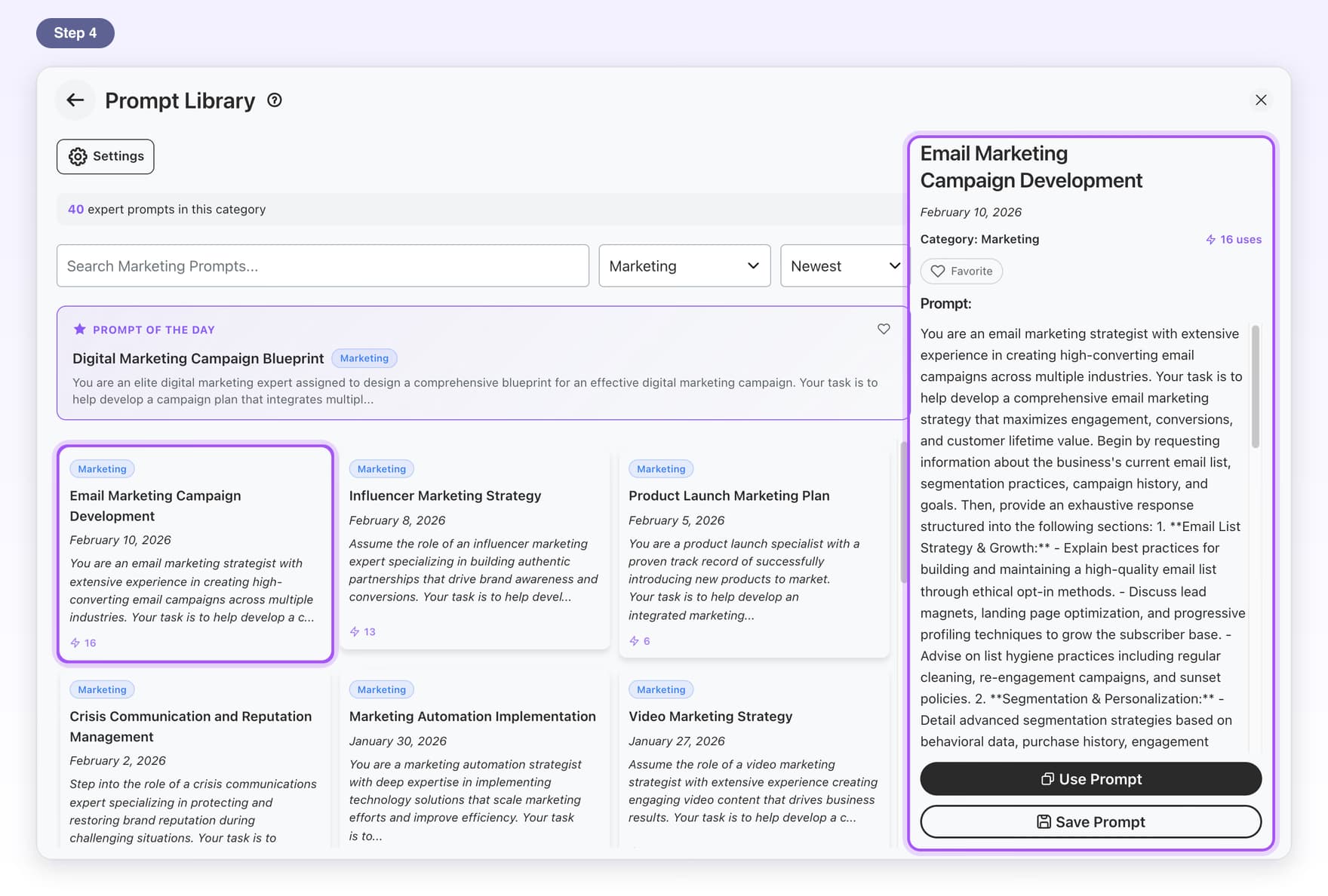
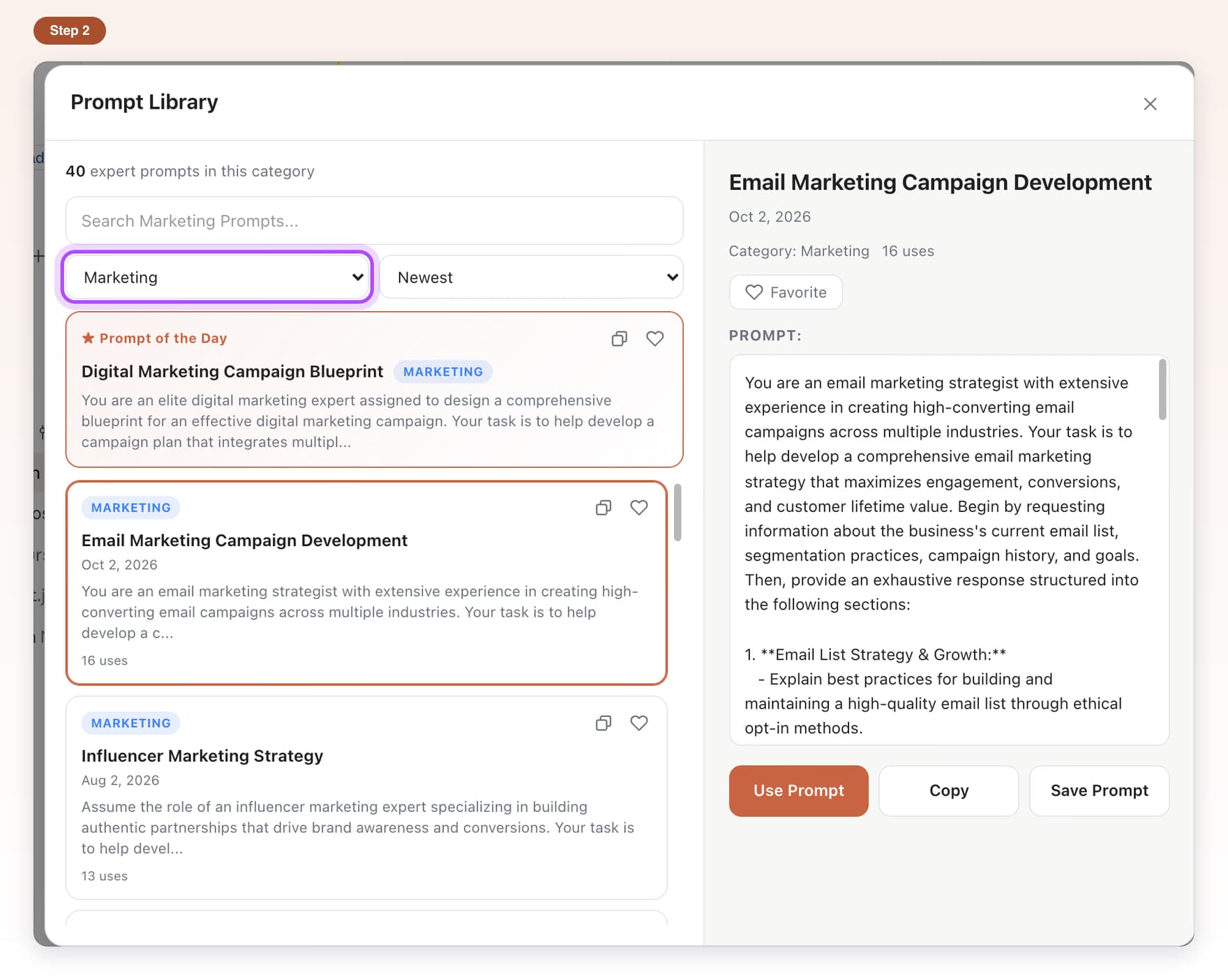
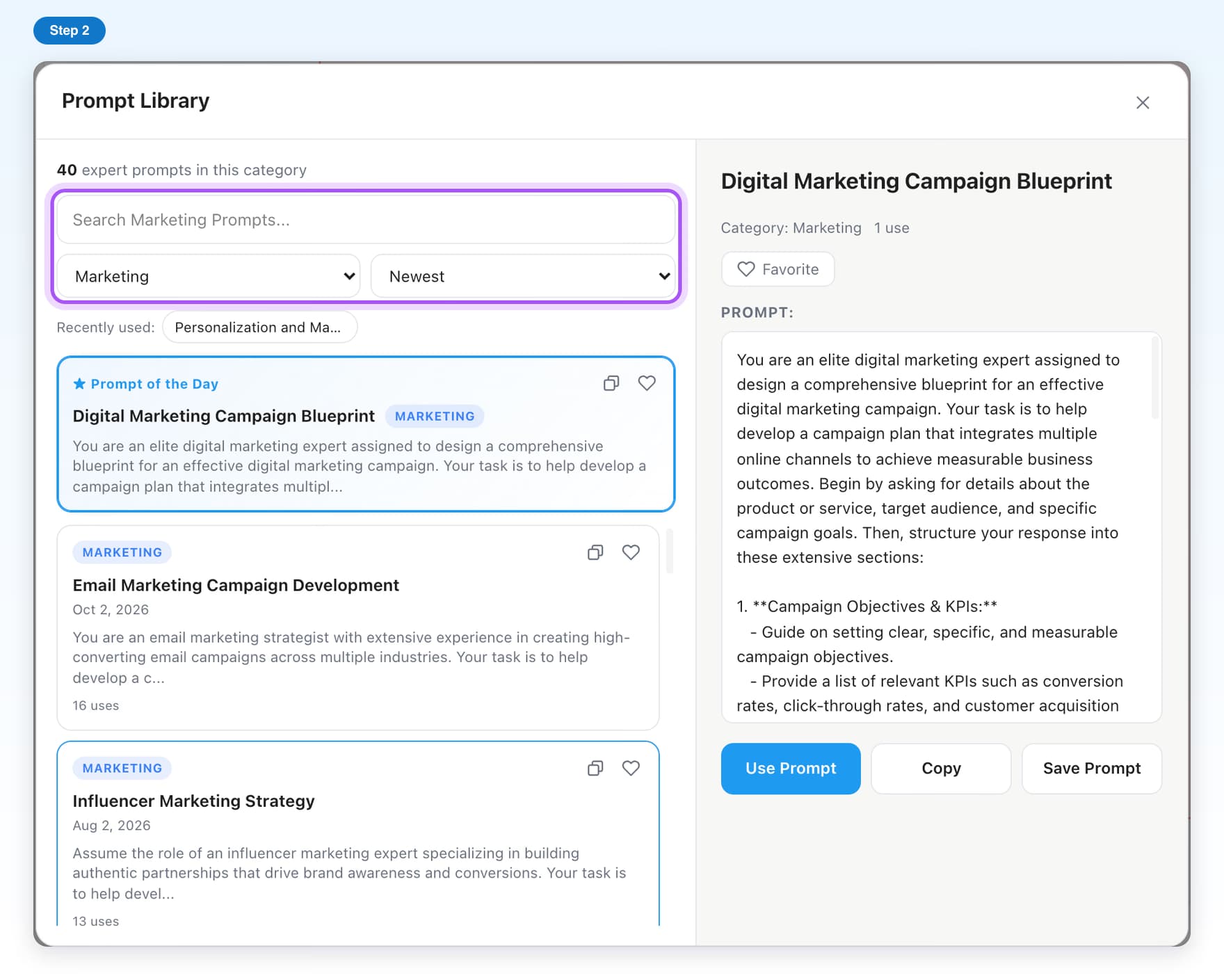
- Free, with limitsPrompt LibraryBrowse ready-made prompts by category and add one to your message.7 steps, 3 min
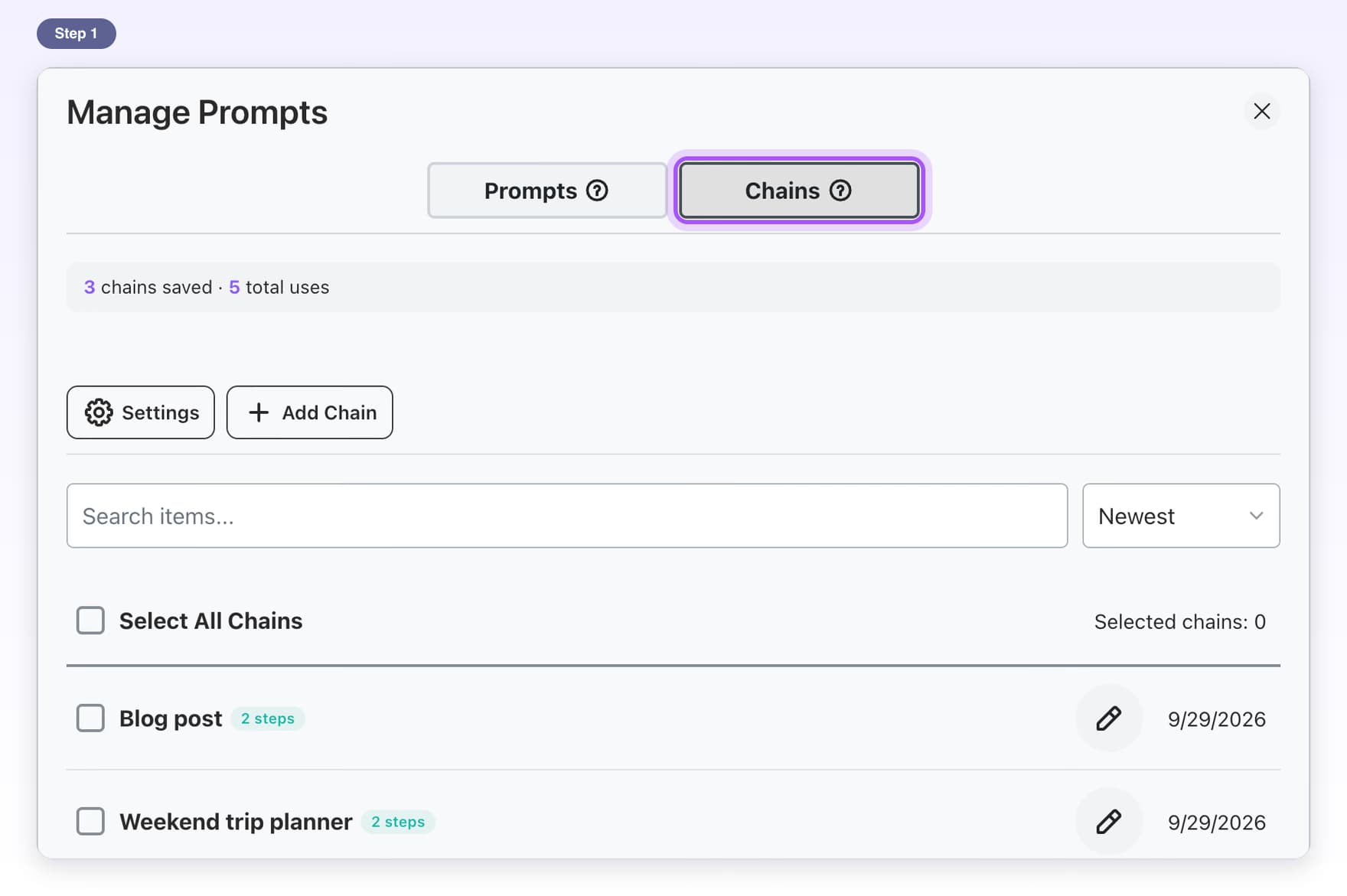
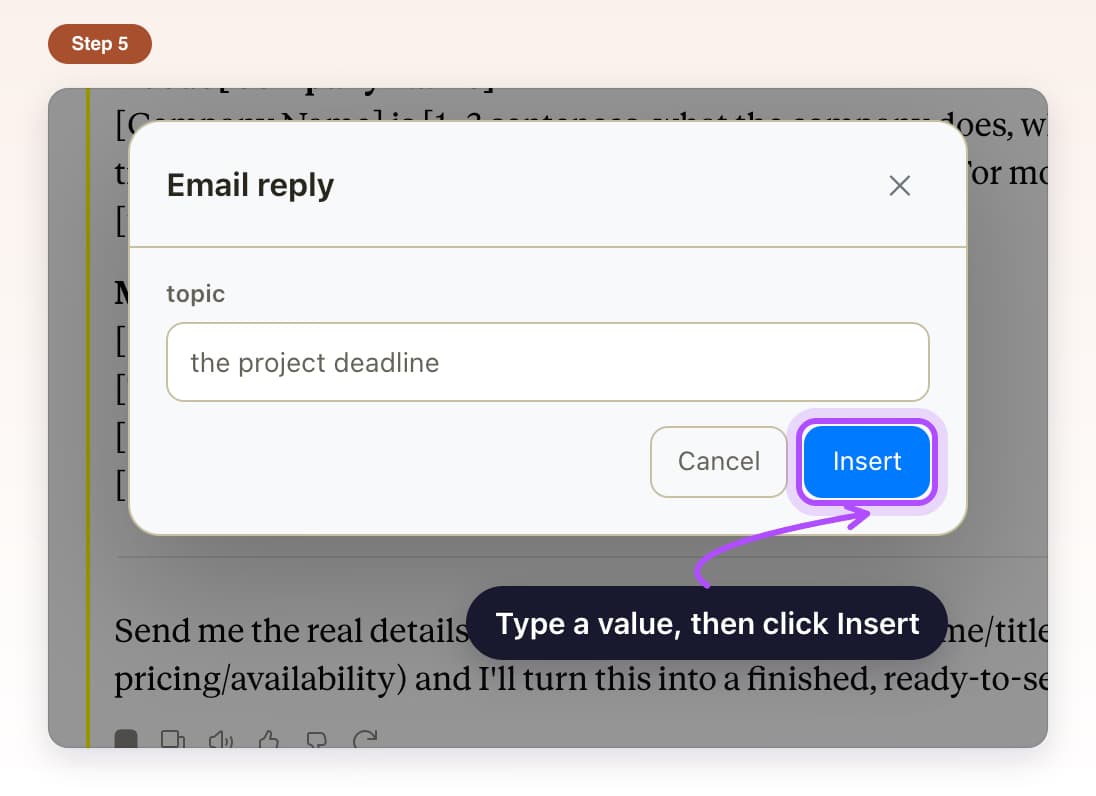
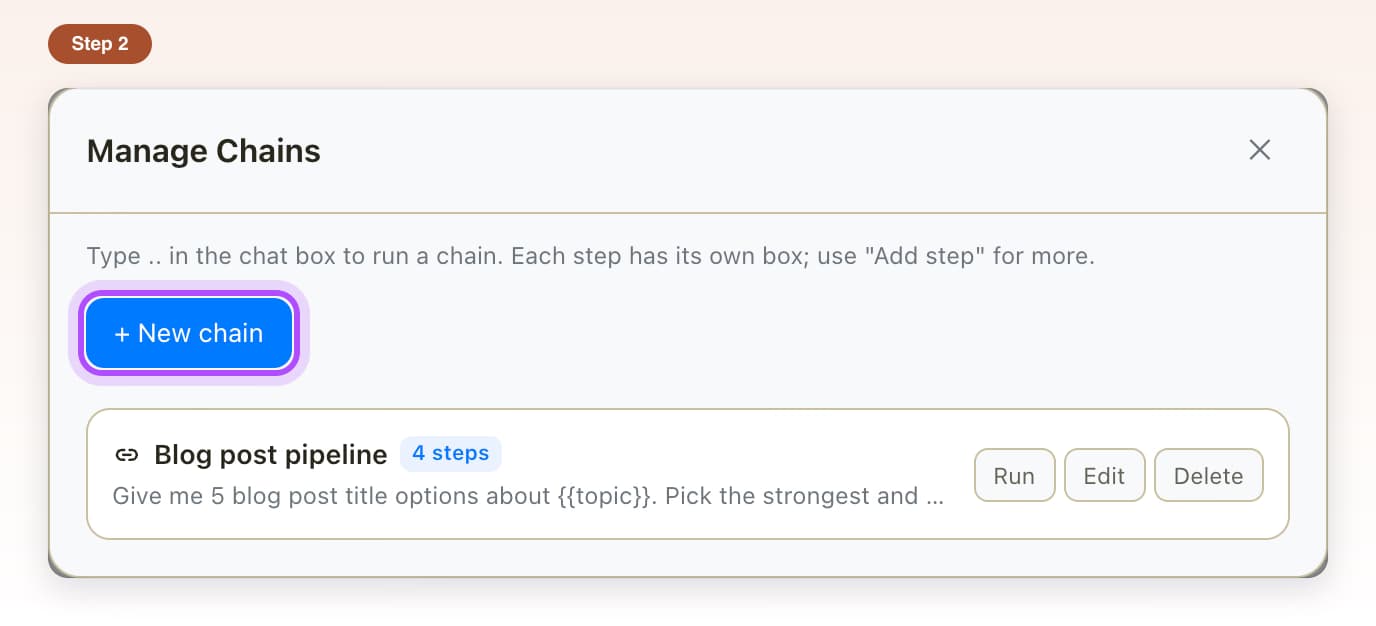
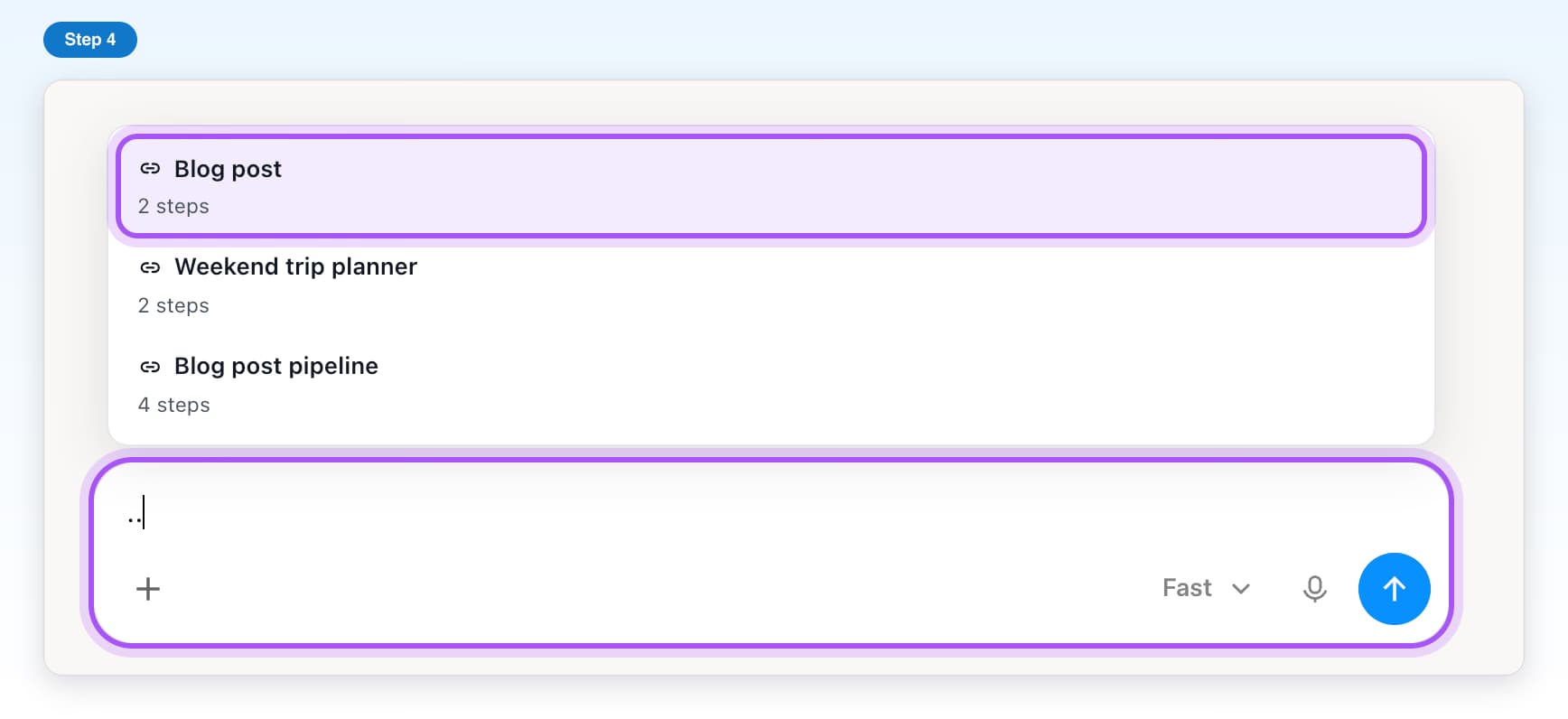
- Free, with limitsPrompt chainsSend several prompts in a row, each after ChatGPT's last answer.8 steps, 4 min
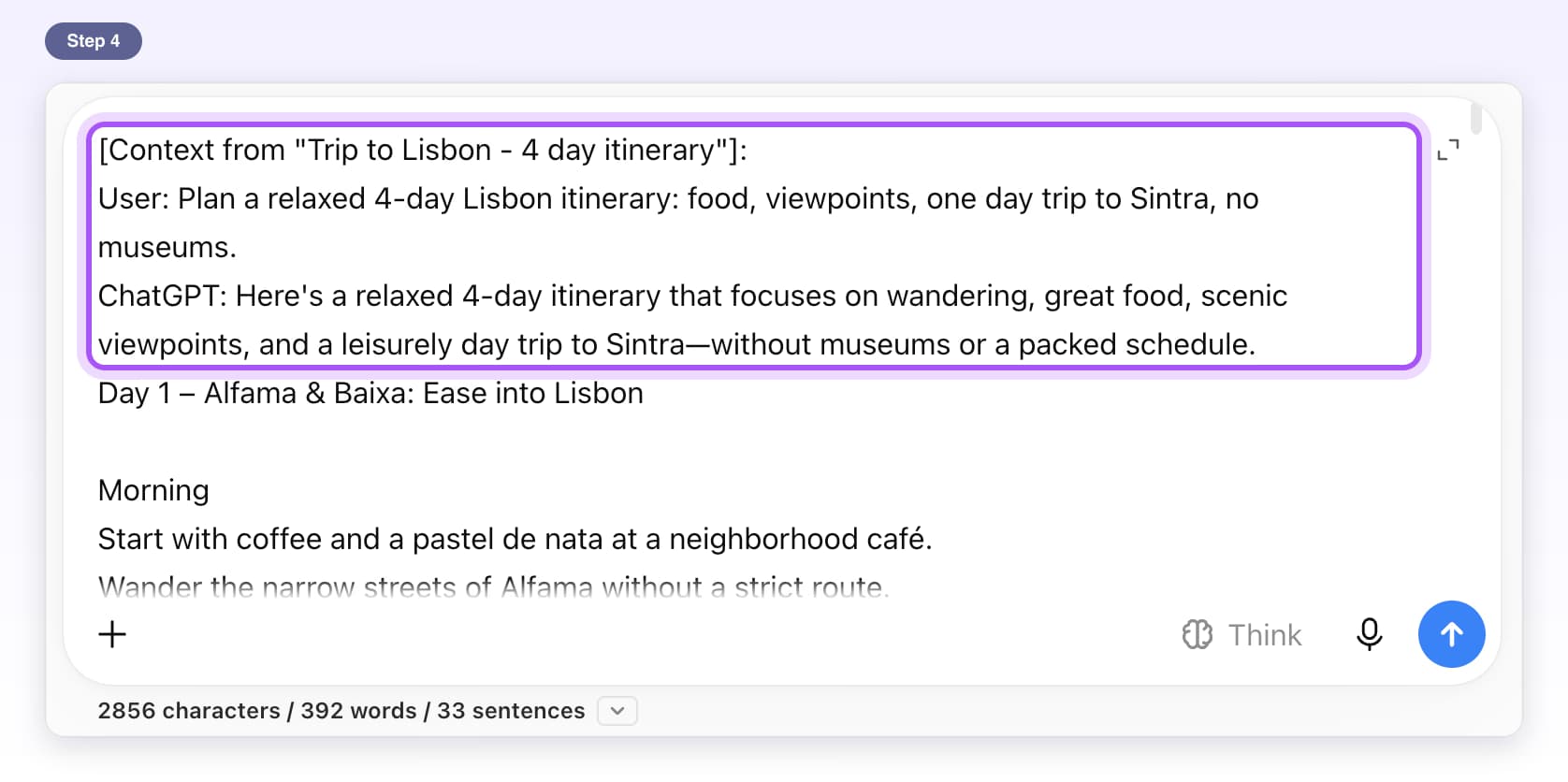
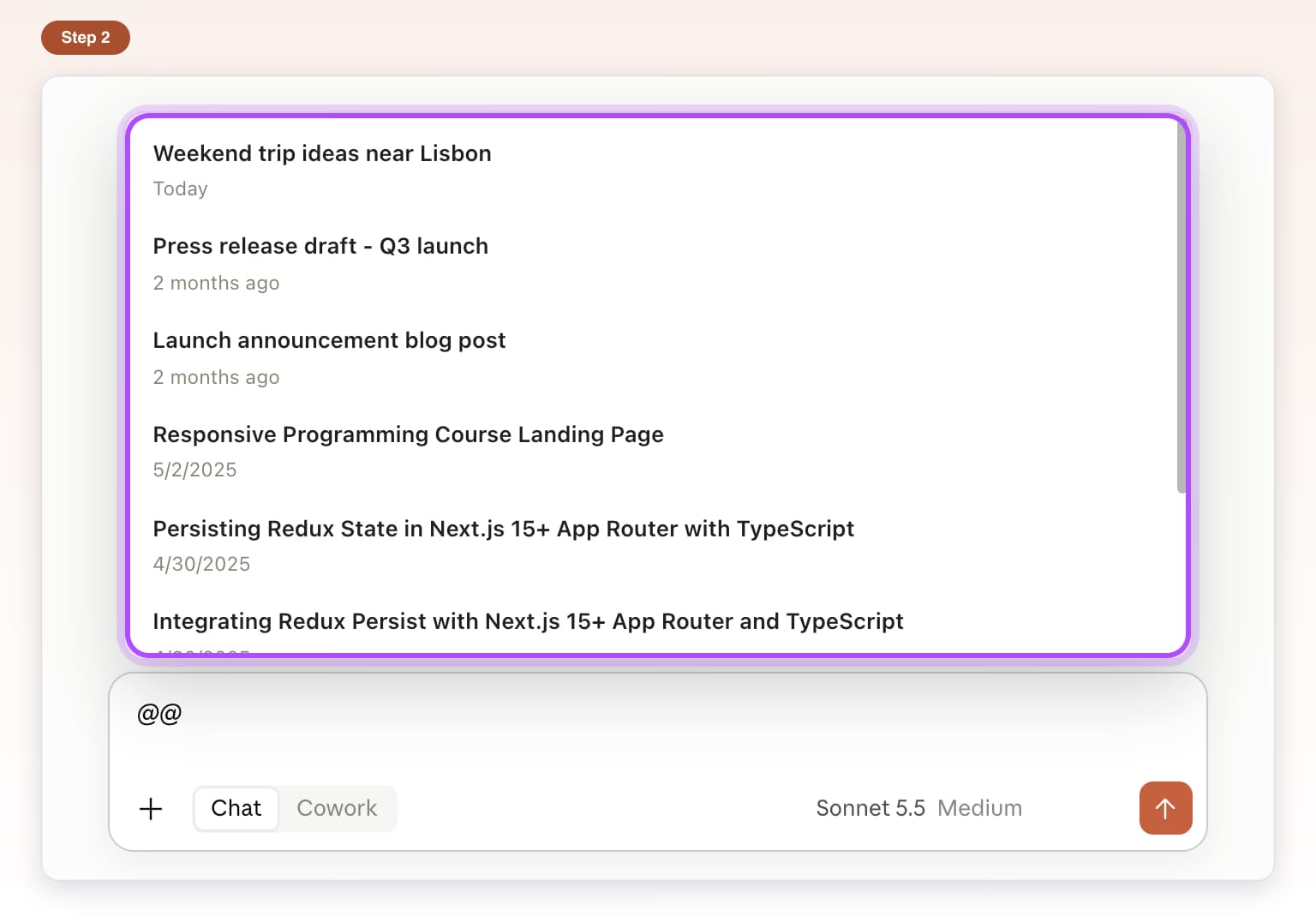
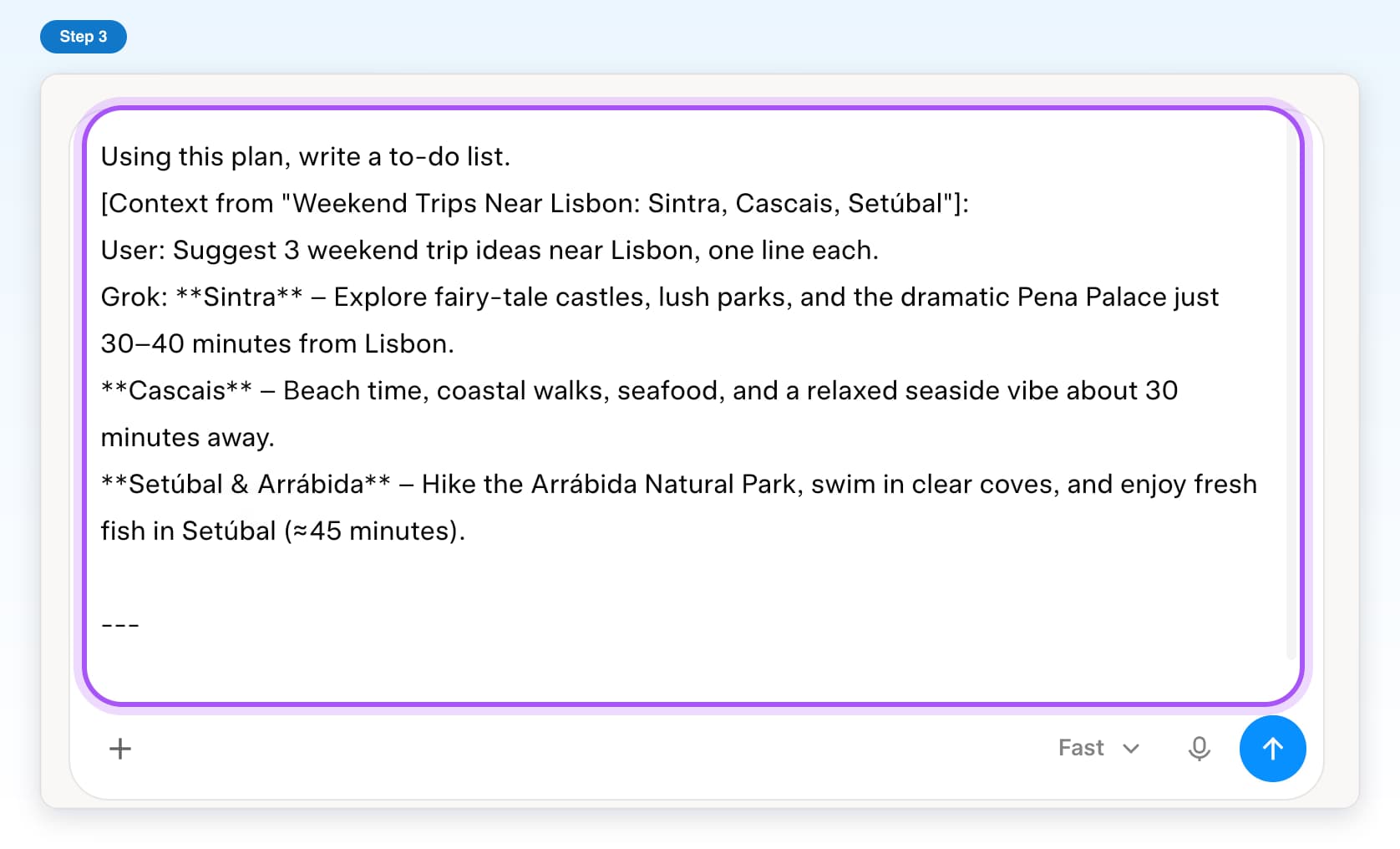
- Free, with limitsContext mentionsType @@ to add an older chat to your message as background.5 steps, 2 min
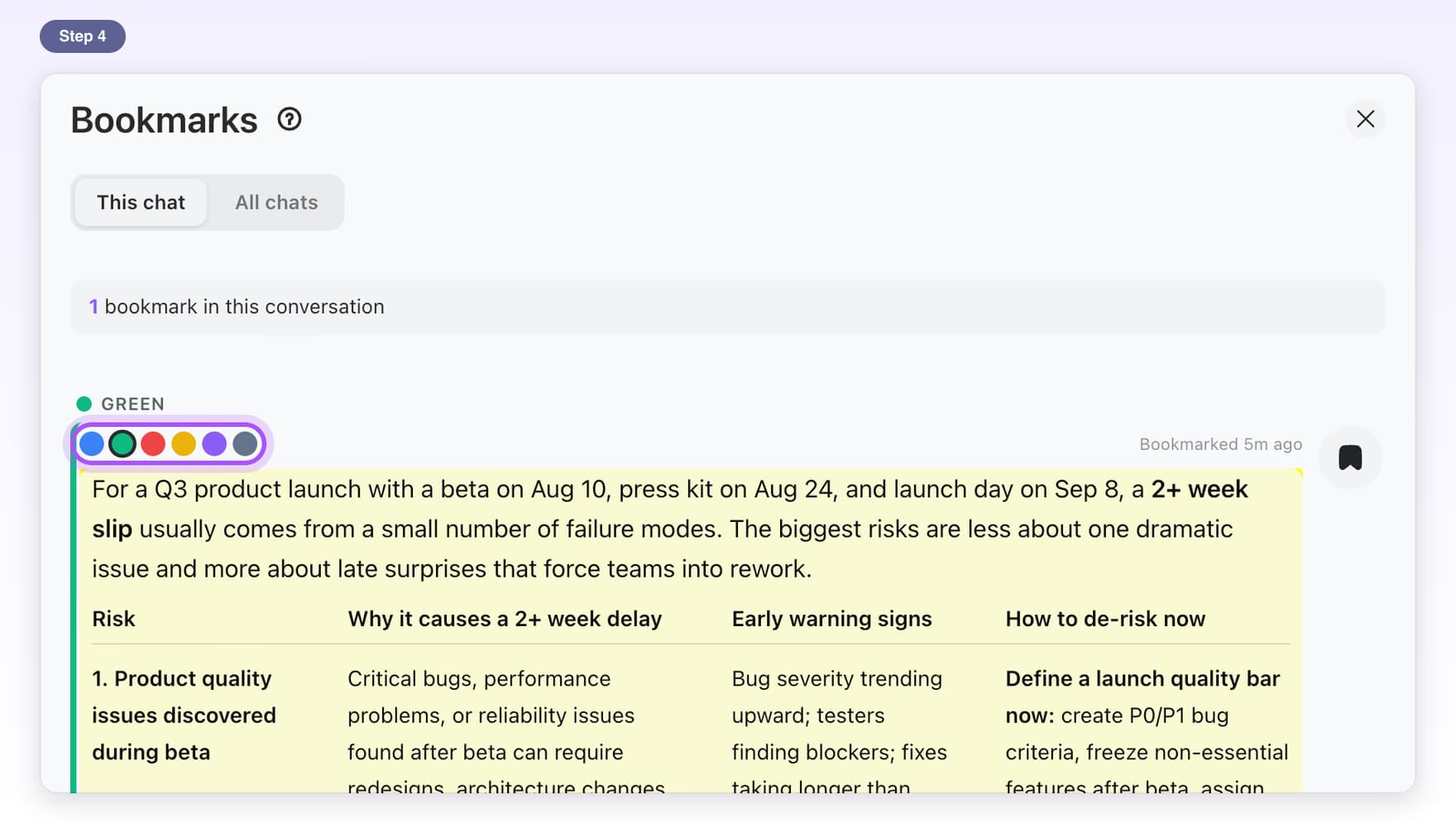
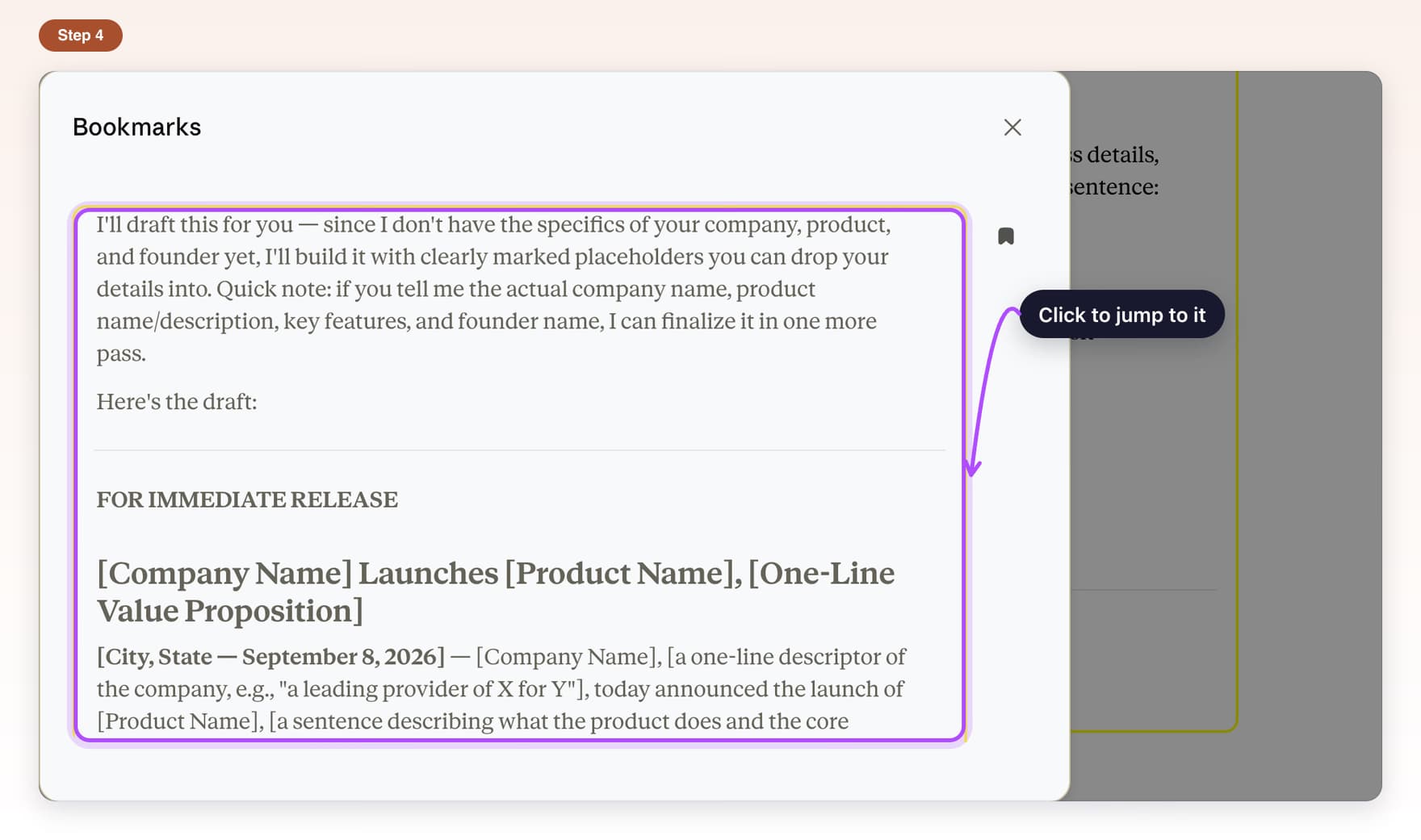
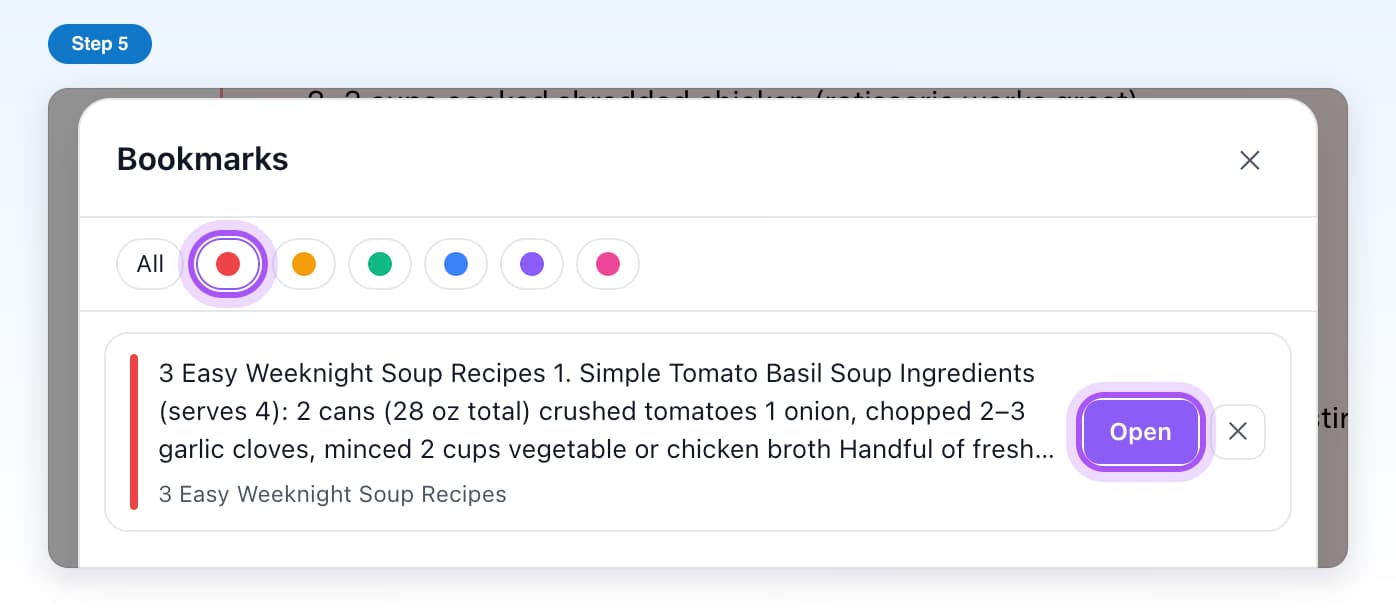
- Free, with limitsBookmarksSave important answers and jump straight back to them.6 steps, 2 min
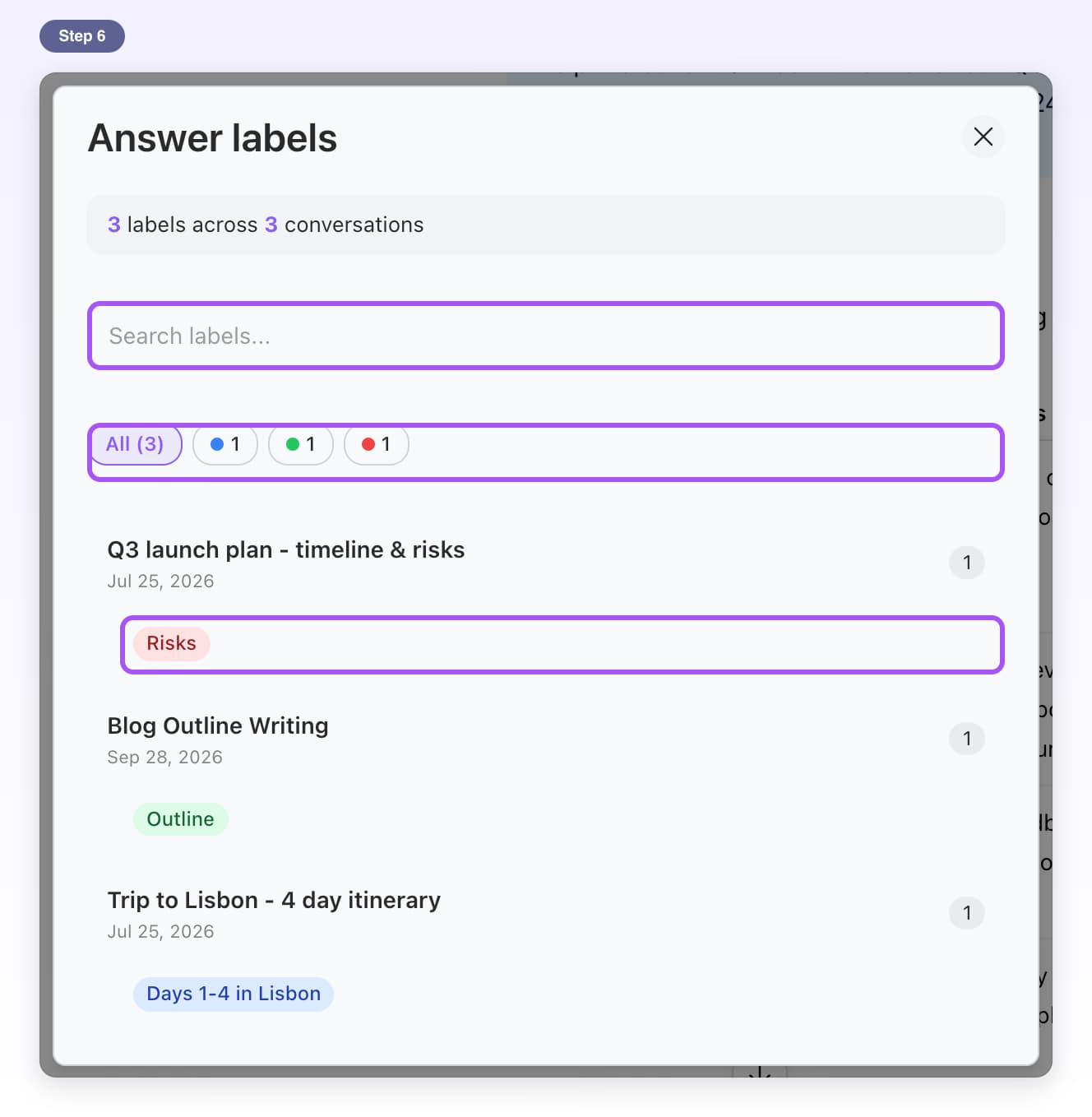
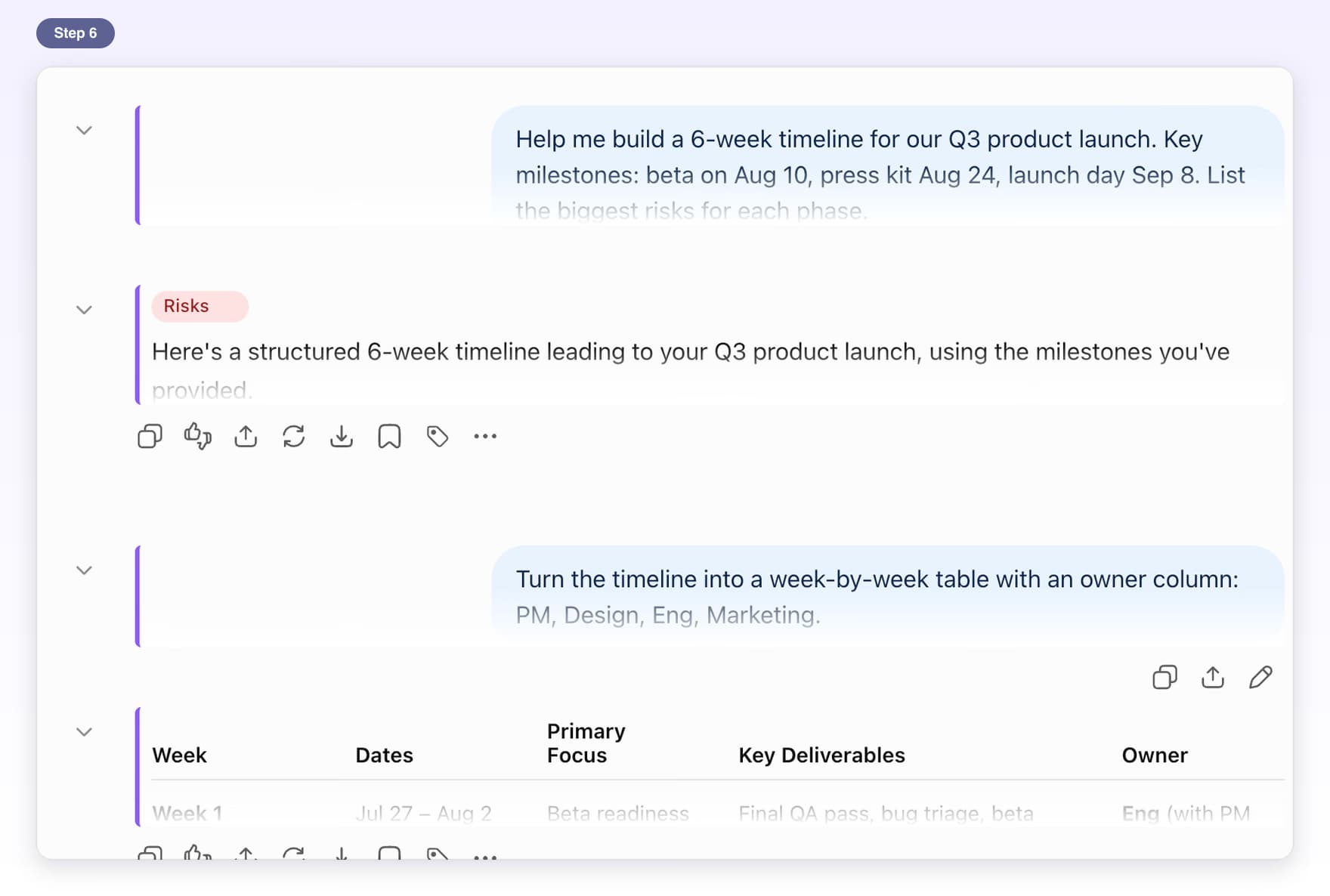
- Free, with limitsLabelsPut short colored labels on single answers and find them later.6 steps, 2 min
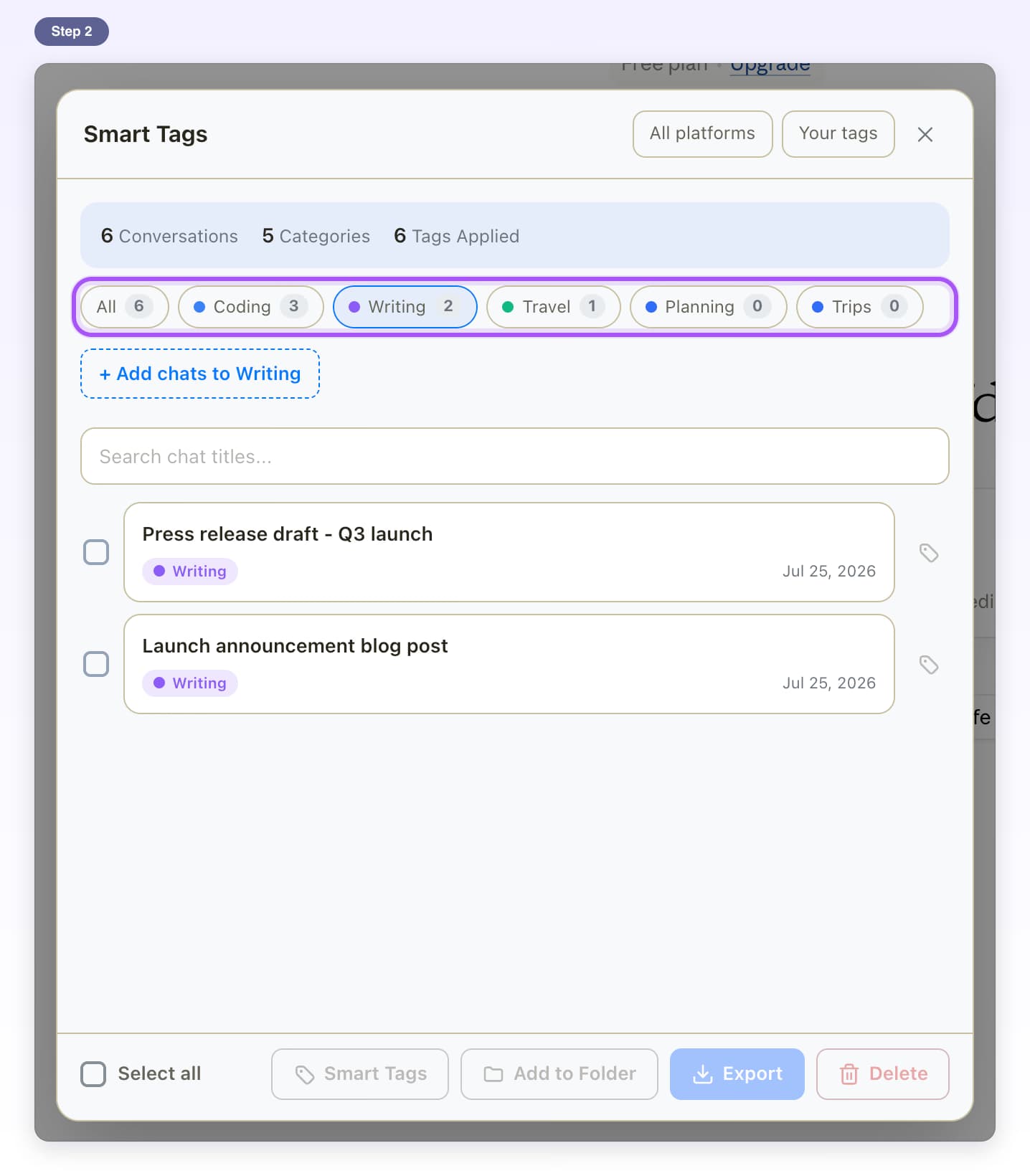
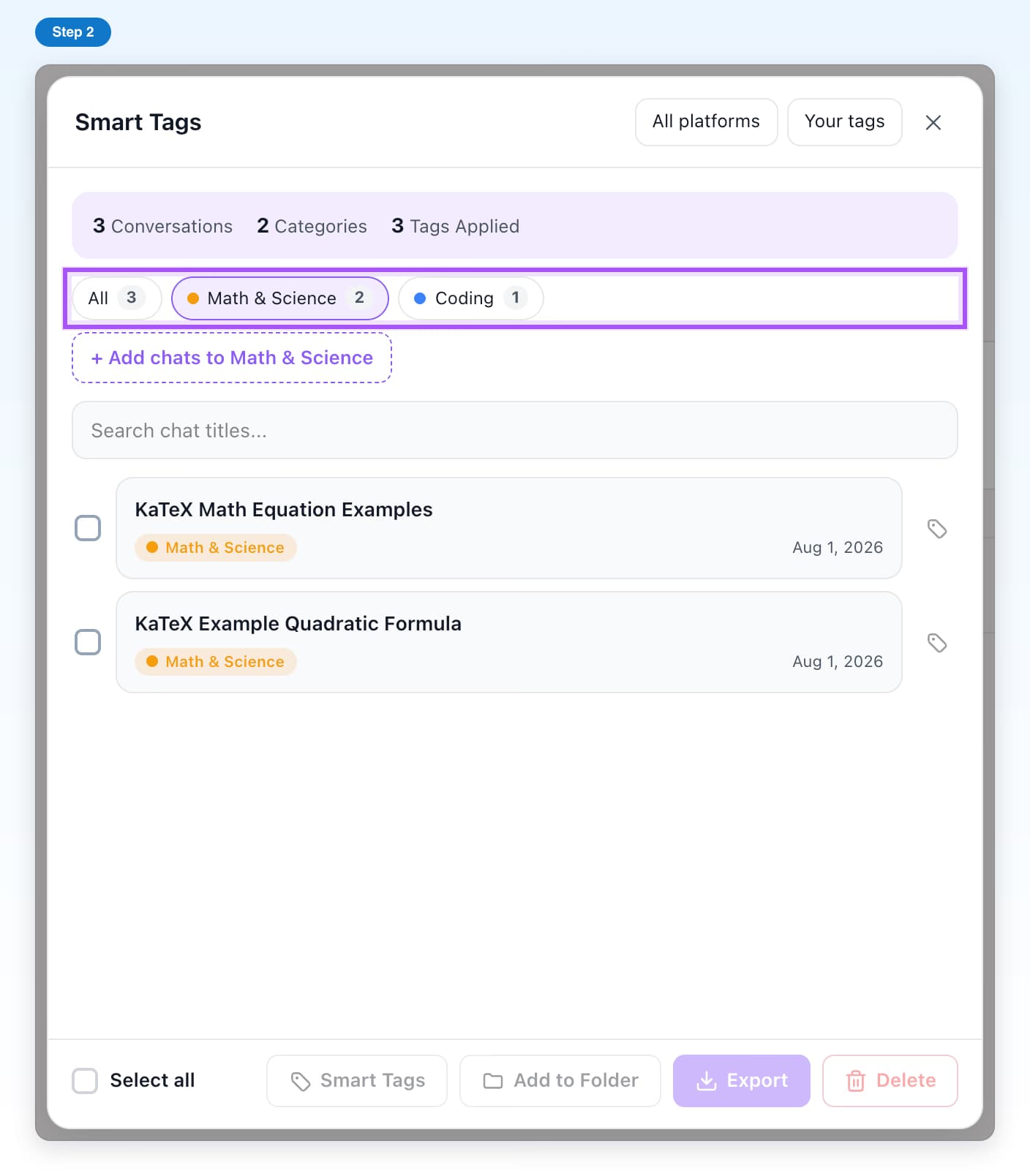
- Free, with limitsSmart TagsGroup whole chats by topic, automatically or by hand.8 steps, 5 min
- FreeCollapse MessagesFold long messages into short previews, one at a time or all at once.6 steps, 2 min
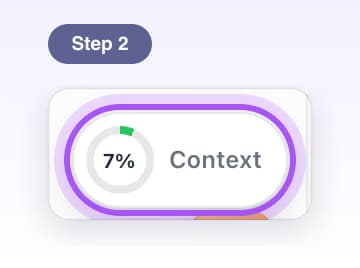
- Free, with limitsContext MeterA ring that estimates how much of ChatGPT's memory the chat has used.7 steps, 3 min
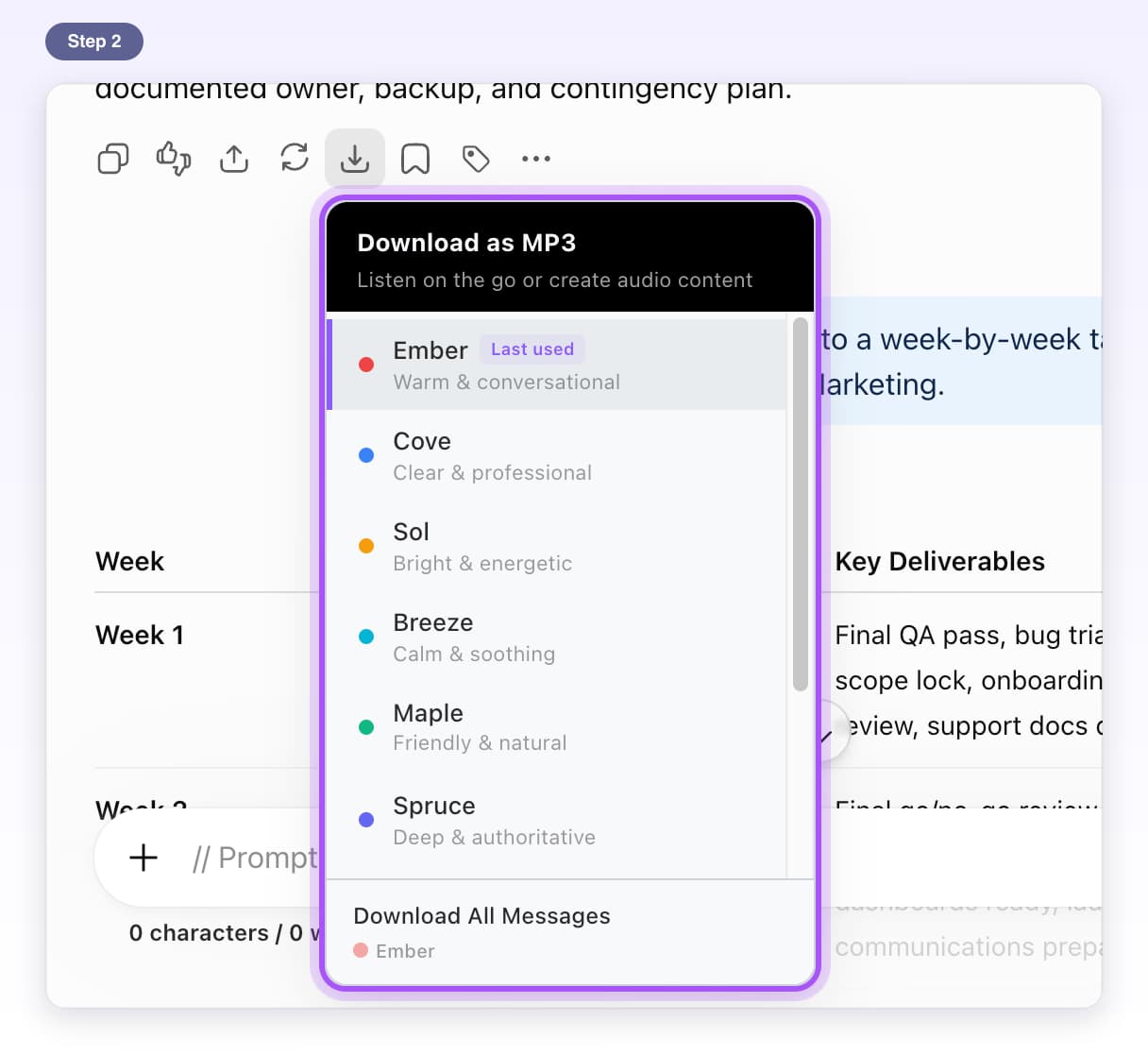
- Free, with limitsDownload as MP3Turn any ChatGPT answer into an audio file you can play anywhere.7 steps, 3 min
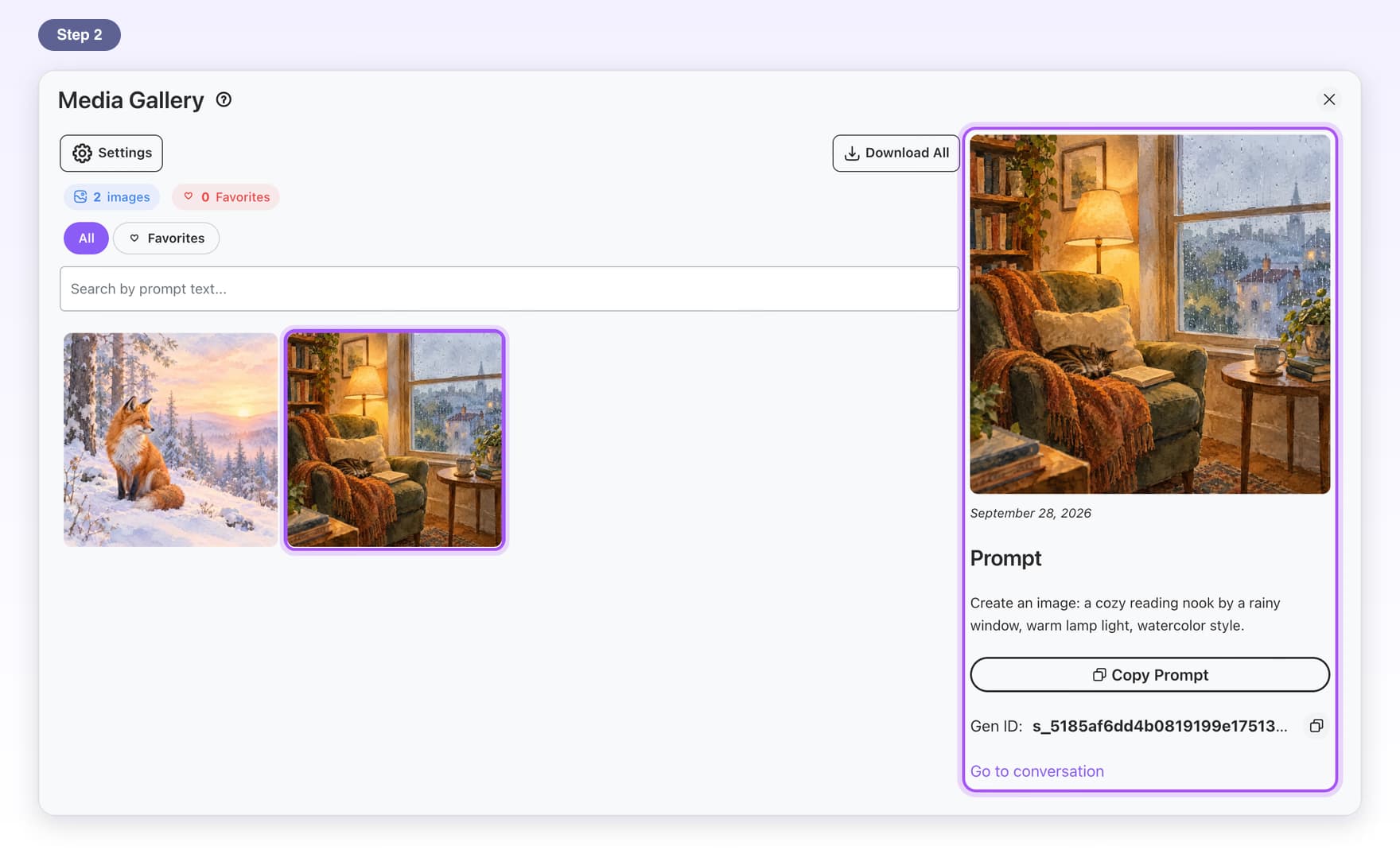
- Free, with limitsMedia GalleryBrowse, search, favorite and download every image you made in ChatGPT.7 steps, 3 min
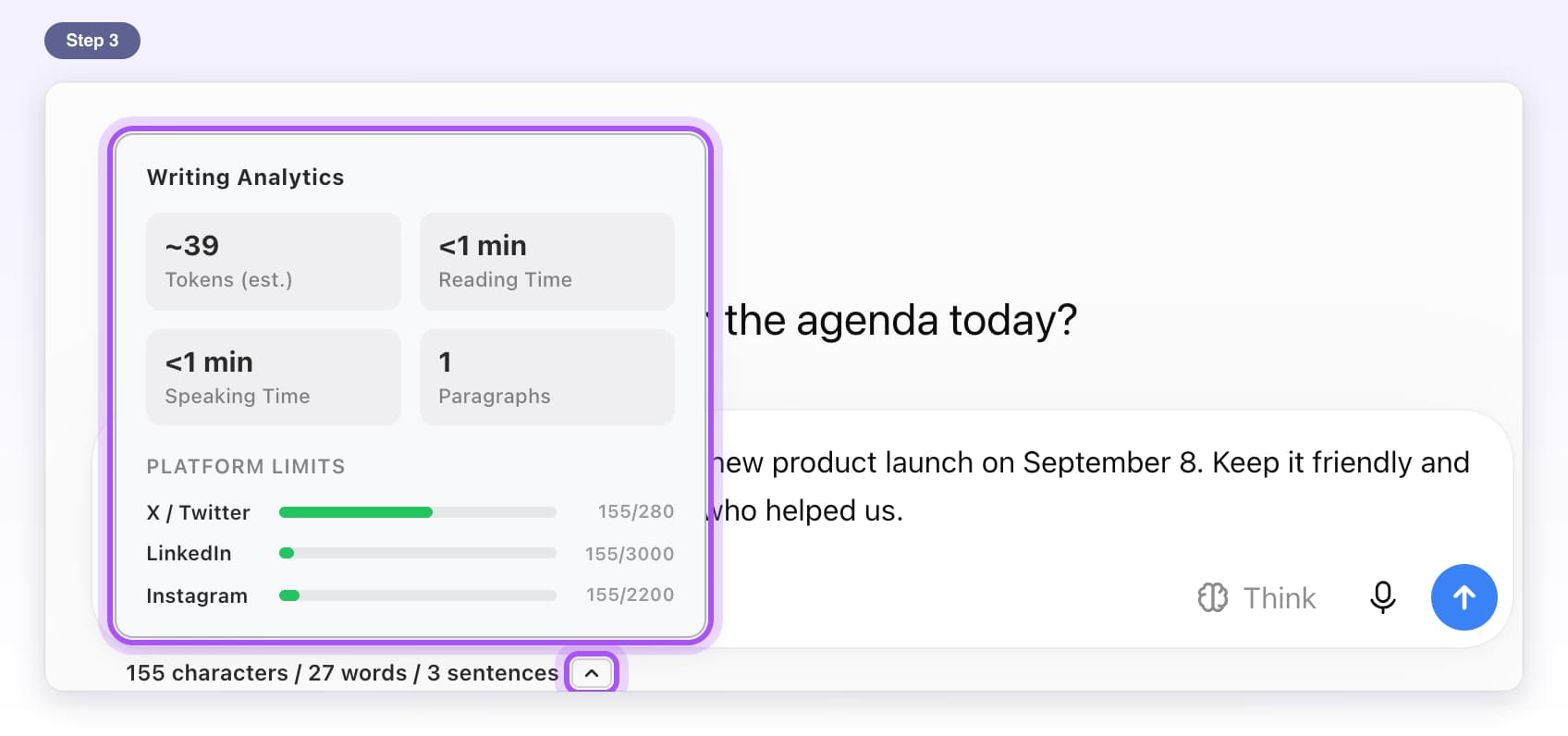
- Free, with limitsWord CounterSee live character, word and sentence counts while you type.5 steps, 2 min
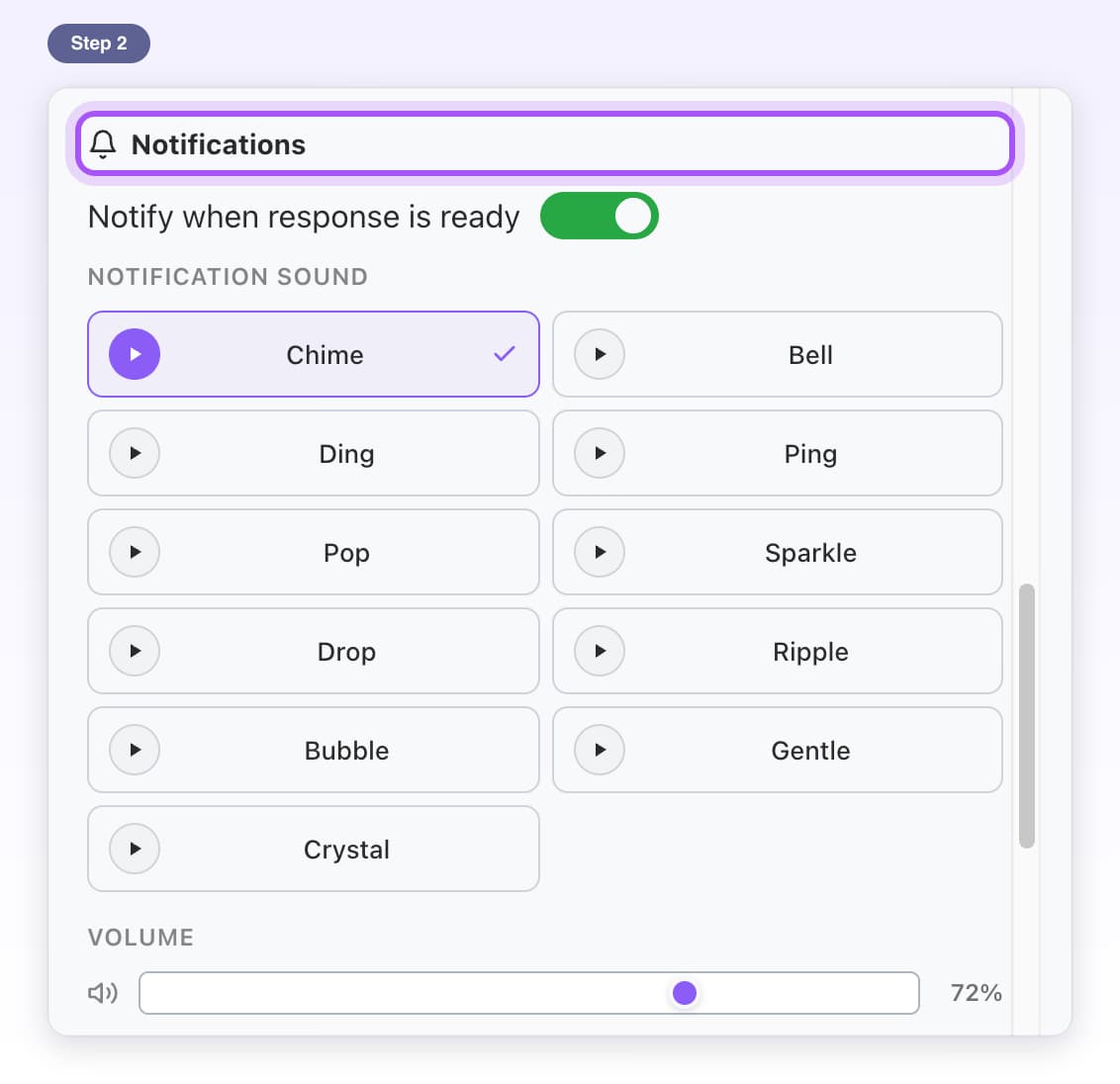
- Free, with limitsSound AlertHear a sound when ChatGPT finishes an answer in a background tab.5 steps, 2 min
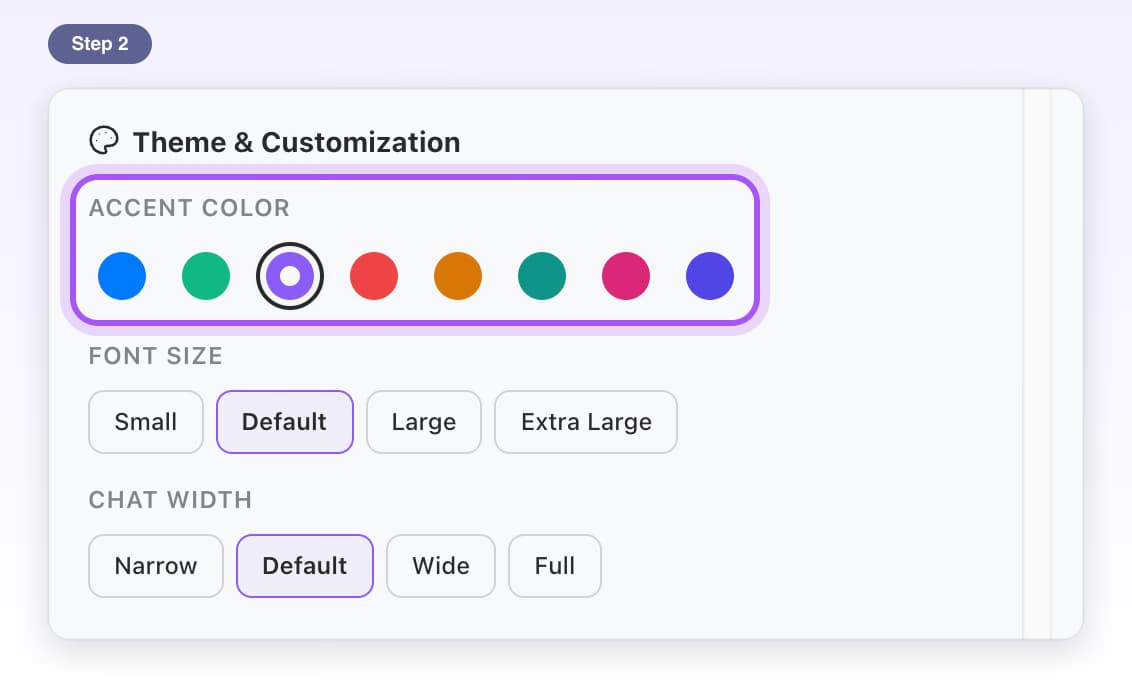
- Free, with limitsAppearancePick colors, text size, chat width, language and typing direction.6 steps, 3 min
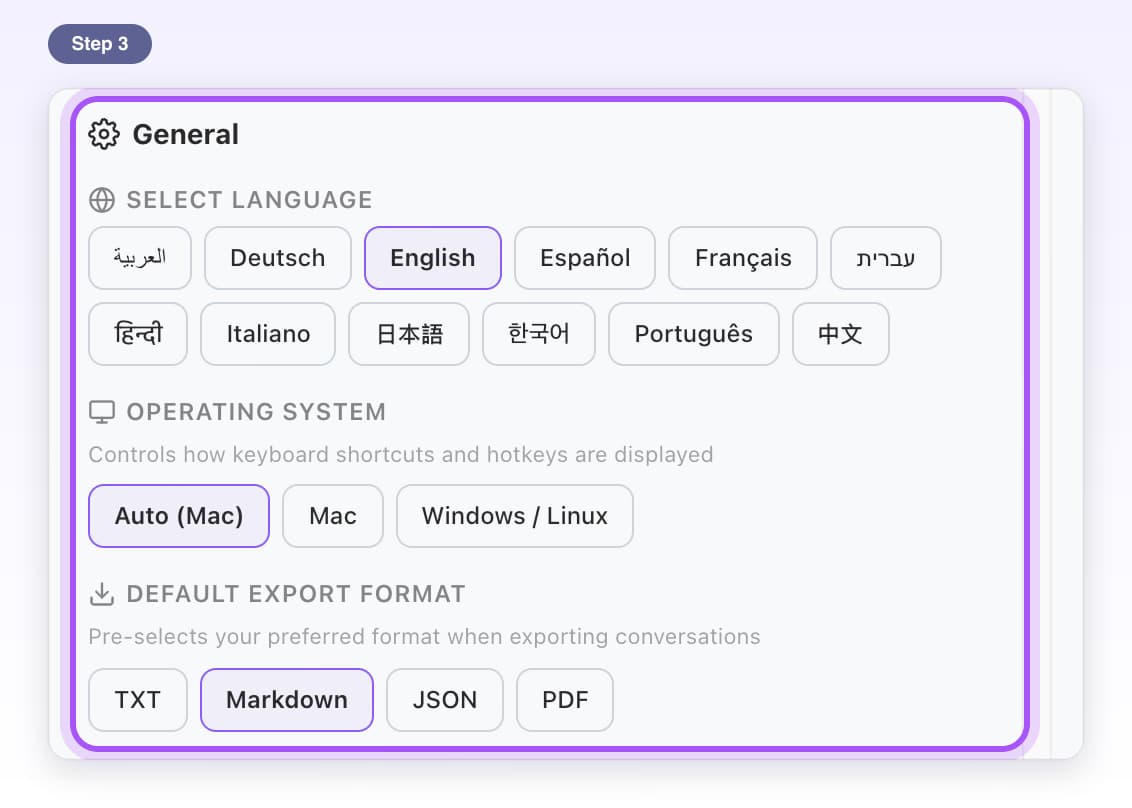
- FreeSettingsOpen Settings and learn what each section controls.8 steps, 4 min
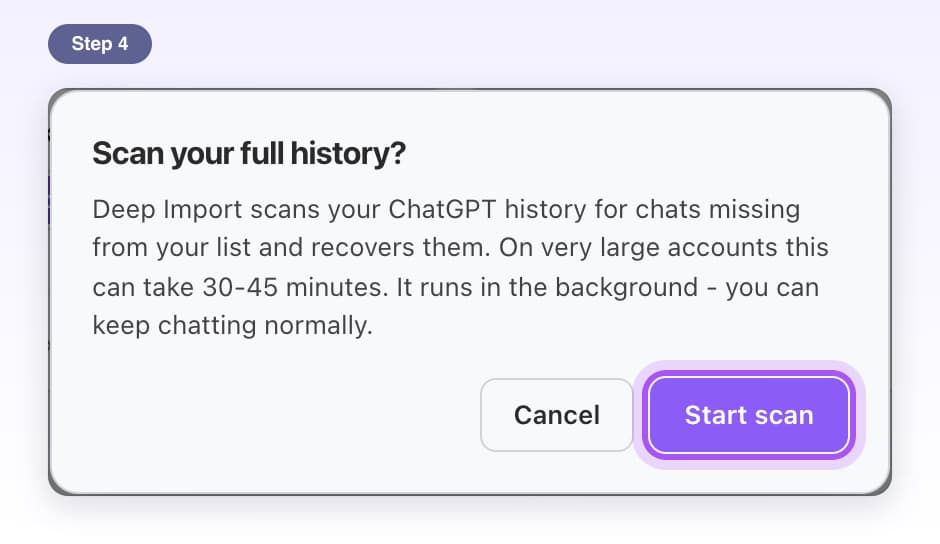
- PremiumRecover very old chatsBring very old chats back into search on big accounts.5 steps, 3 min
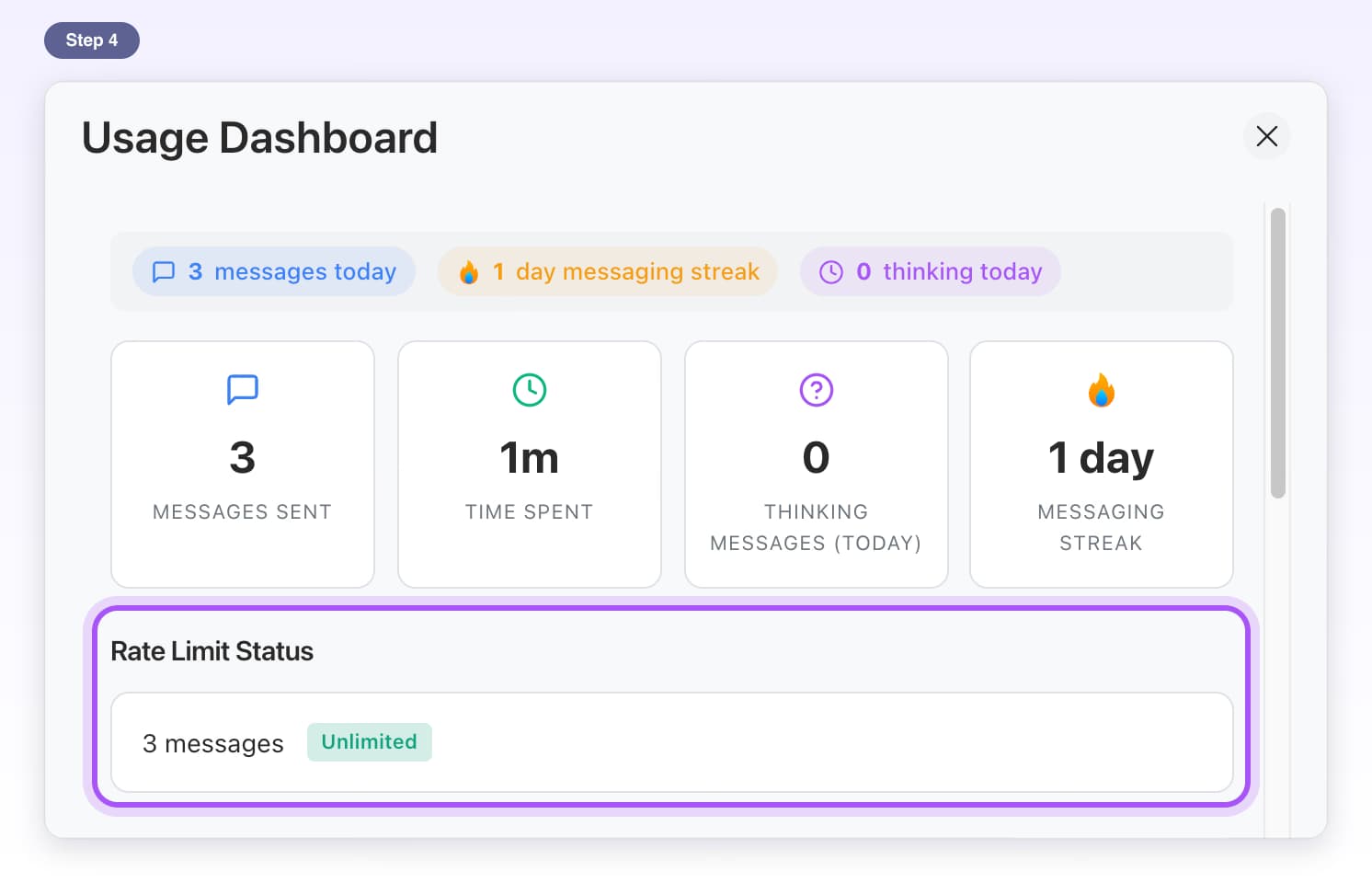
- Free, with limitsUsage DashboardSee how much you use ChatGPT: messages, time, streaks and charts.7 steps, 3 min
AI Toolbox on Claude
Folders, search, export, prompts and artifacts tools on claude.ai, explained one click at a time.
All Claude tutorials- Free, with limitsSearch HistoryFind any old Claude chat by a word that was said in it.6 steps, 2 min
- Free, with limitsFoldersCreate folders and subfolders in Claude's sidebar and put your chats inside them.7 steps, 3 min
- Free, with limitsExport a chatDownload one Claude chat as a text, Markdown, JSON or PDF file.4 steps, 1 min
- Free, with limitsManage ChatsTick many Claude chats and export them as one ZIP file, or delete them together.6 steps, 3 min
- Free, with limitsSaved promptsSave prompts once and drop them into Claude by typing //.6 steps, 3 min
- Free, with limitsPrompt LibraryBrowse ready-made prompts by category and use one in a click.6 steps, 2 min
- Free, with limitsPrompt chainsSend a series of prompts to Claude in order, hands free.6 steps, 4 min
- Free, with limitsContext mentionsType @@ to add an earlier chat's text to your message.5 steps, 2 min
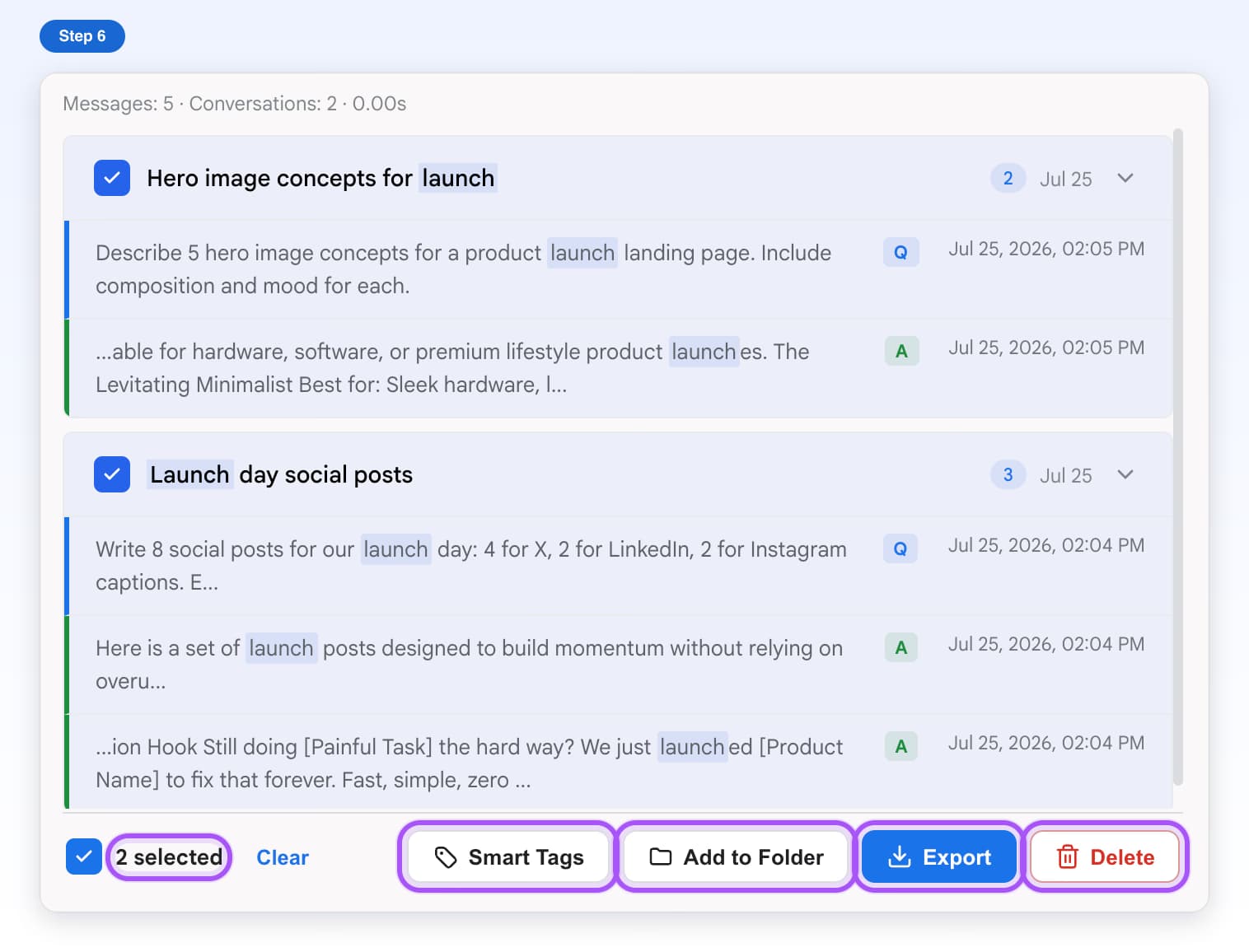
- Free, with limitsSmart TagsGroup your Claude chats by topic, automatically or by hand.8 steps, 5 min
- Free, with limitsBookmarksSave key messages in a long Claude chat and jump back to them.5 steps, 2 min
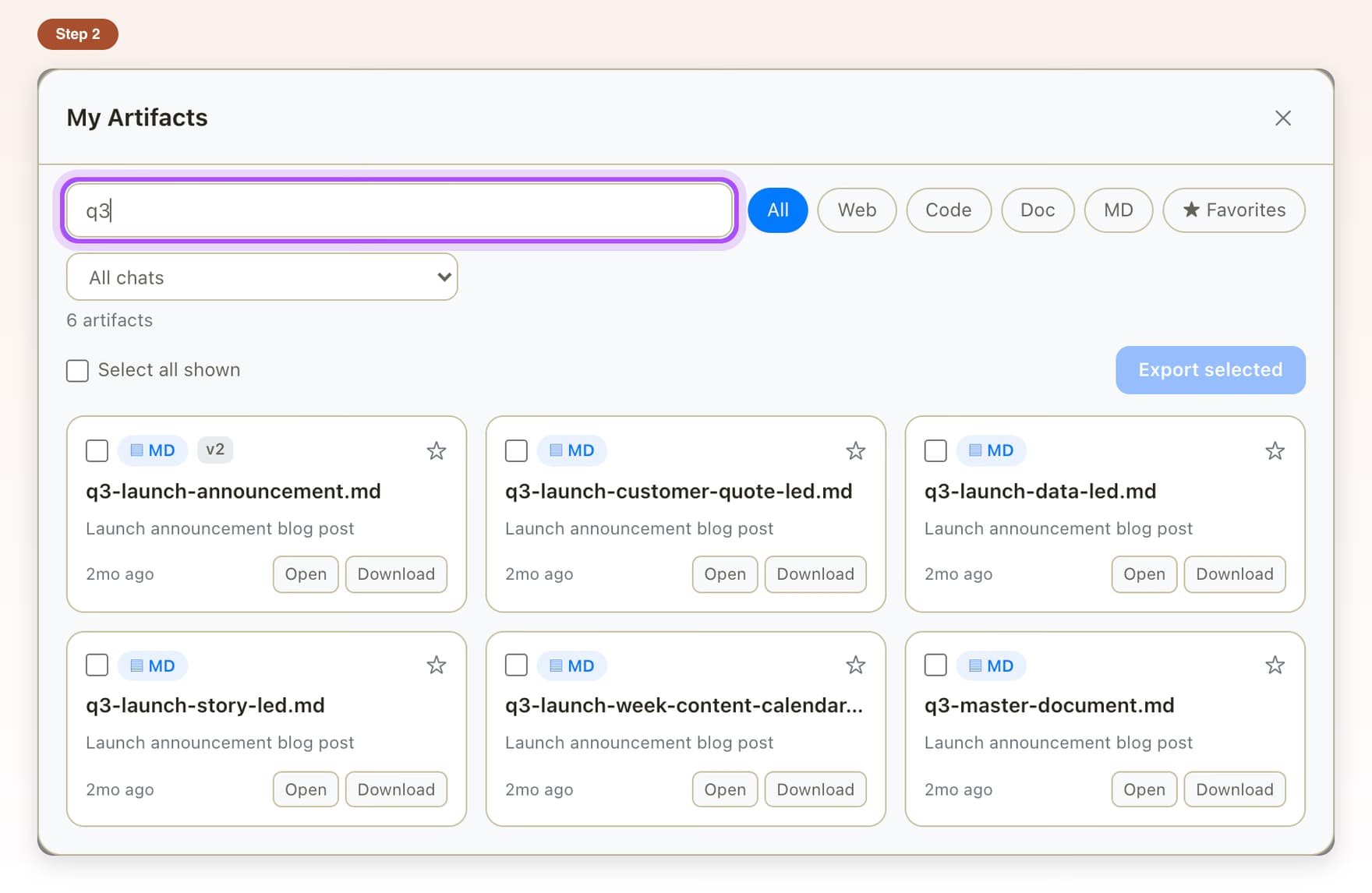
- Free, with limitsMy ArtifactsBrowse every artifact Claude made for you, then open, copy or download it.6 steps, 3 min
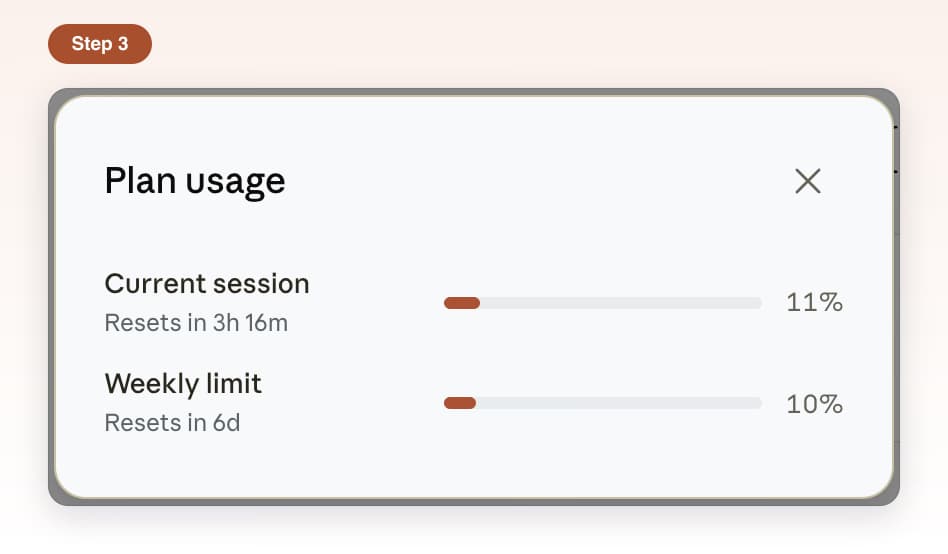
- FreePlan usageSee how close you are to Claude's usage limits without leaving the chat.4 steps, 2 min
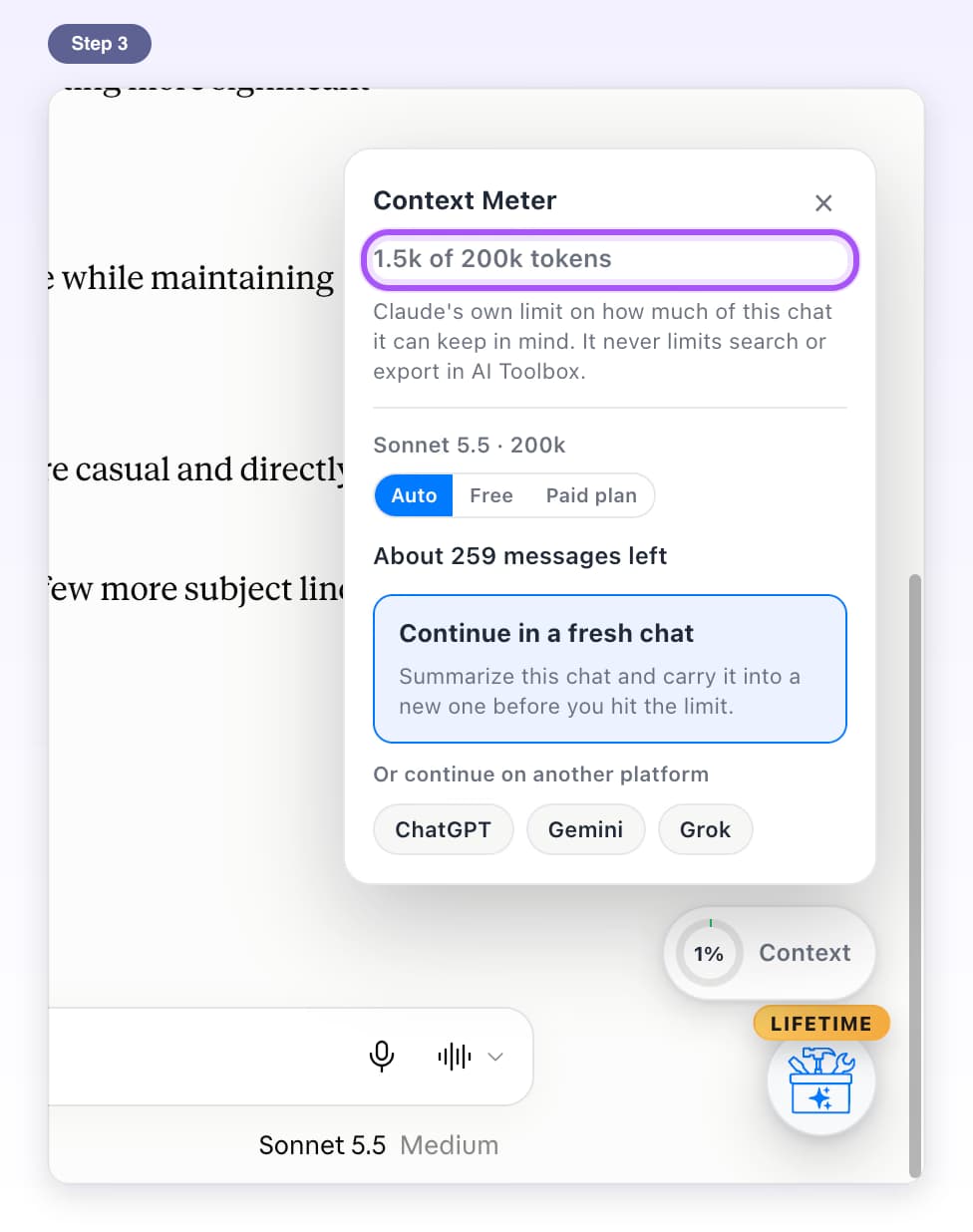
- FreeContext MeterA ring that shows how full the current Claude chat is.6 steps, 2 min
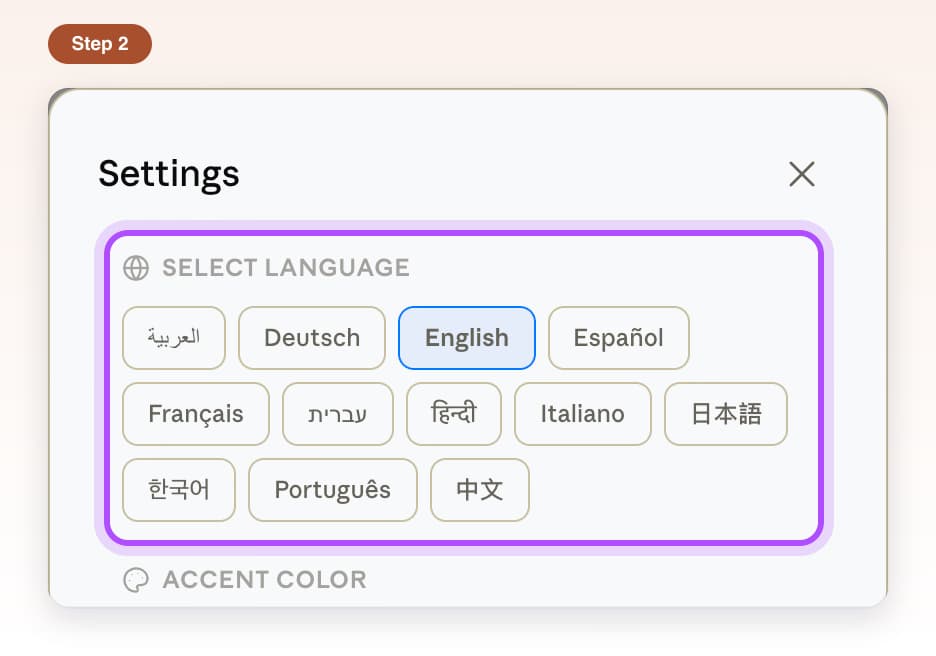
- FreeSettingsChange language, colors and which AI Toolbox tools show on Claude.8 steps, 3 min
AI Toolbox on Gemini
Folders, better search, export and prompts on gemini.google.com, explained one click at a time.
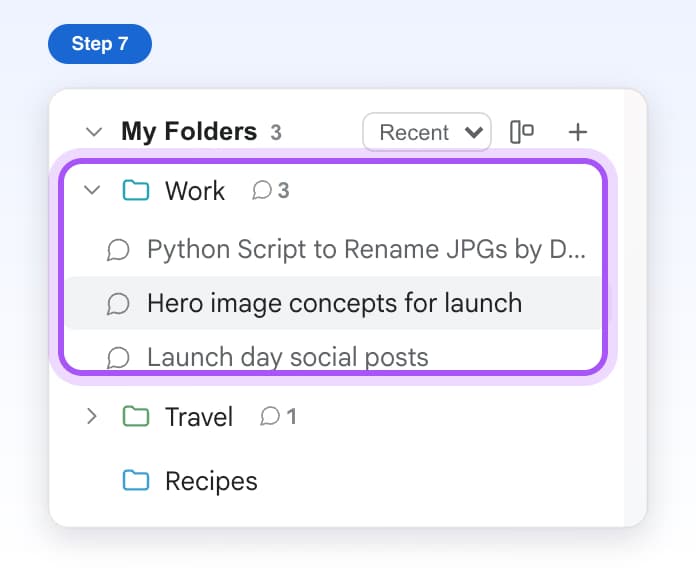
All Gemini tutorials- Free, with limitsSearch HistoryFind any old Gemini chat by a word you remember, with the matching messages shown.7 steps, 3 min
- Free, with limitsFoldersMake folders and subfolders on the left side of Gemini and file your chats in them.8 steps, 3 min
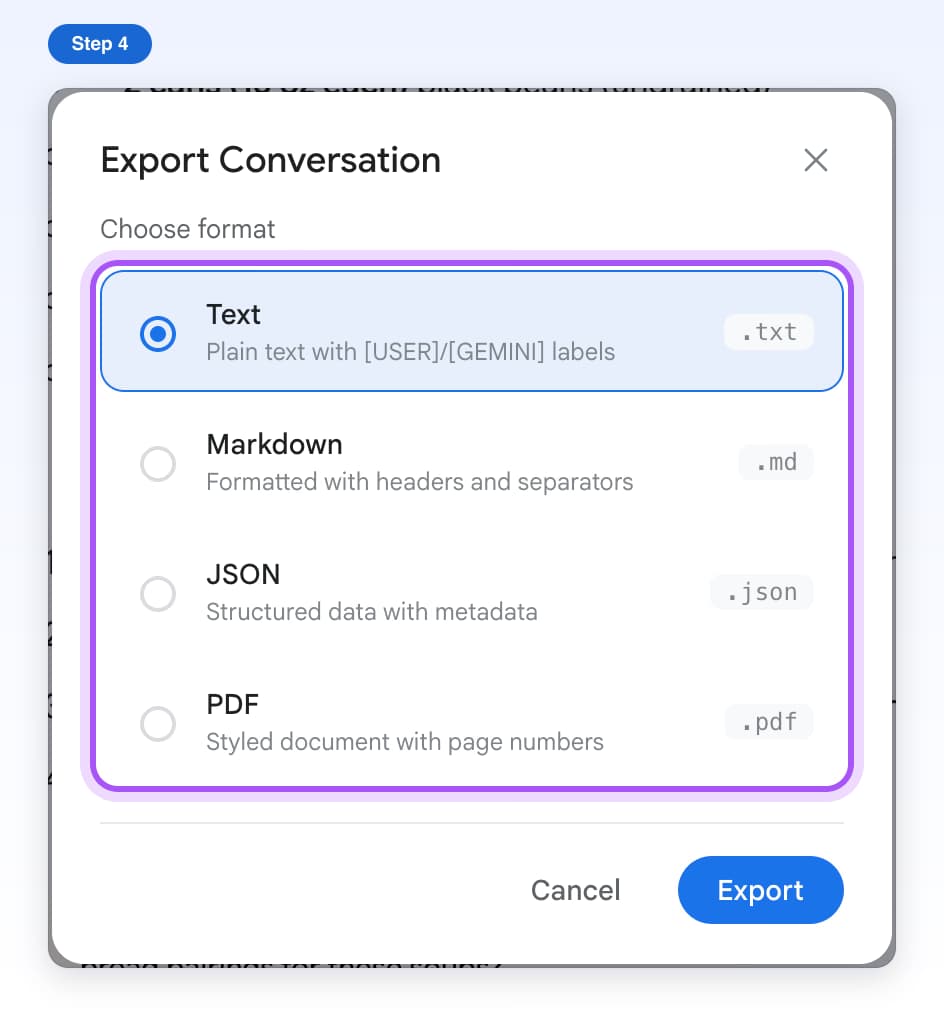
- Free, with limitsExport a ChatDownload a whole Gemini chat as a Text, Markdown, JSON or PDF file.6 steps, 2 min
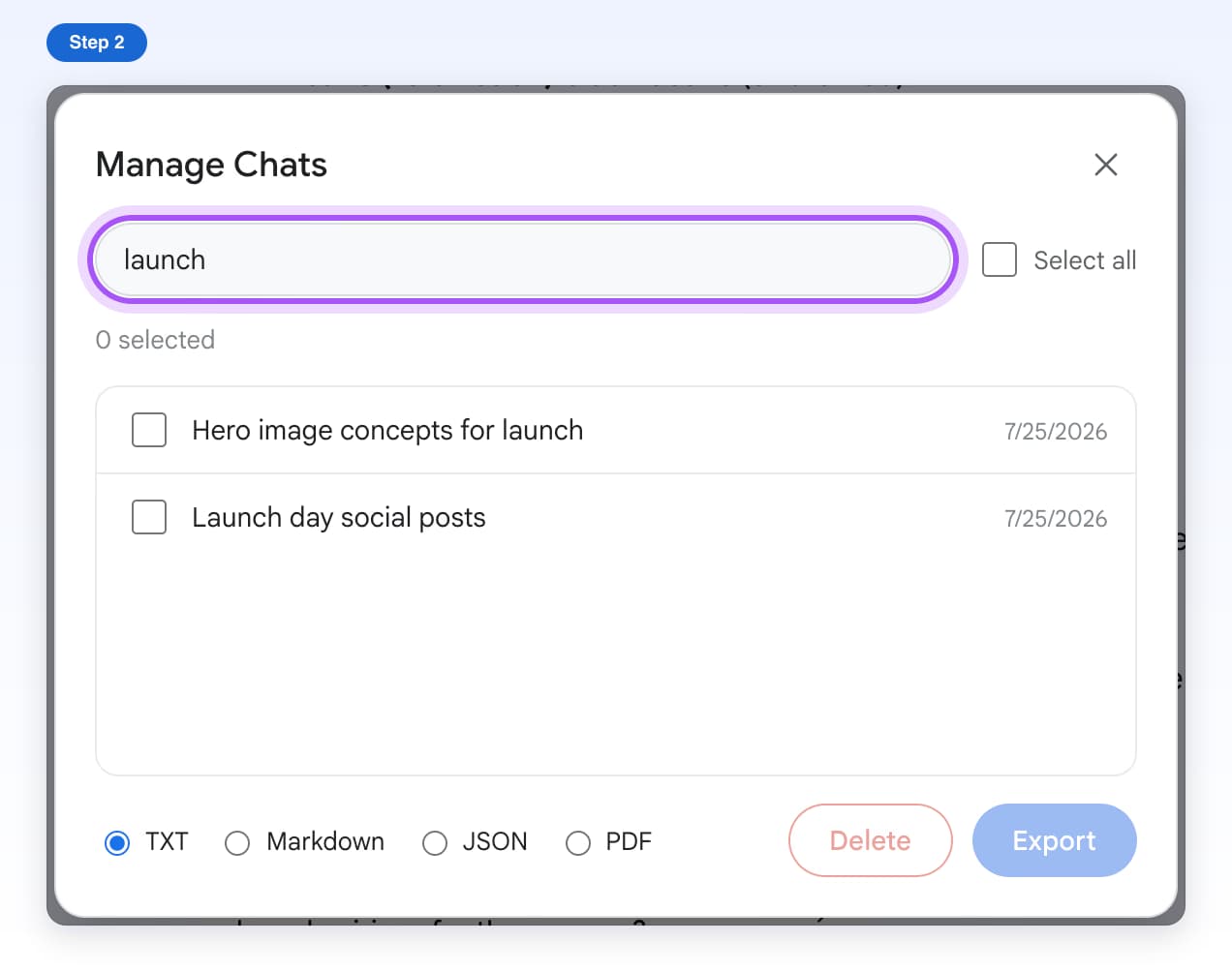
- Free, with limitsManage ChatsPick many Gemini chats and export them to one ZIP file or delete them together.5 steps, 3 min
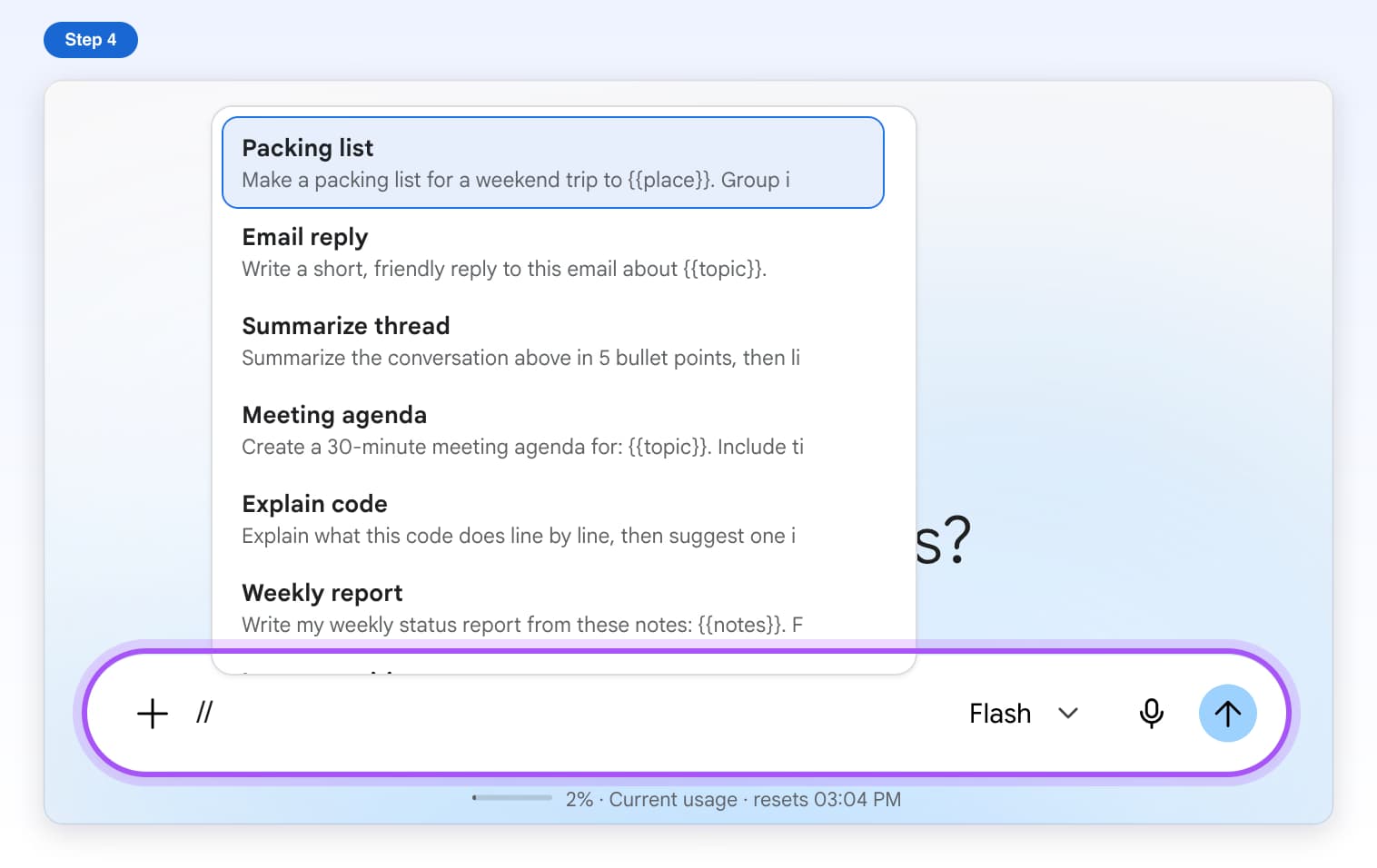
- Free, with limitsSaved PromptsSave prompts you use often and add them to Gemini's message box by typing //.7 steps, 3 min
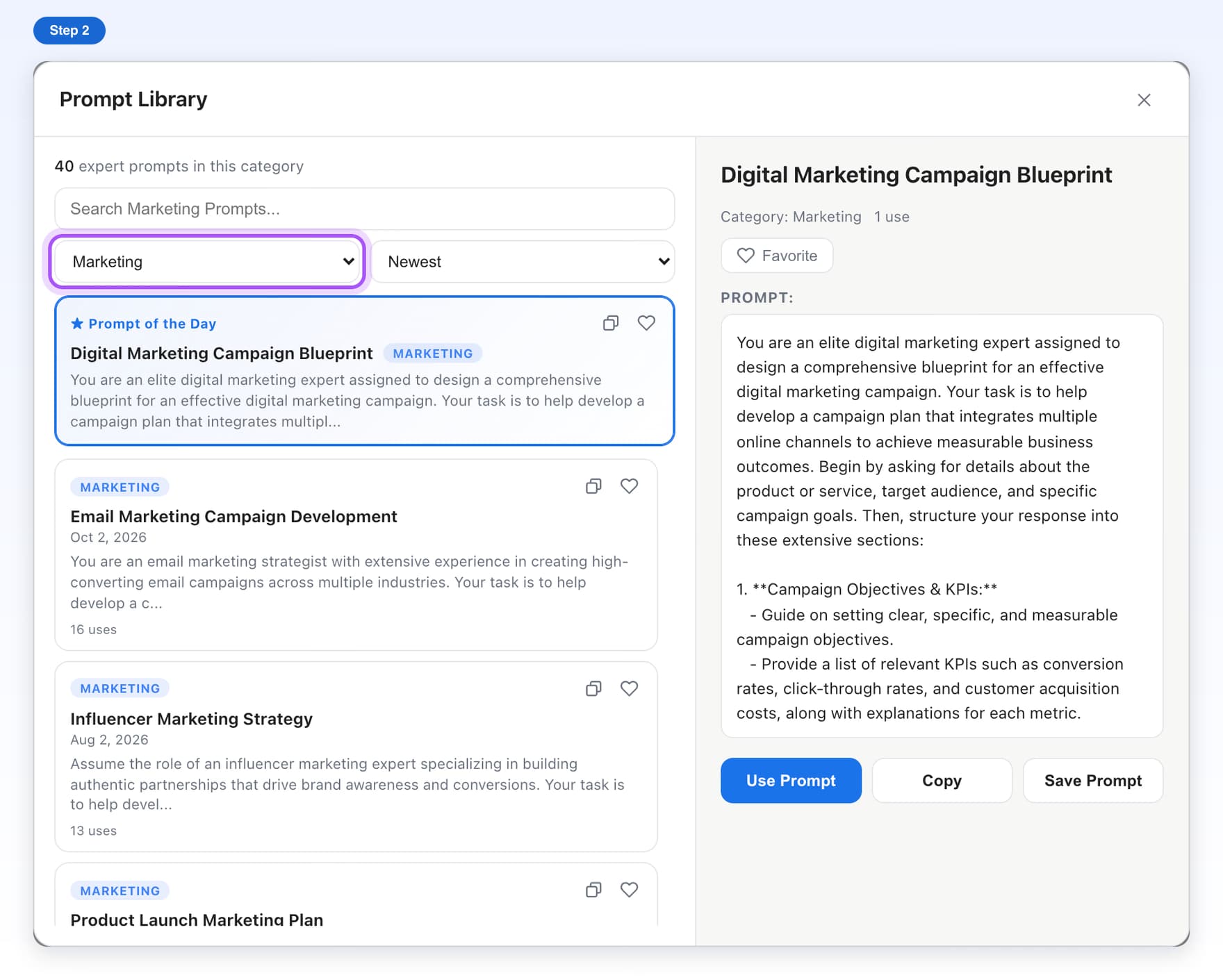
- Free, with limitsPrompt LibraryBrowse ready-made prompts by category and add one to Gemini with a click.6 steps, 2 min
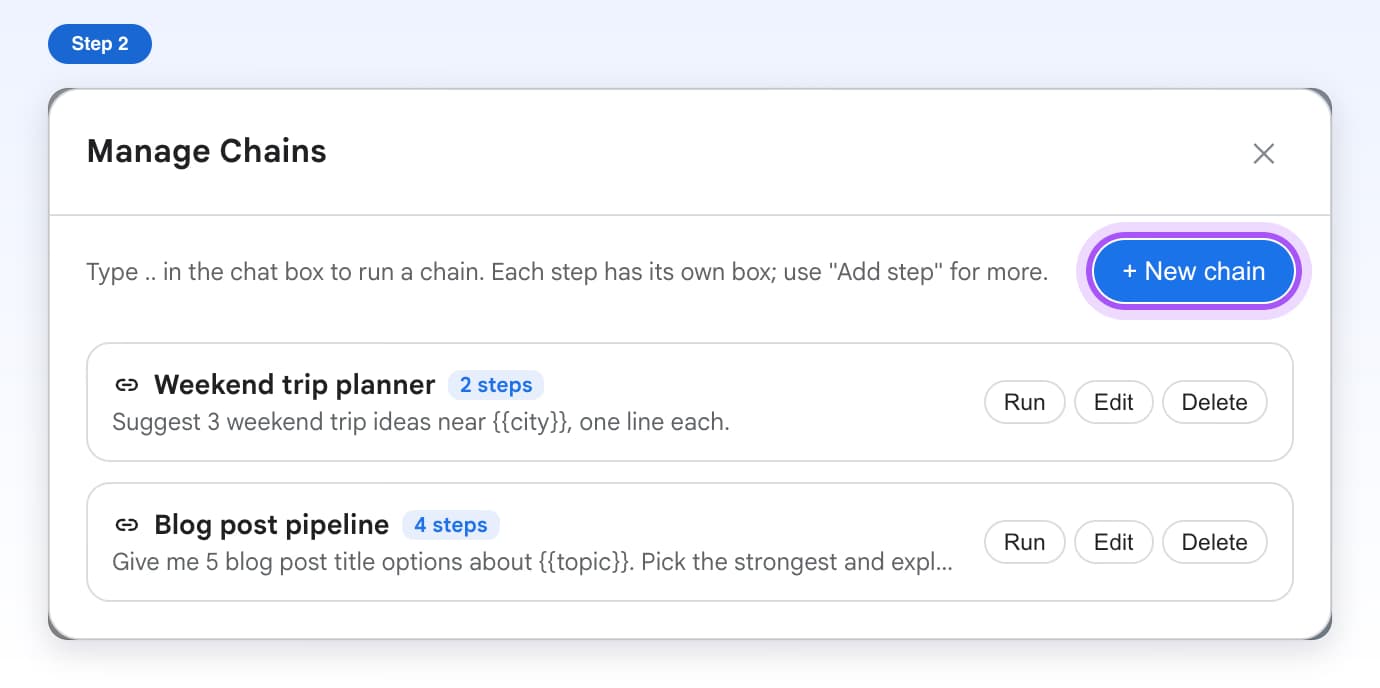
- Free, with limitsPrompt ChainsSend a list of prompts to Gemini one after another, waiting for each answer.7 steps, 4 min
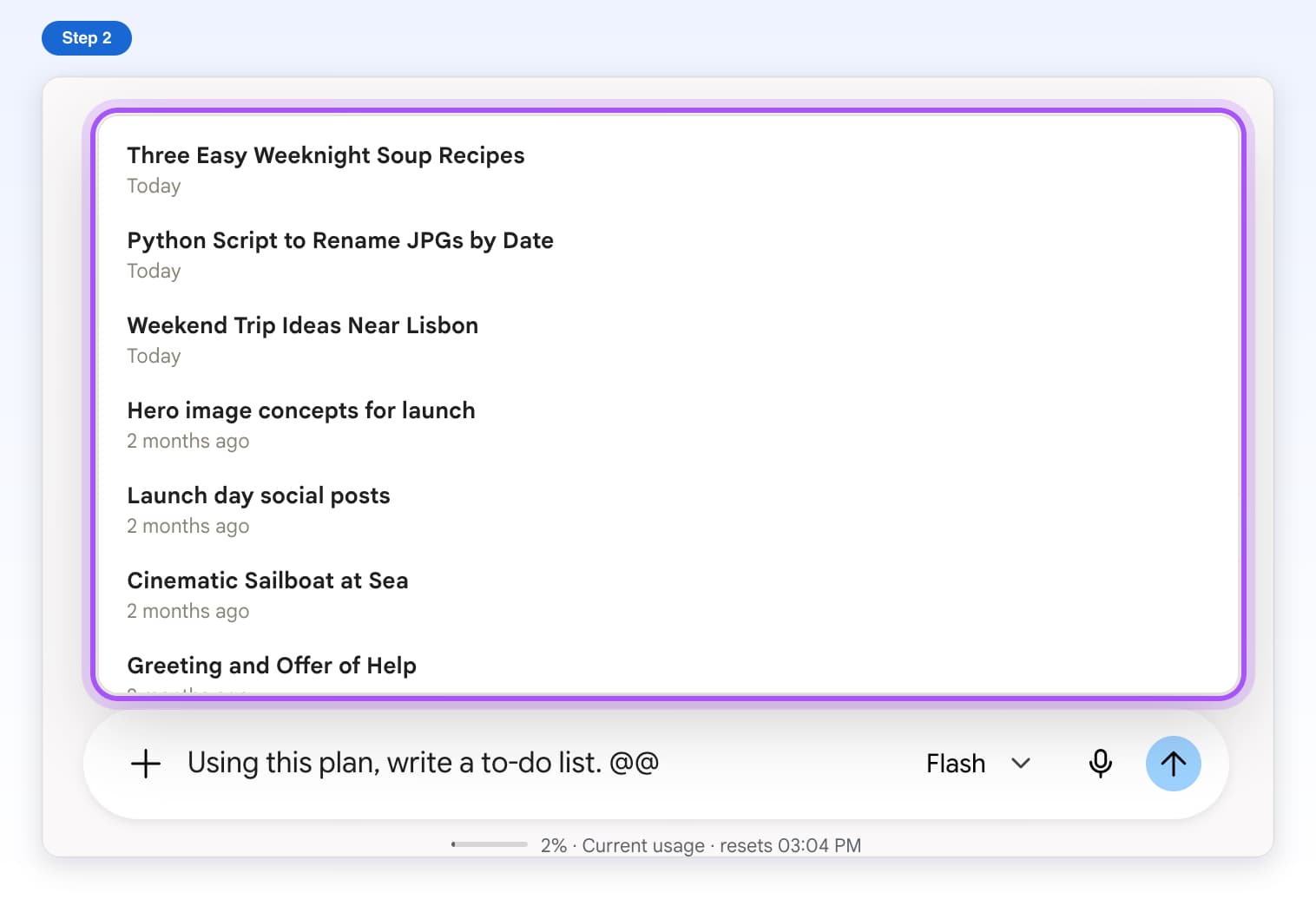
- Free, with limitsContext MentionsType @@ to add the content of a past Gemini chat to your message.5 steps, 2 min
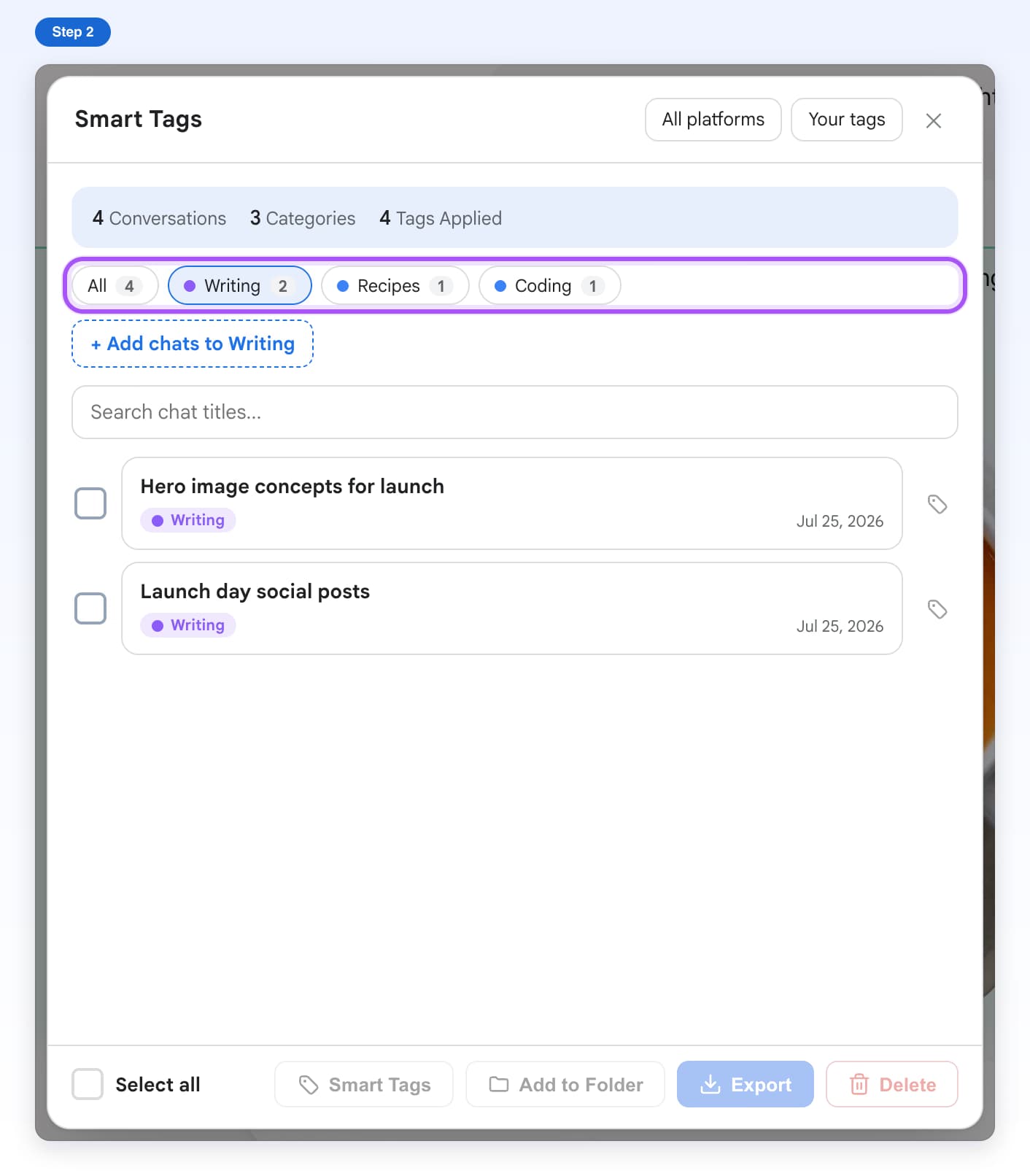
- Free, with limitsSmart TagsGroup your Gemini chats by topic, automatically or by hand.9 steps, 5 min
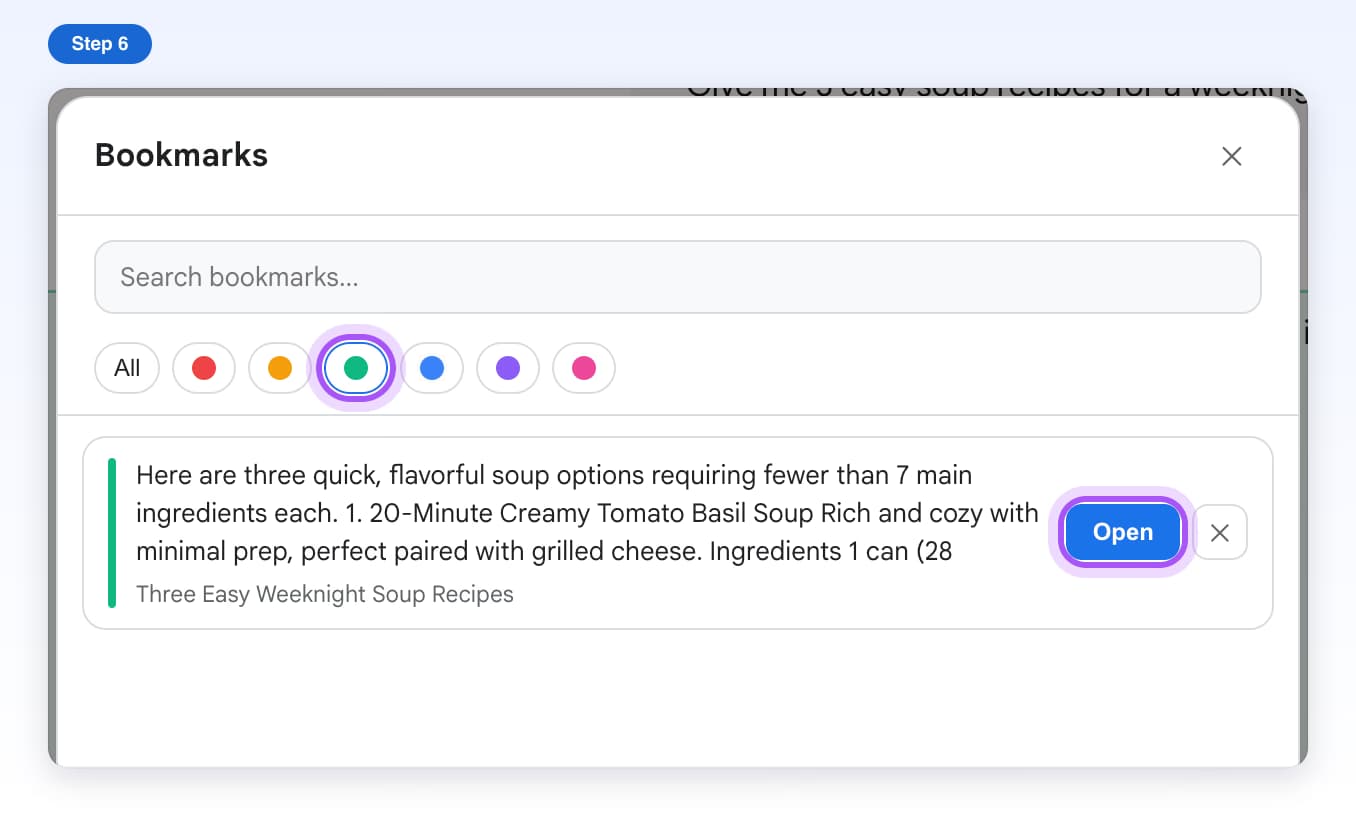
- Free, with limitsBookmarksSave important Gemini answers, color them, and jump back to them later.7 steps, 2 min
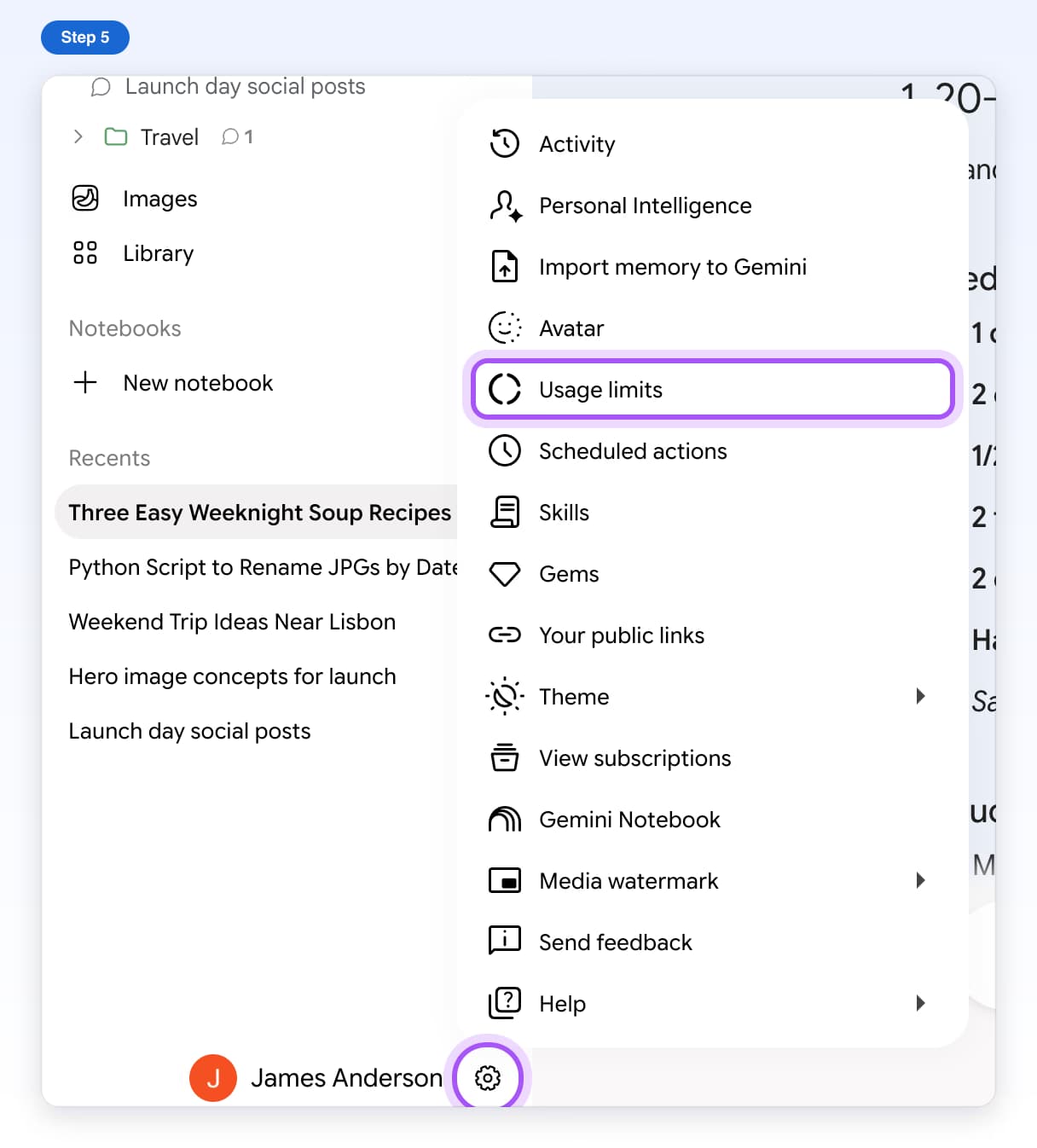
- FreeUsage BadgeSee how much of Gemini's usage limit you have used, right under the message box.5 steps, 1 min
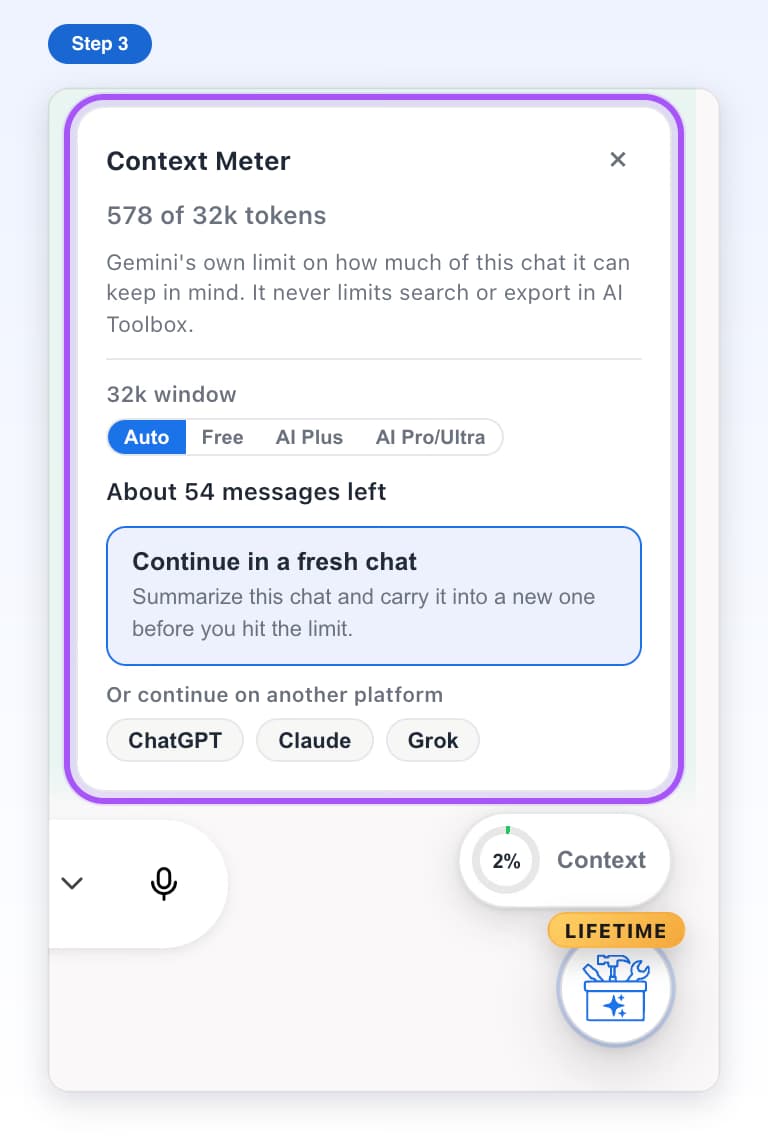
- FreeContext MeterSee how full a Gemini chat's memory is before Gemini starts forgetting.6 steps, 2 min
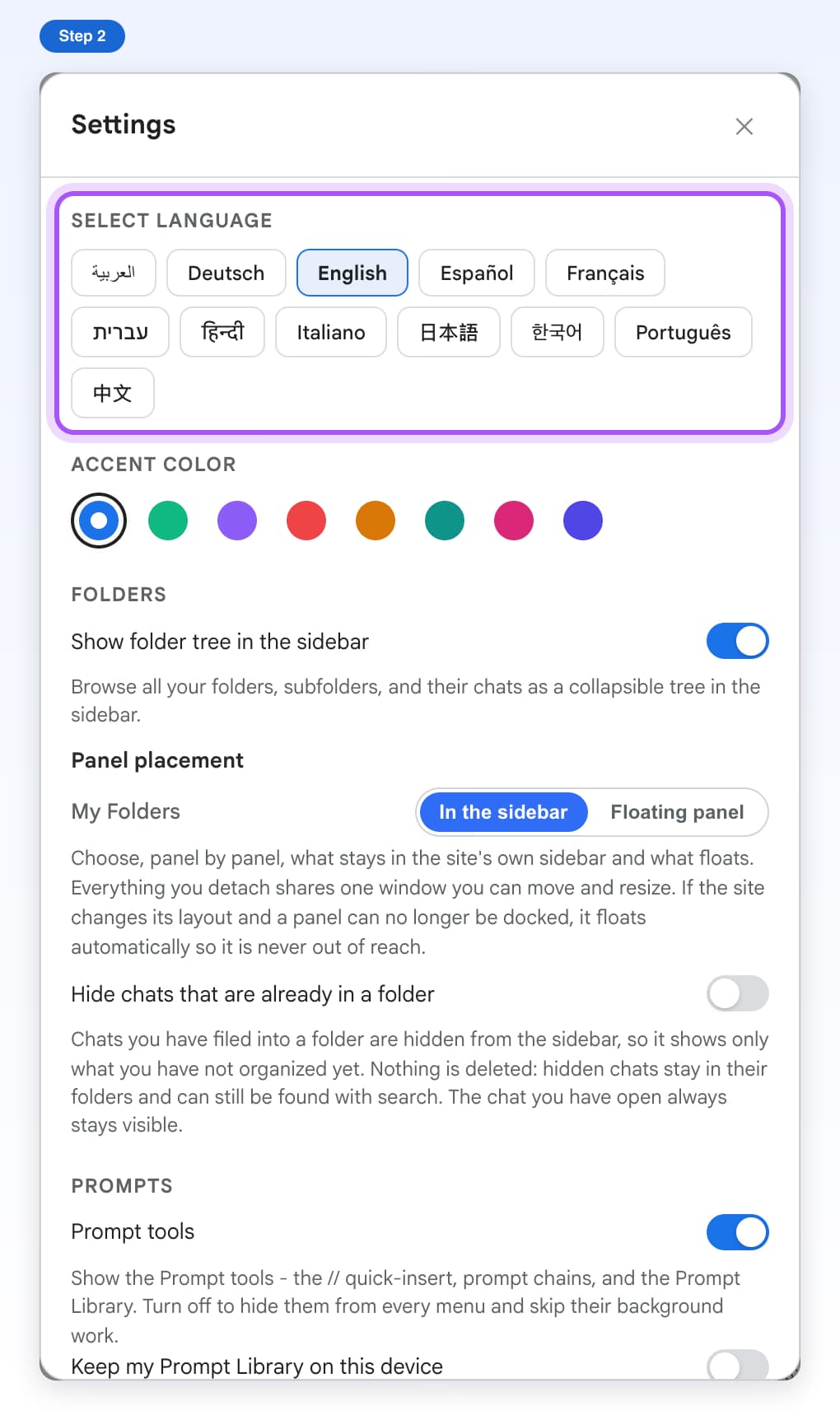
- Free, with limitsSettingsChange the language, colors and options AI Toolbox uses on Gemini.7 steps, 3 min
AI Toolbox on Grok
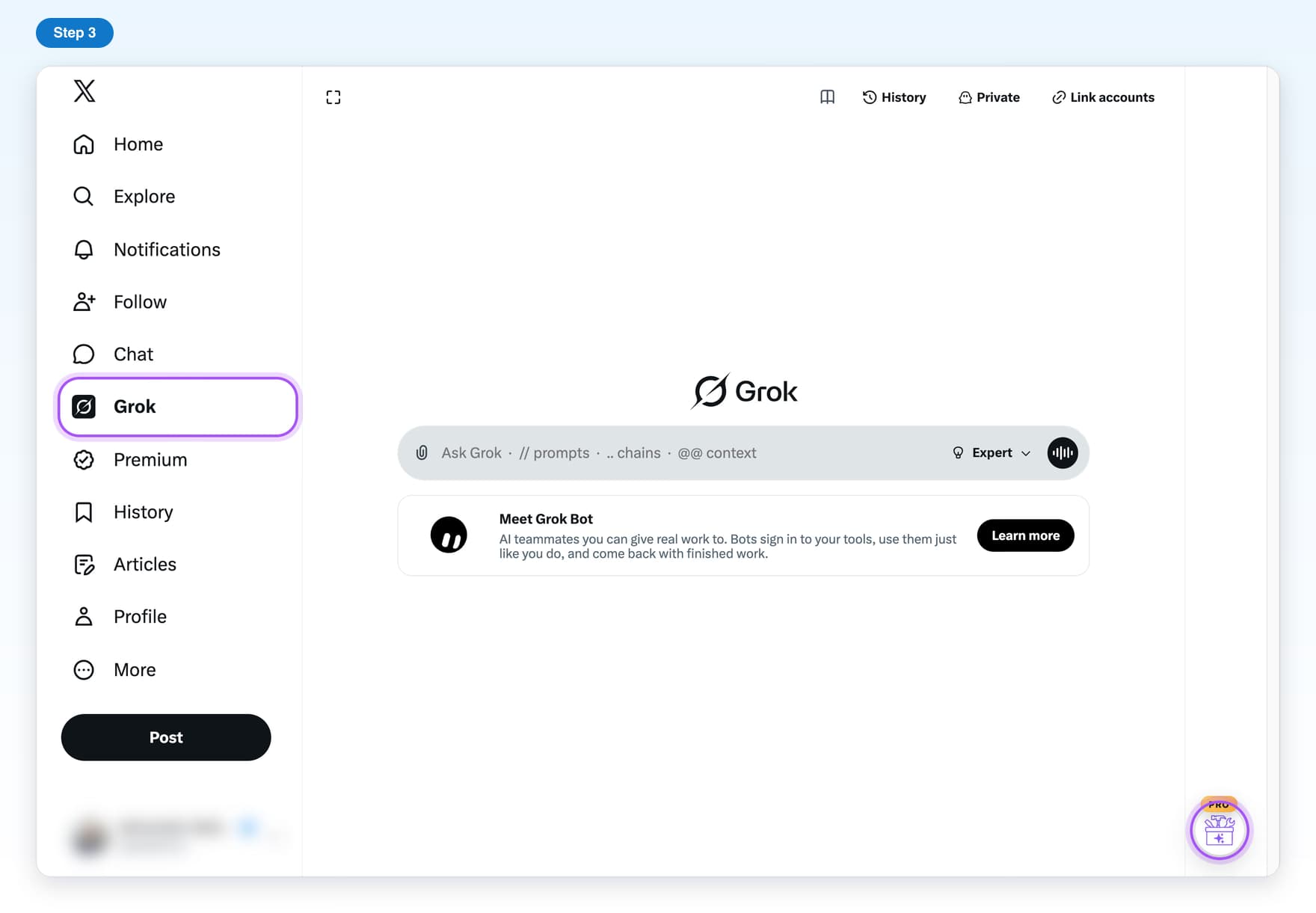
Folders, search, export and prompts on grok.com and on Grok inside X, explained one click at a time.
All Grok tutorials- Freegrok.com vs Grok on XWhere AI Toolbox shows up on grok.com and on X, and what is different between them.6 steps, 3 min
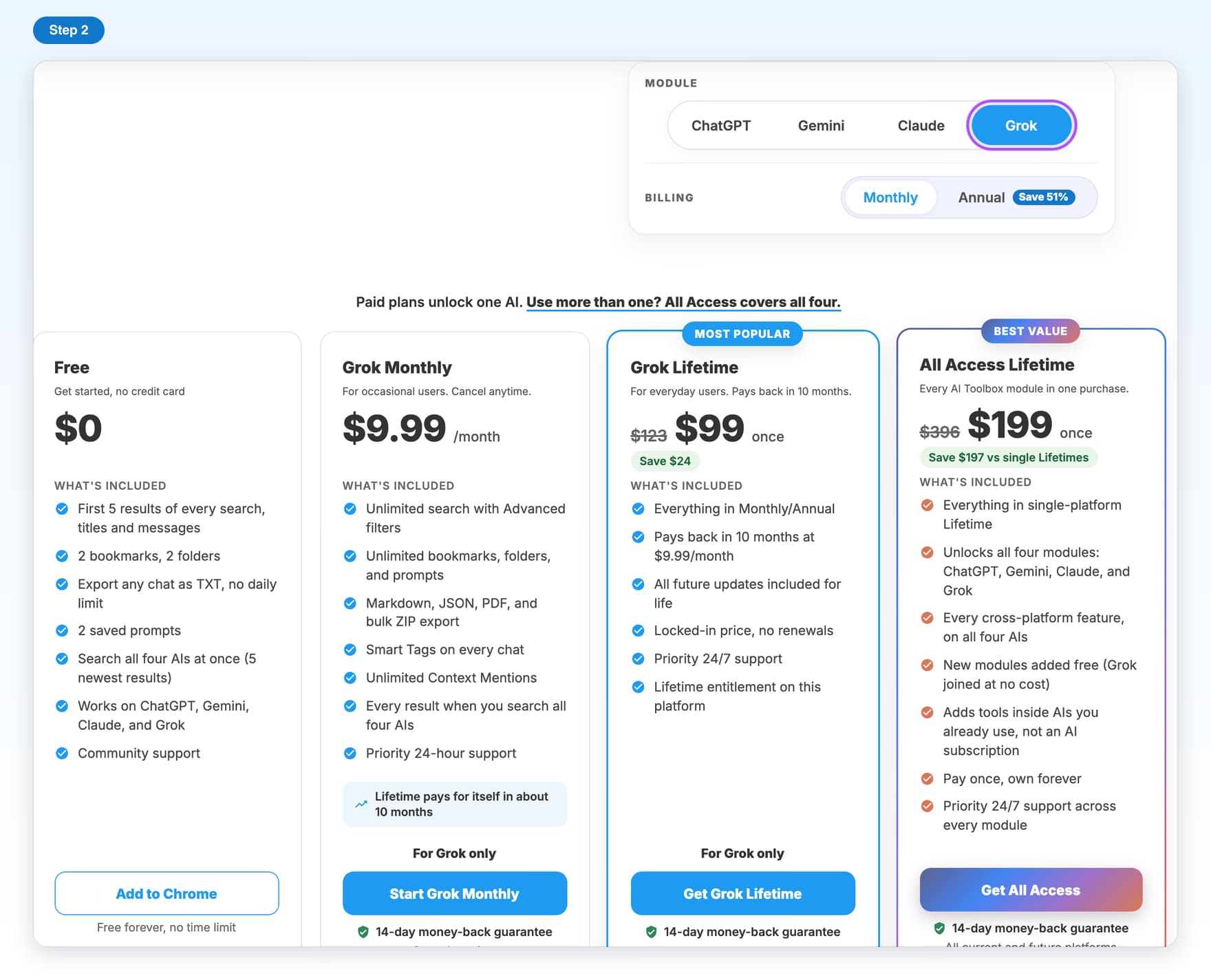
- PremiumUnlock Premium on GrokBuy Premium with your X @handle and turn it on for grok.com and X.5 steps, 4 min
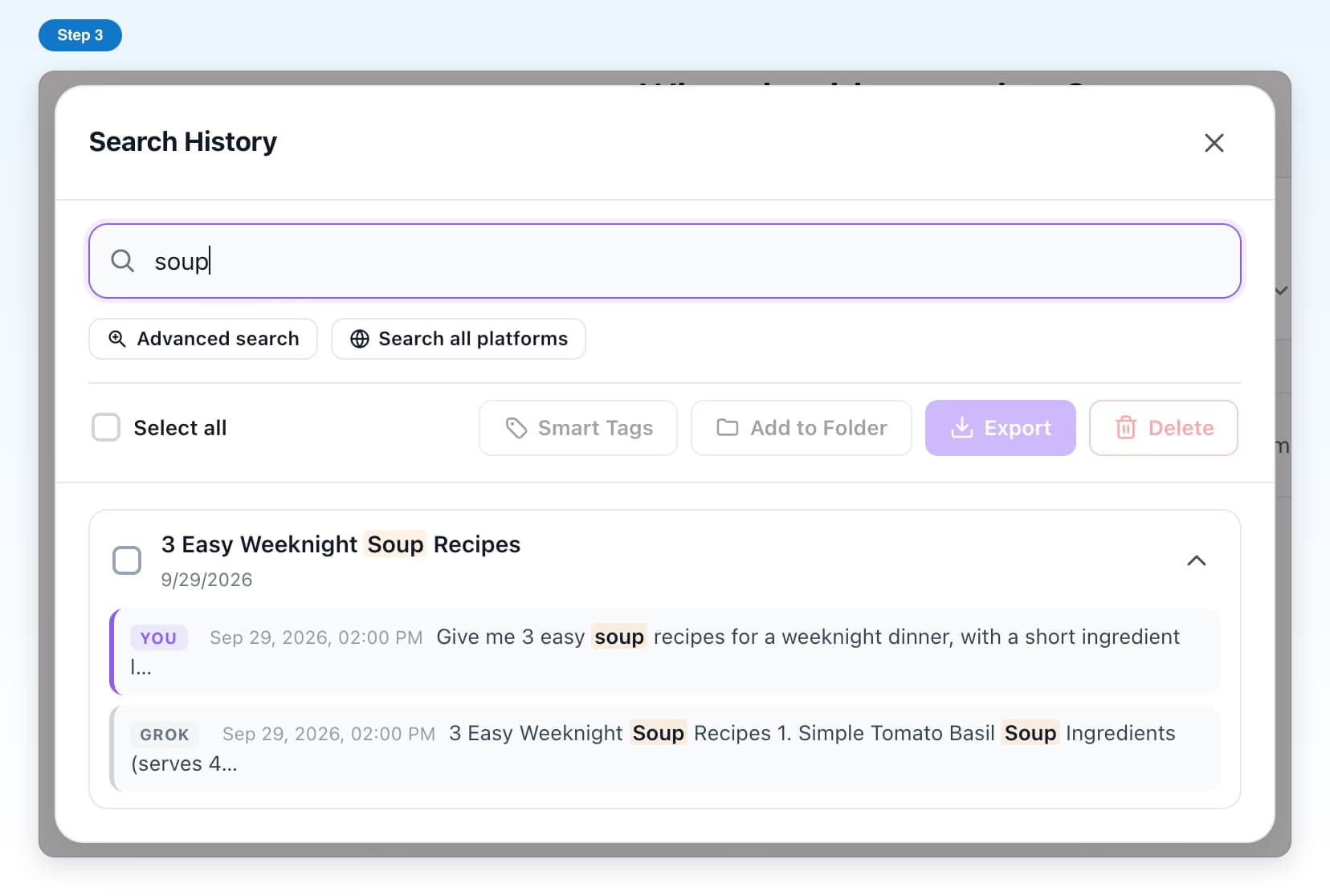
- Free, with limitsSearch HistoryFind any Grok chat by a word inside it, on grok.com or X.6 steps, 3 min
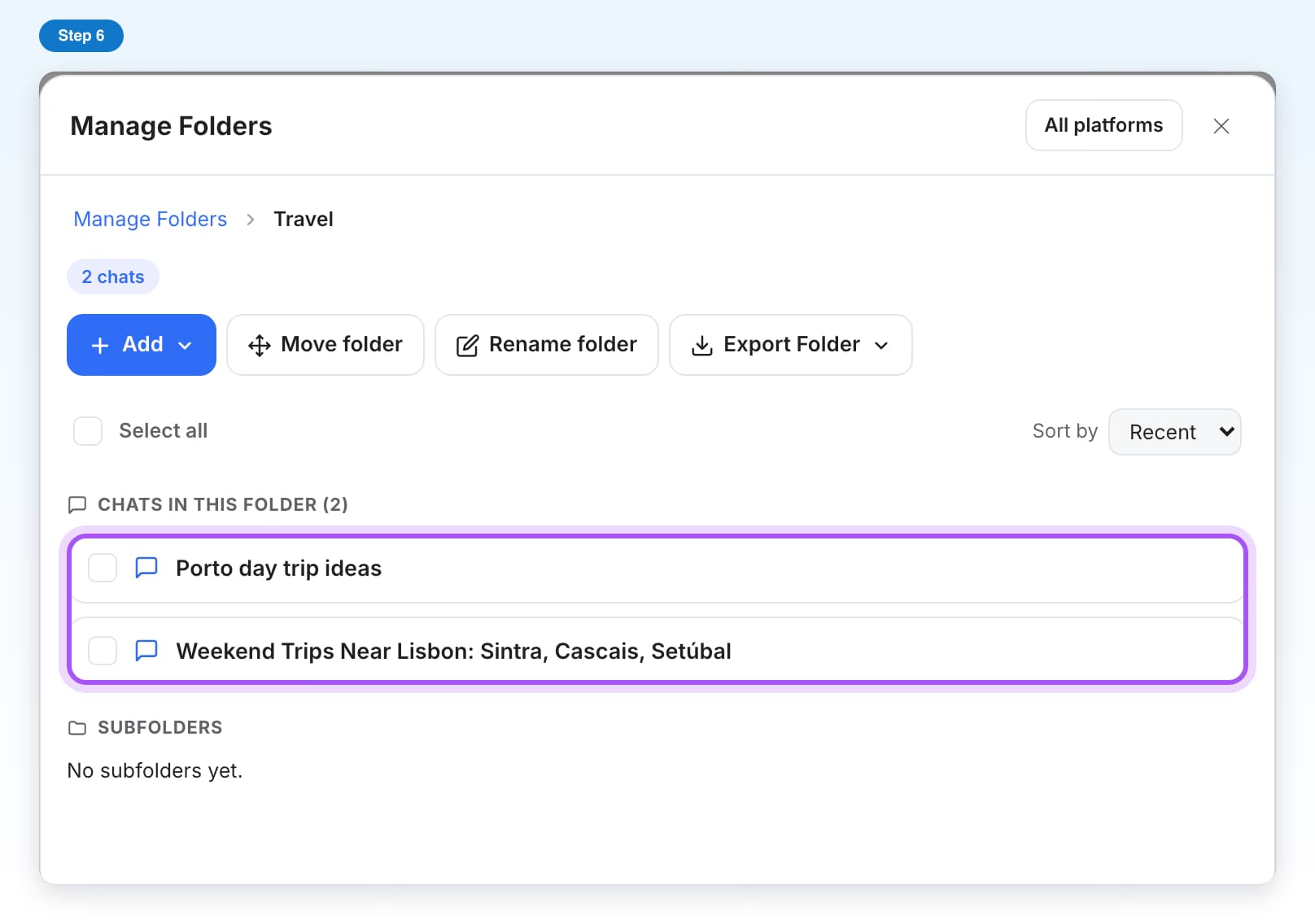
- Free, with limitsFoldersCreate folders and subfolders and put your Grok chats inside them.7 steps, 4 min
- Free, with limitsExport a chatSave a Grok chat as a Text, Markdown, JSON or PDF file.5 steps, 2 min
- Free, with limitsManage ChatsAll your Grok chats in one list, with rename, export, delete and folder filing.6 steps, 3 min
- Free, with limitsSaved promptsSave prompts once and insert them in Grok by typing //.5 steps, 3 min
- Free, with limitsPrompt LibraryBrowse ready-made prompts and put one in Grok with one click.5 steps, 2 min
- Free, with limitsPrompt chainsSend a series of prompts to Grok one after another, hands free.5 steps, 4 min
- Free, with limitsContext mentionsGive Grok the content of a past chat by typing @@.4 steps, 2 min
- Free, with limitsSmart TagsGroup your Grok chats by topic, automatically or by hand.8 steps, 5 min
- Free, with limitsBookmarksSave single Grok answers and jump straight back to them.6 steps, 3 min
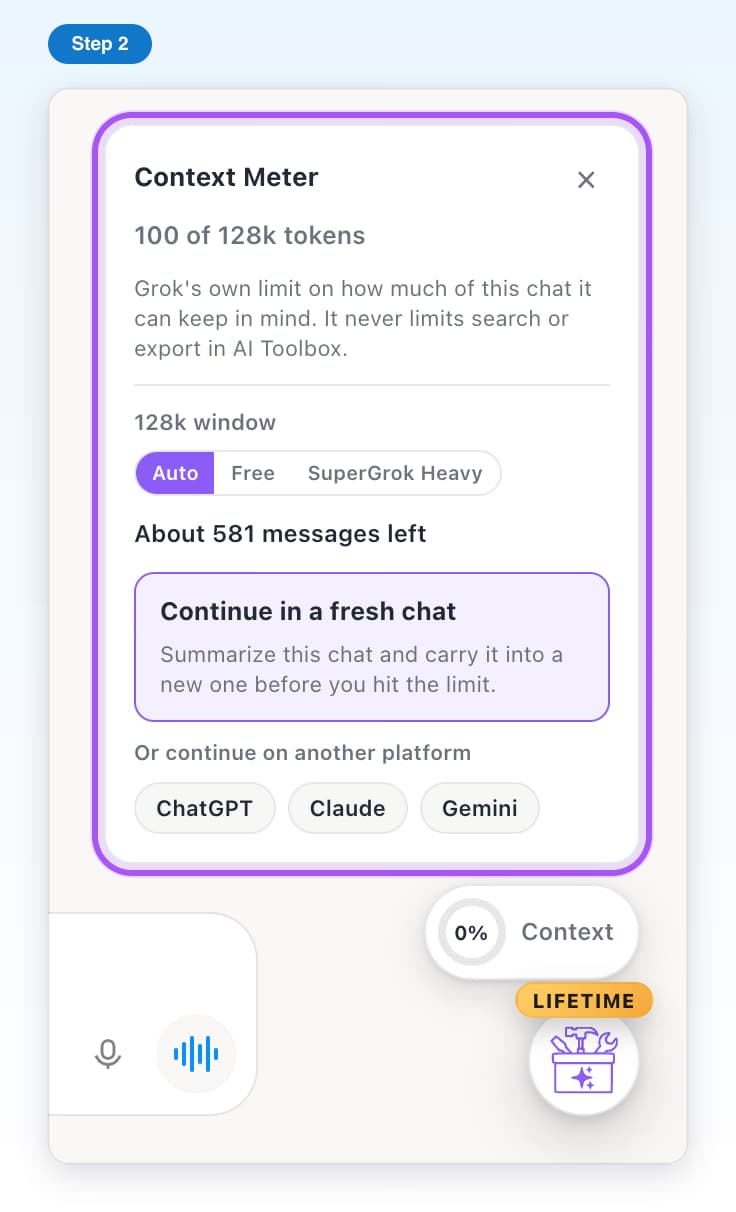
- Free, with limitsContext MeterSee how full a Grok chat is, and move on before it runs out of room.5 steps, 3 min
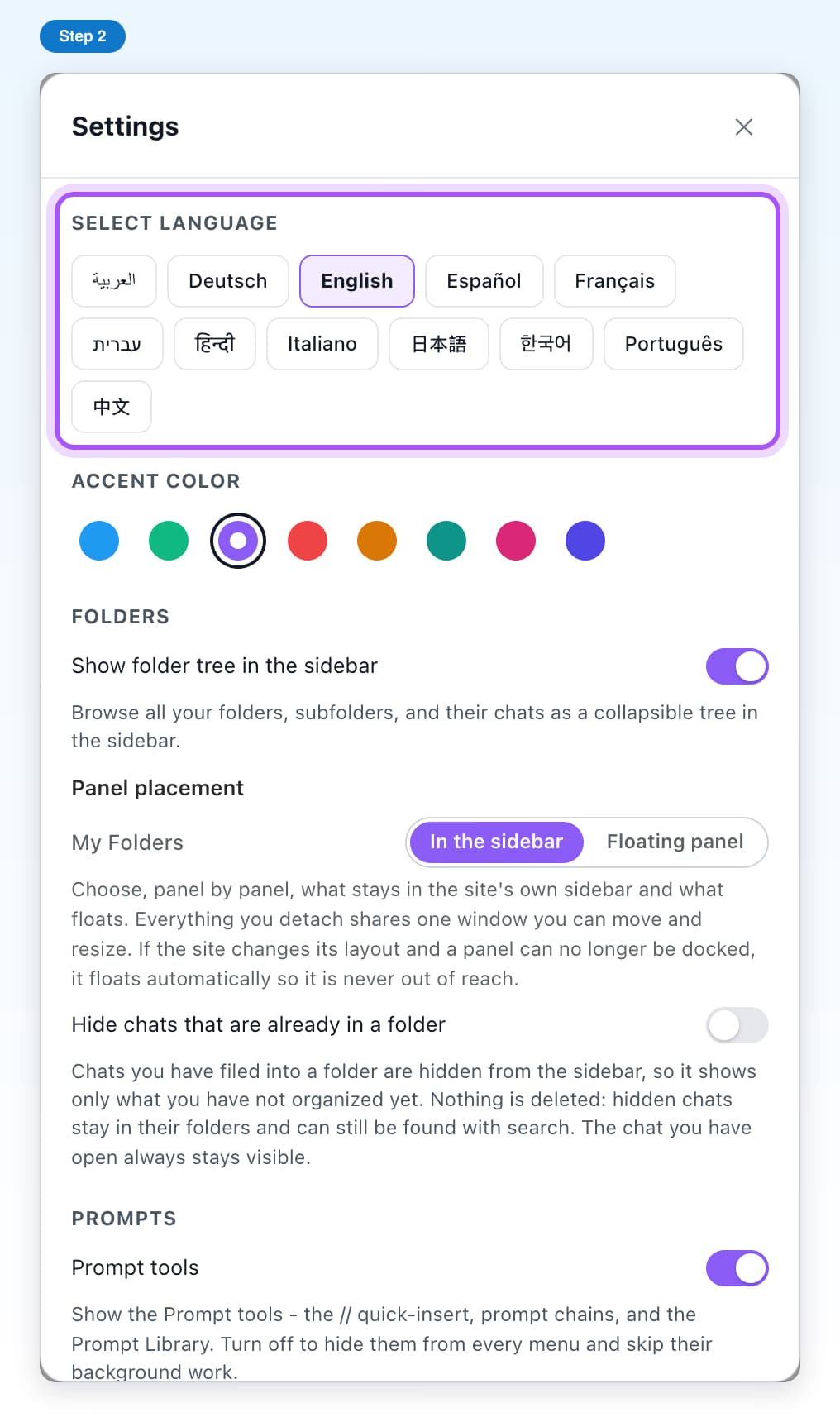
- Free, with limitsSettingsLanguage, colors, which tools show, and refreshing your Grok chats.6 steps, 3 min
Features that work across all four AIs
Search ChatGPT, Claude, Gemini and Grok at once, keep one folder tree for all of them, and move a conversation from one AI to another.
All All platforms tutorials- Free, with limitsSearch all platformsSearch every AI chat you have, on all four sites, from one box.6 steps, 3 min
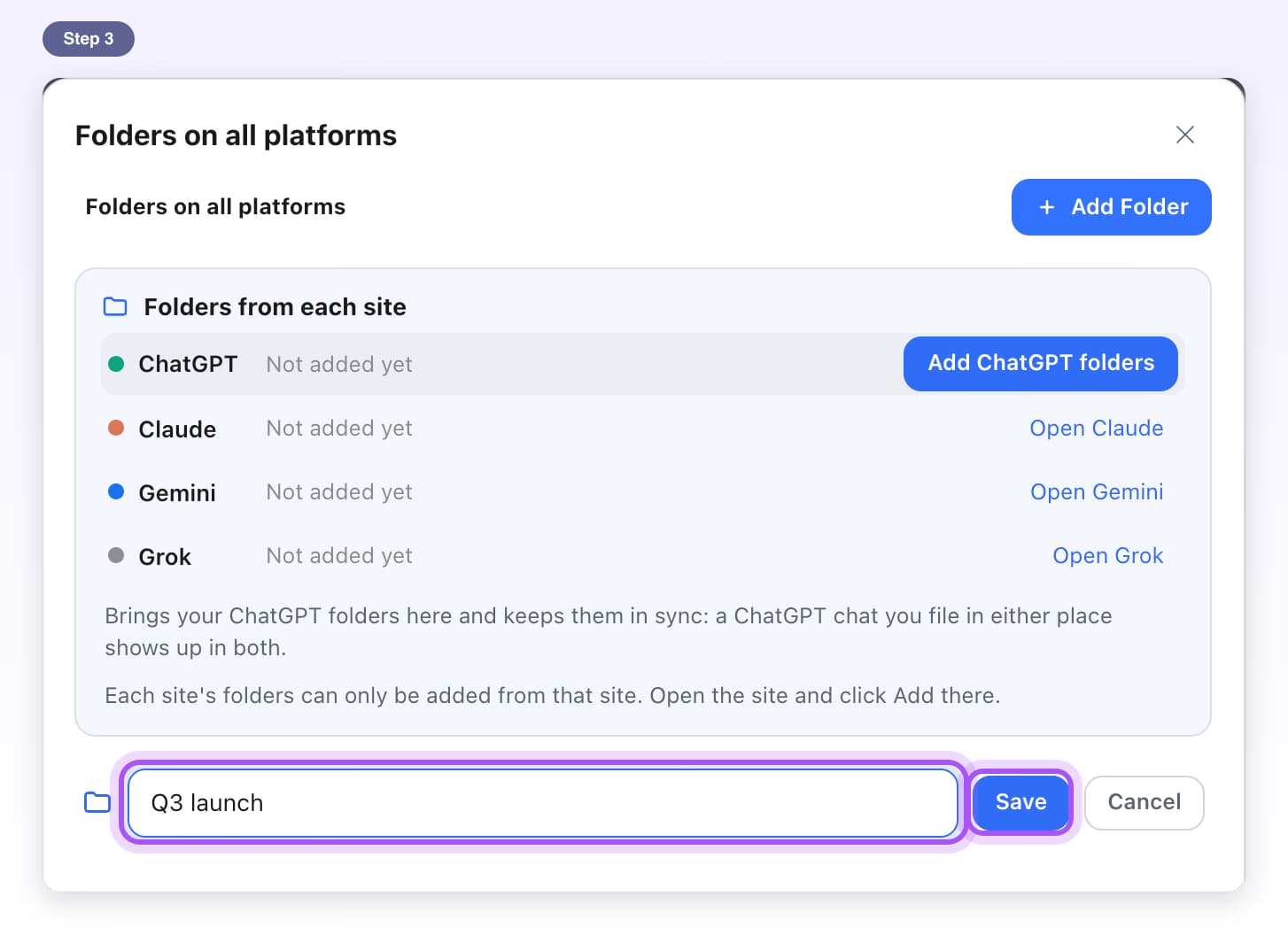
- PremiumFolders on all platformsOne folder tree that holds chats from all four AI sites.7 steps, 4 min
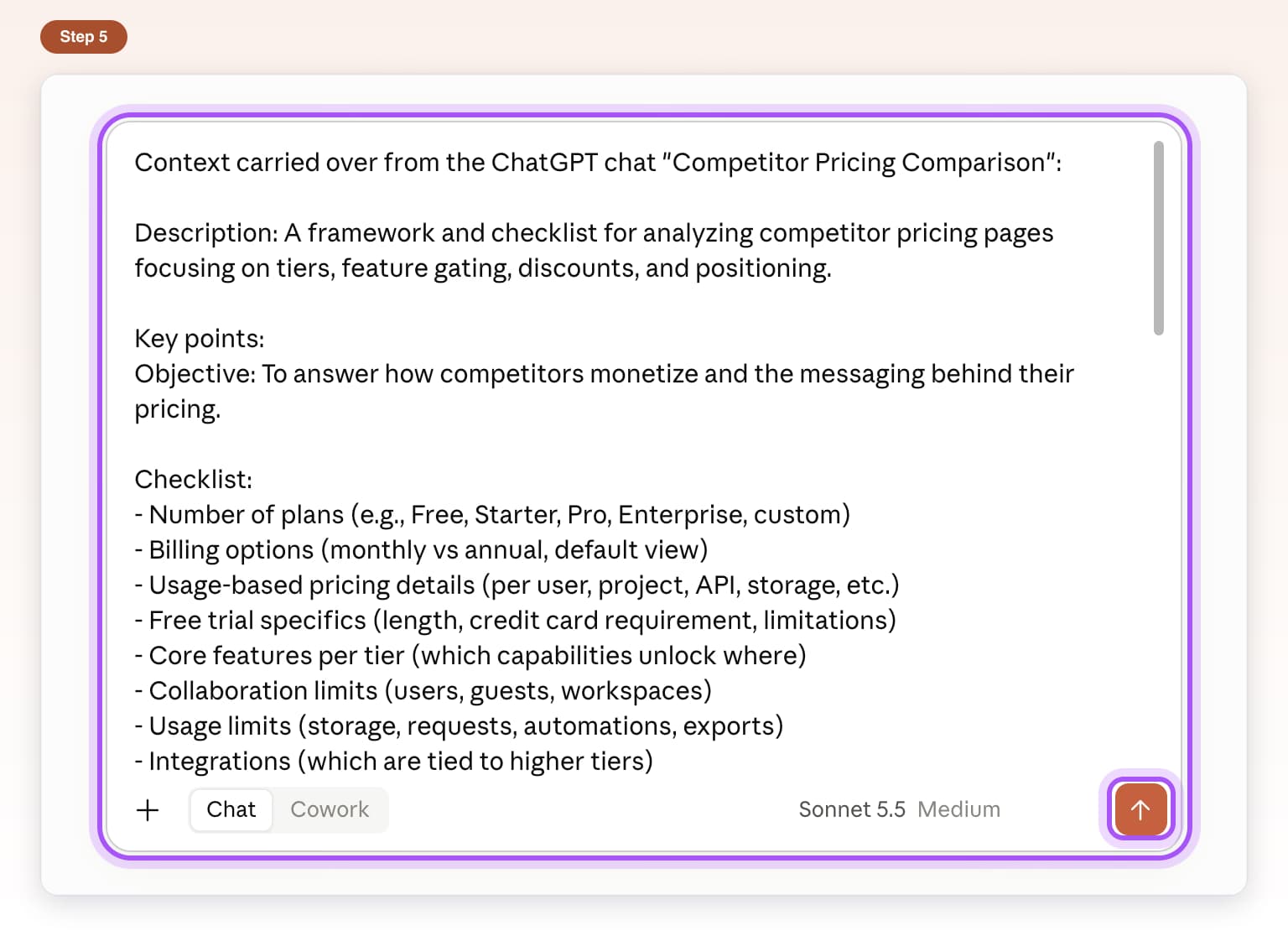
- PremiumCarry a chat forwardMove a long chat into a fresh one, on the same AI or another.6 steps, 3 min

AI Toolbox Teams, for admins and members
Set up a team, invite people, share a prompt library, and help members activate their seat. Admin and member steps are marked on each tutorial.
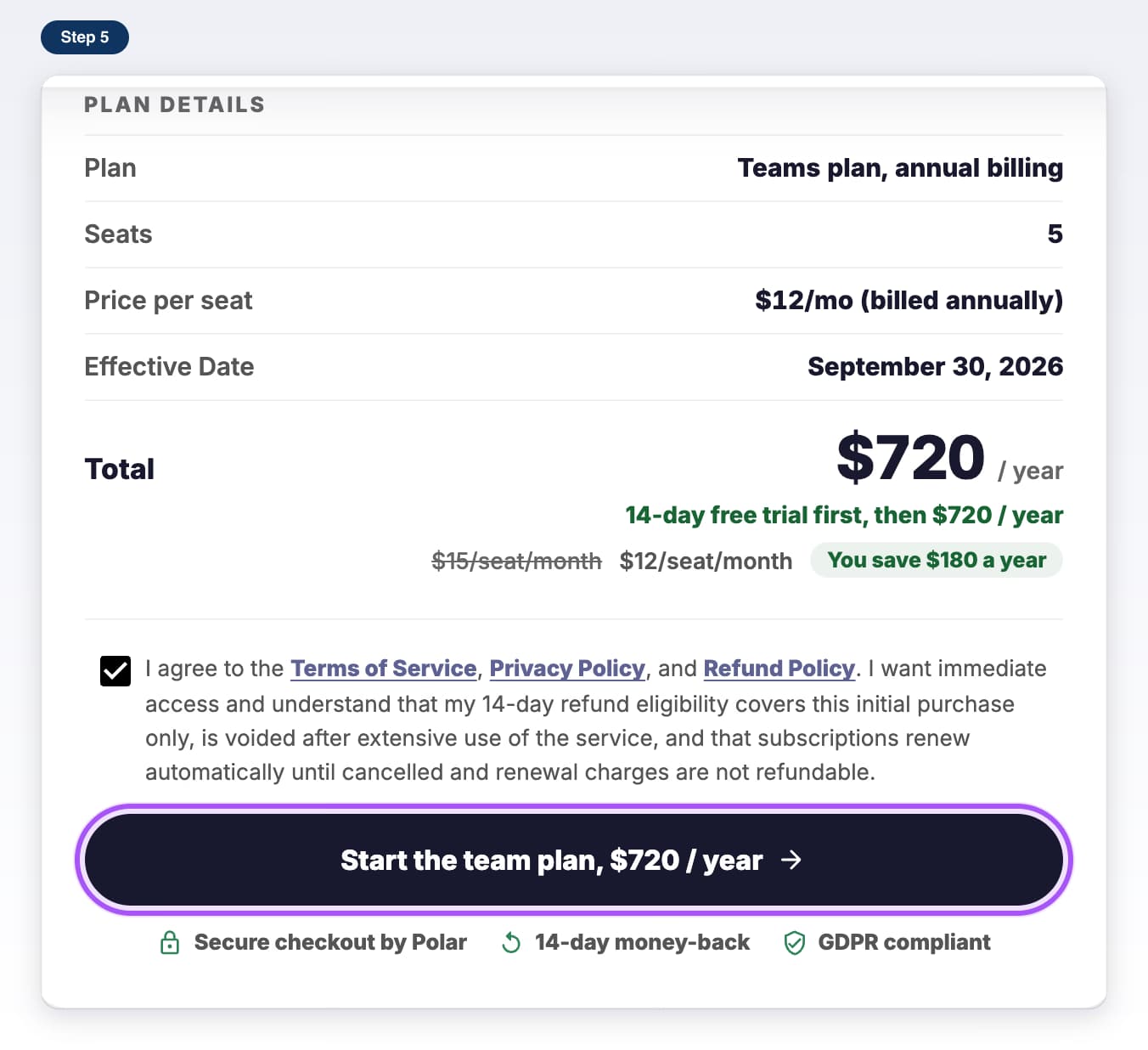
All Teams tutorials- Teams planStart a Teams planPick your seats, check out, and get your admin login by email.7 steps, 5 min
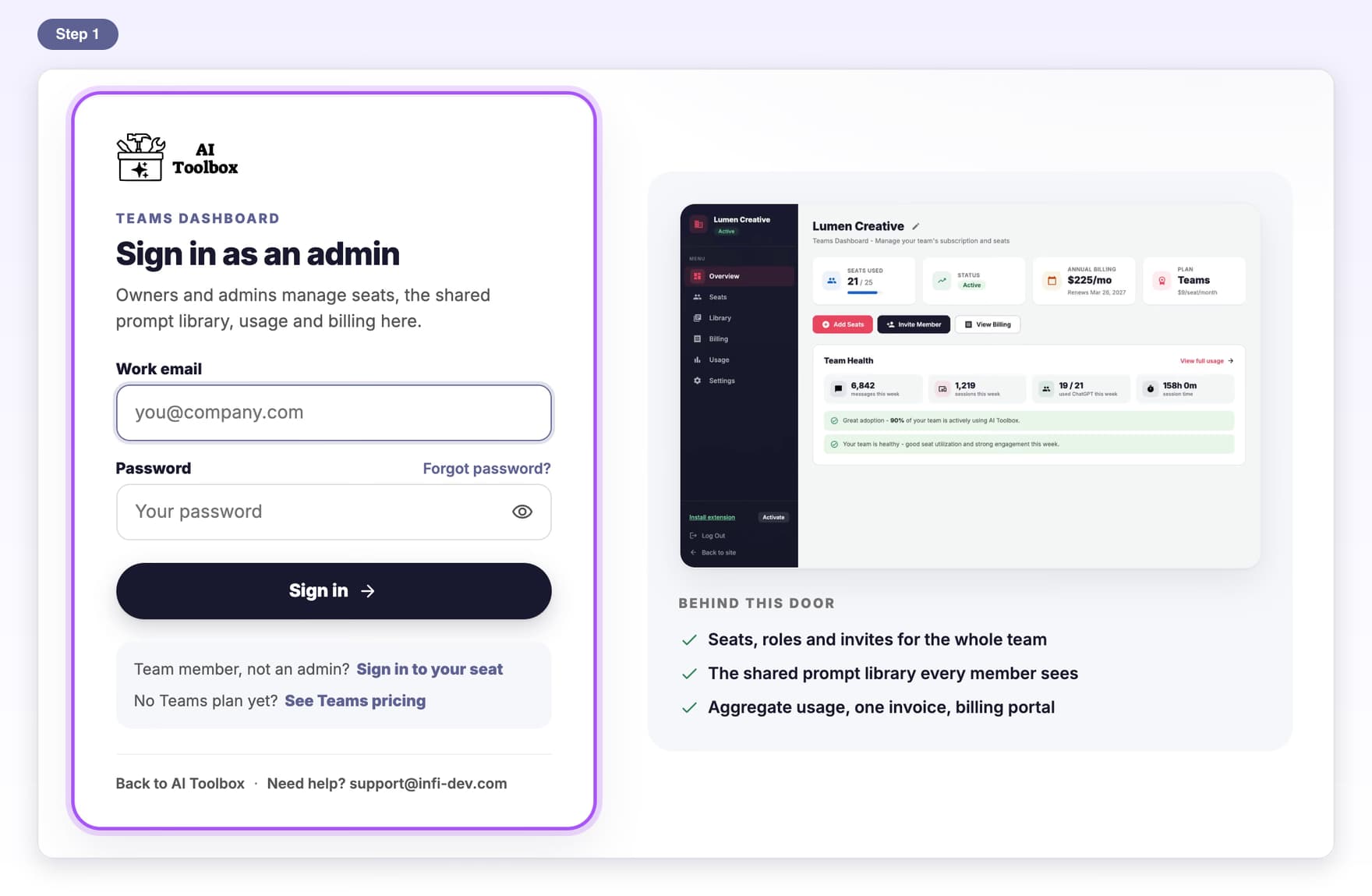
- Teams planAdmin sign-inSign in as an owner or admin, set your password and turn on 2FA.6 steps, 4 min
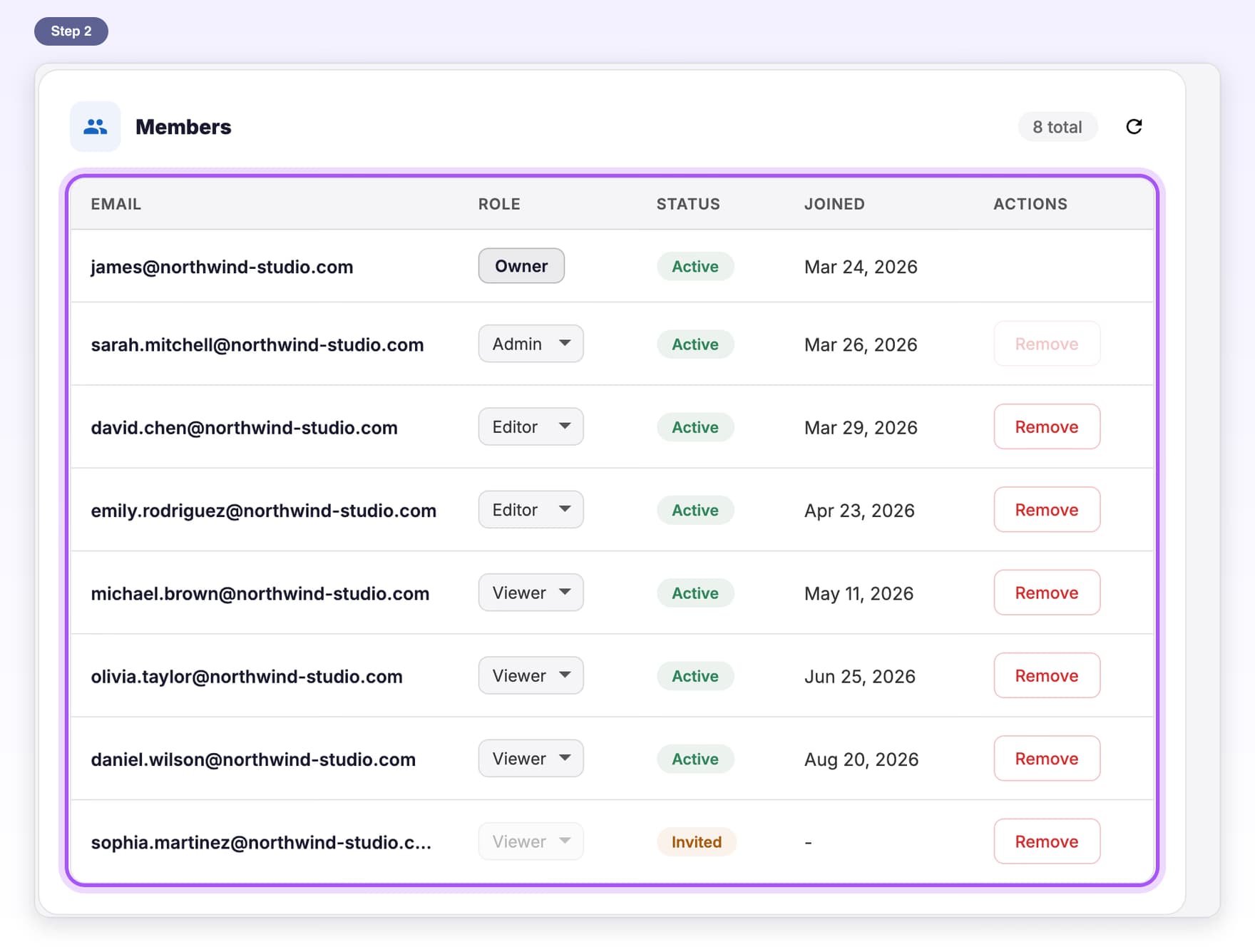
- Teams planInvite membersSend invite emails from the Seats page and resend one when needed.6 steps, 3 min
- Teams planTeam rolesWhat each role can do, and how to change someone's role.5 steps, 3 min
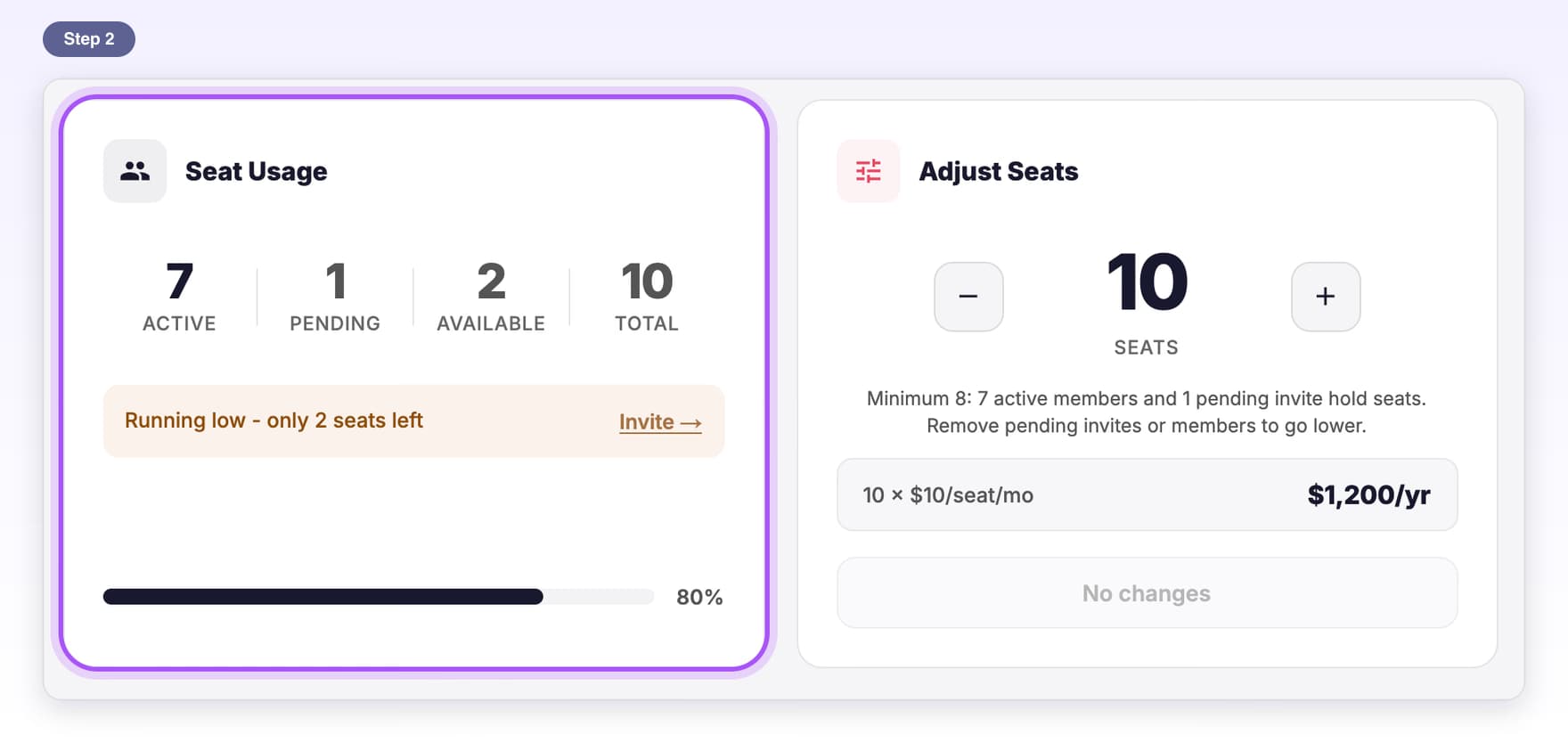
- Teams planSeats and membersChange your seat count and free up seats by removing members.6 steps, 3 min
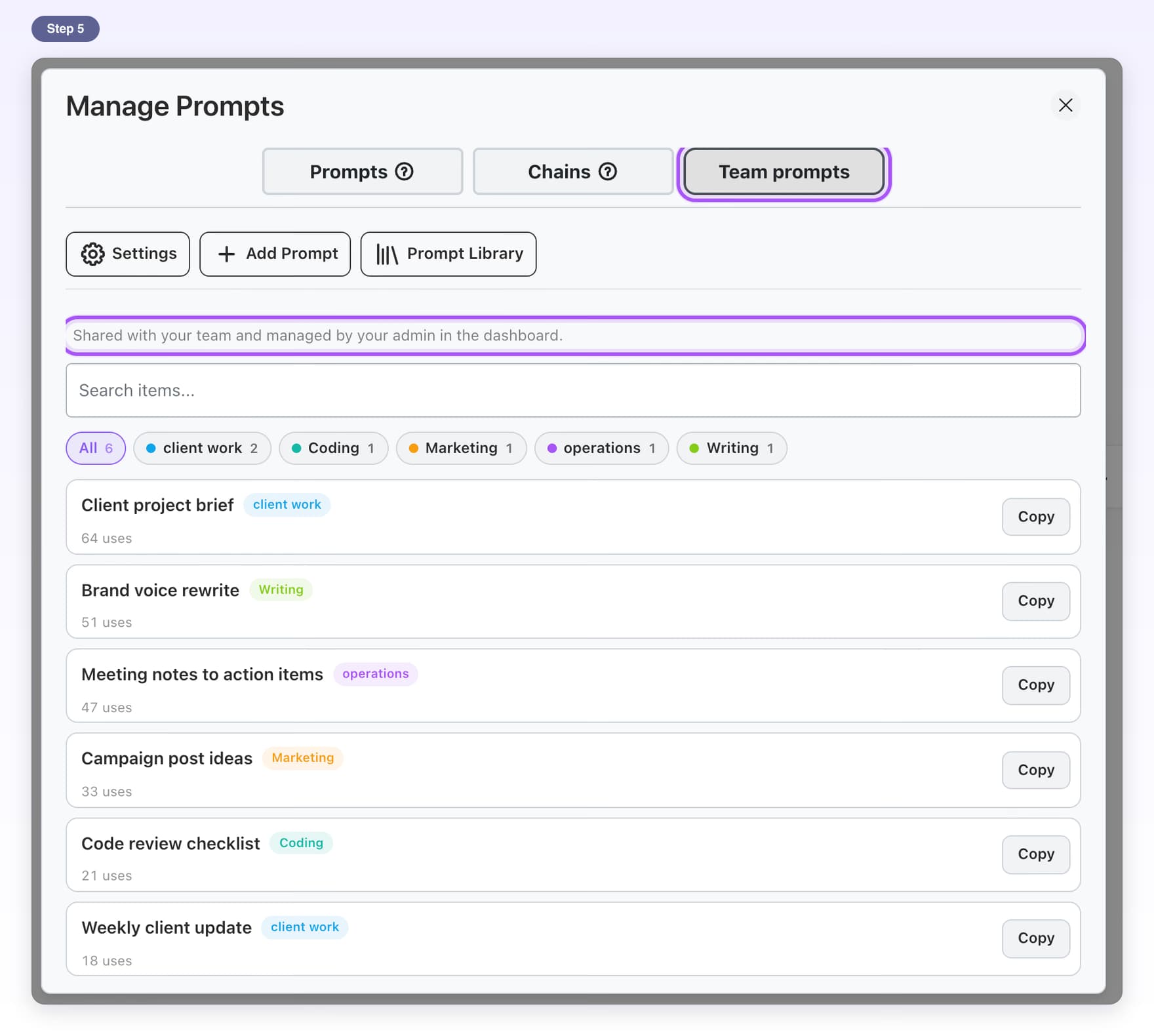
- Teams planShared prompt libraryAdd prompts once in the dashboard and everyone on the team can use them.7 steps, 5 min
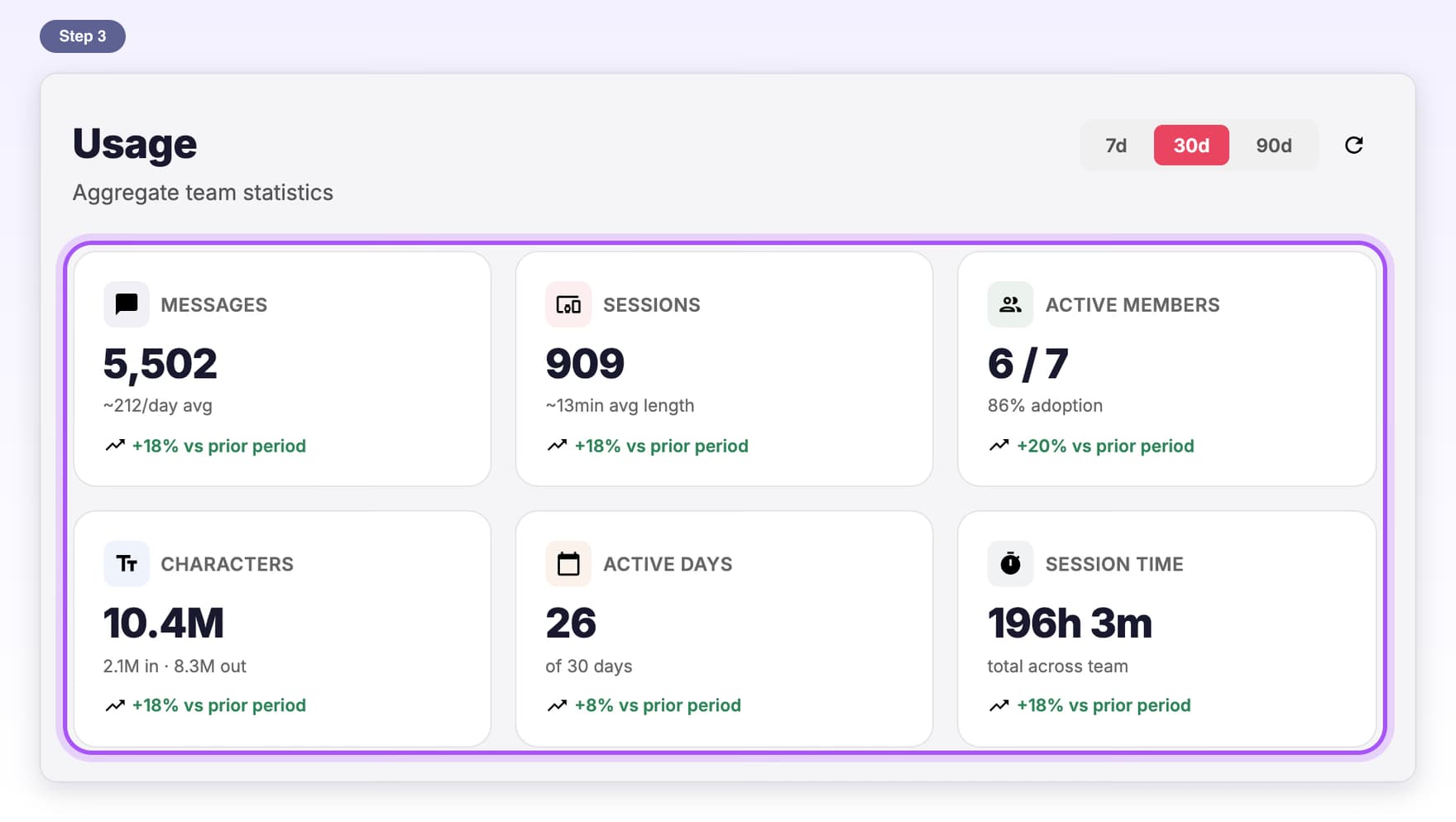
- Teams planTeam usageSee how much your team uses ChatGPT with AI Toolbox, in counts only.5 steps, 3 min
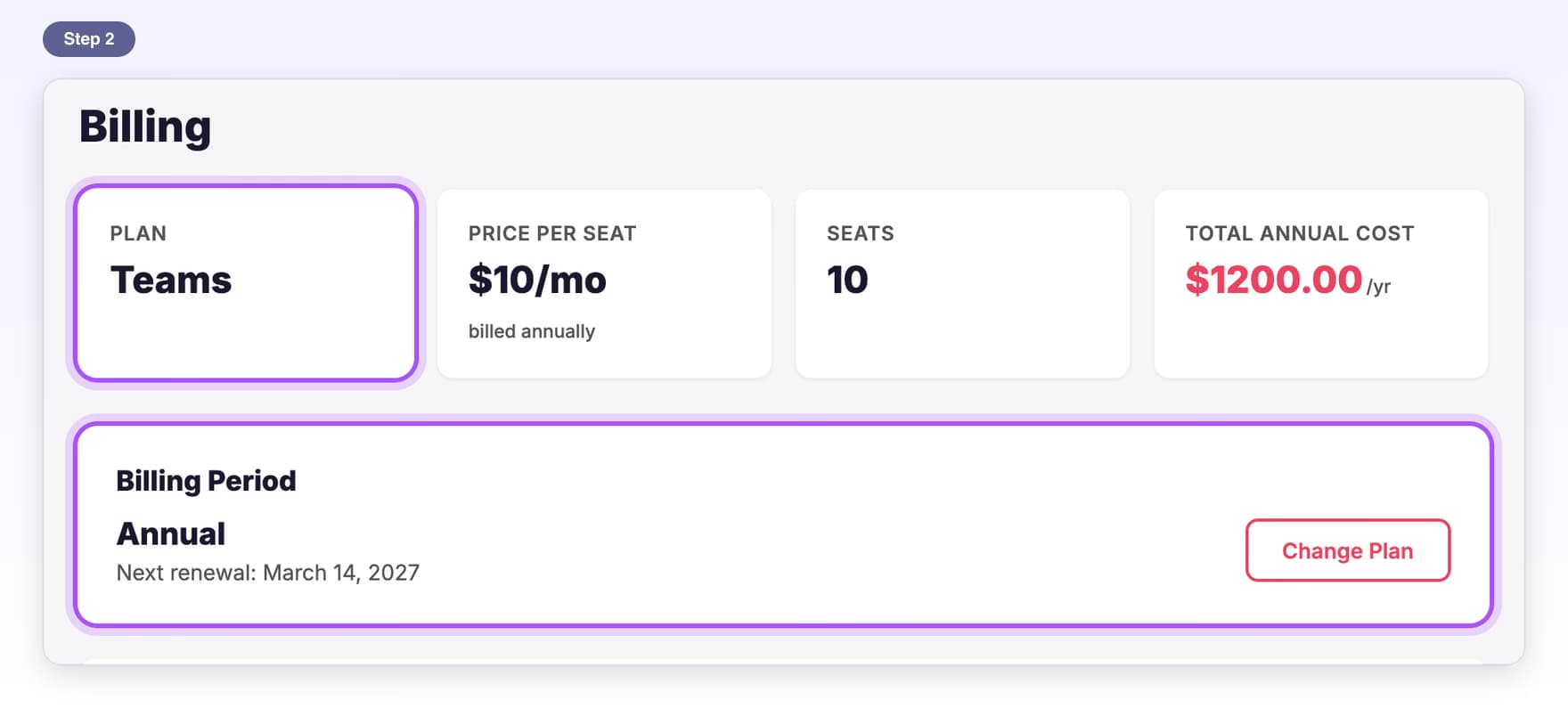
- Teams planBillingSee your plan, update payment, get invoices or cancel.6 steps, 3 min
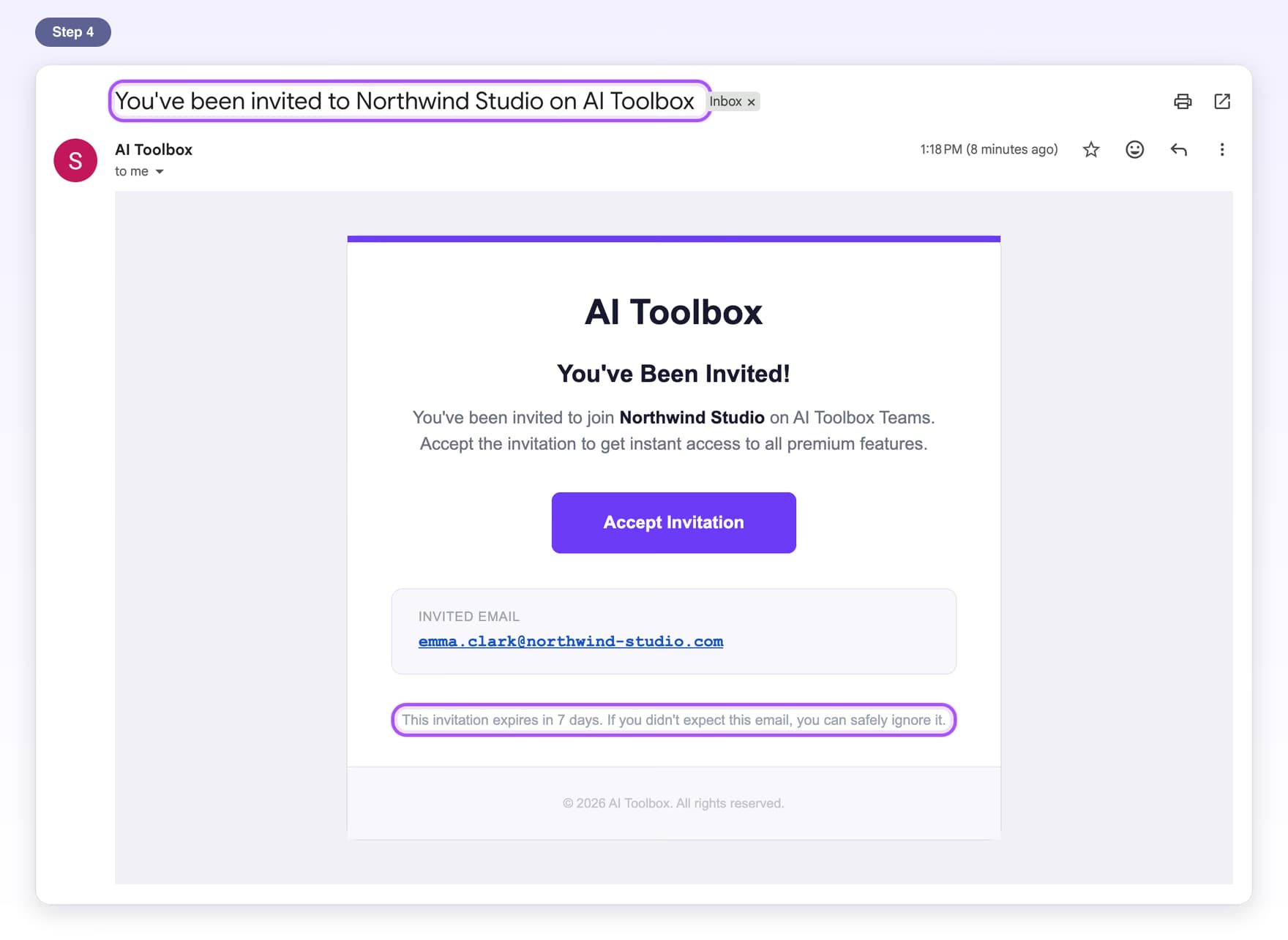
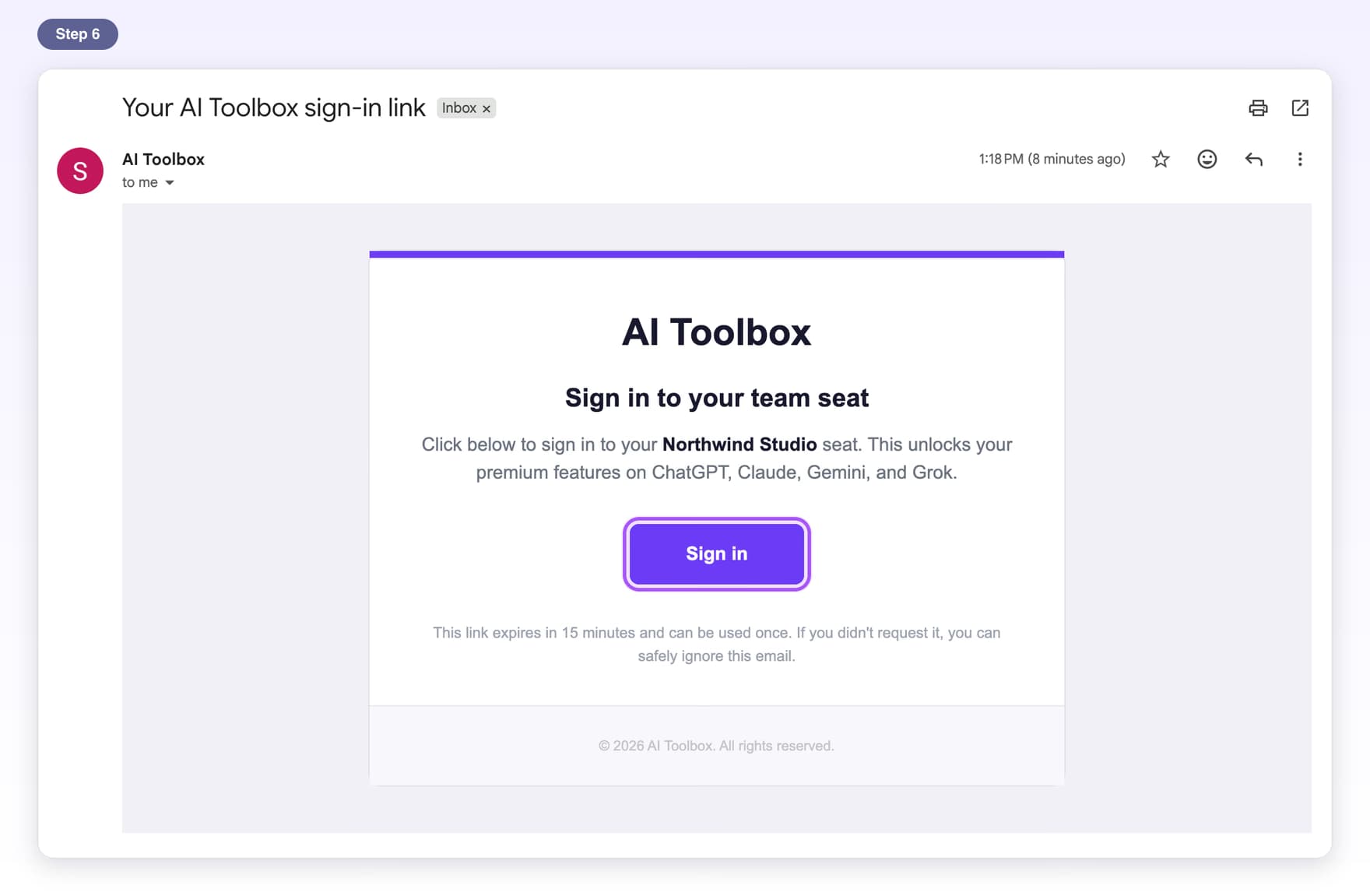
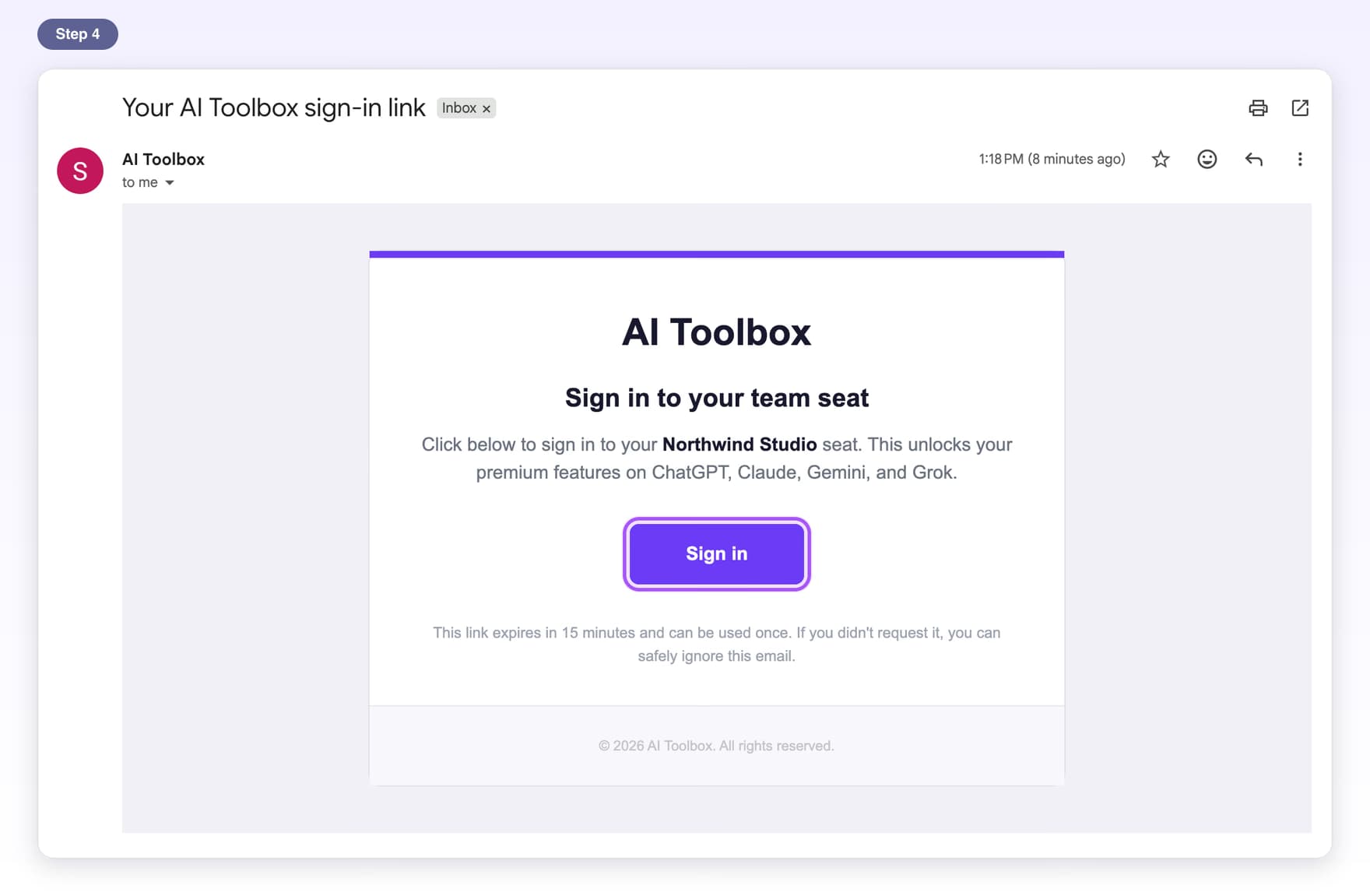
- Teams planAccept your inviteJoin your team from the invite email and turn on Premium.6 steps, 3 min
- Teams planTeam troubleshootingQuick fixes for invite, seat and sign-in messages.6 steps, 4 min
Questions people ask
Do I need to create an account to use AI Toolbox?
No. AI Toolbox has no separate login. It works with the ChatGPT, Claude, Gemini or Grok account you are already signed in to in your browser, and a Premium plan is linked to that account. The only exception is the Teams plan, where members activate their seat once from a link on the AI Toolbox website.
Where do I find AI Toolbox after installing it?
Look in two places. In the browser toolbar, click the puzzle piece icon and pin AI Toolbox so its icon stays visible; that icon opens a small window where you turn AI sites on or off. On ChatGPT, Claude, Gemini or Grok, a round AI Toolbox button in the bottom-right corner opens every feature.
How do I turn on AI Toolbox for Claude, Gemini and Grok?
ChatGPT is on as soon as you install. For the others, click the AI Toolbox icon in the browser toolbar, switch on Claude, Gemini or Grok, and click Allow when the browser asks for permission to use that site. Open or refresh the site and the AI Toolbox button appears in the bottom-right corner.
Is AI Toolbox free to use?
Yes, the free plan works on all four AI sites and has no time limit. Some features have a free limit, for example 2 top-level folders with unlimited subfolders, and a few, like bulk export, are Premium only. Premium removes the limits for one AI site, and All Access unlocks all four sites at once.
Which browsers does AI Toolbox work in?
AI Toolbox works in desktop Chromium browsers, which includes Google Chrome, Microsoft Edge, Brave and Opera. It does not work in Firefox or Safari, and it is not available on phones or tablets. Install it once in each browser you use.
Why don't I see the AI Toolbox button on the page?
First refresh the page. On Claude, Gemini and Grok the button only appears on chat pages, such as a new chat or an open conversation, not on settings pages, and the site must be switched on in the AI Toolbox window from the toolbar. If it still does not appear, restart the browser and open the site again.